Quick Facts
- Immediate Comfort: Enable Reduce White Point to dim the screen beyond the standard minimum brightness level.
- Automation: Use Smart Activation to automatically launch your Reading Focus whenever you open a book-related app.
- Visual Clarity: Switch to Sepia or Dark themes in Apple Books to minimize blue light and improve nighttime legibility.
- Health Standard: Follow the 20-20-20 rule—take a 20-second break every 20 minutes to look at something 20 feet away.
- Optimal Distance: Maintain a distance of 20-28 inches from your eyes at a 15-20 degree downward viewing angle.
- Digital Eye Strain: Adjusting white balance and typography helps reduce eye strain iPad users often face during long sessions.
To optimize your iPad reading settings, navigate to Settings > Accessibility to Reduce White Point and create a Reading Focus to silence notifications automatically. These steps, combined with Night Shift, reduce digital eye strain and simulate a paper-like environment for long sessions. By personalizing your Apple Books customization and display features, you can transform a standard tablet into a high-end e-reader that respects your visual ergonomics and circadian rhythm.
1. Master Display Settings for Eye Comfort
Most people assume that simply lowering the brightness slider is enough for a late-night reading session. However, the standard backlight on an iPad can still be quite piercing even at its lowest setting. To truly simulate an e-ink display for eyes, you need to dive into the accessibility menu.
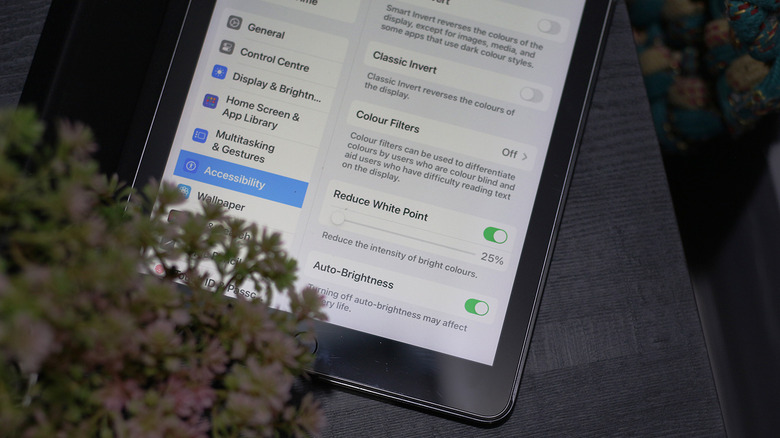
The most effective tool for this is the Reduce White Point feature. Unlike the standard brightness slider, which controls the overall backlight intensity, this setting specifically targets the intensity of bright colors and whites on the display. By toggling this on, you can decrease the brightness beyond the standard minimum control to help mitigate glare and eye fatigue in dim environments. This is a game-changer for anyone looking for the best iPad display settings for long reading sessions.
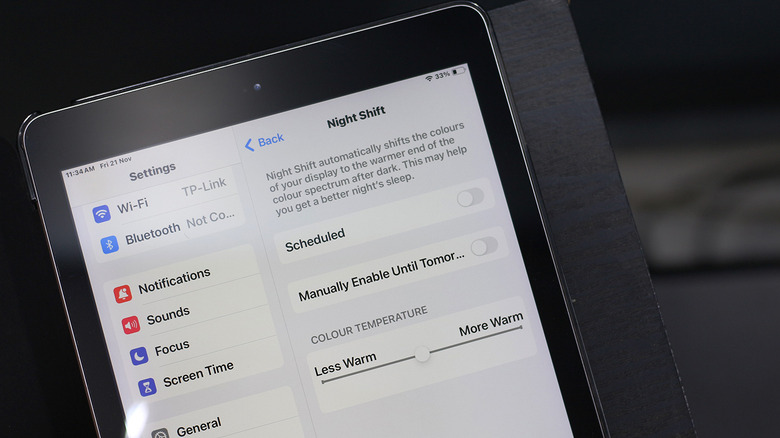
Beyond white point adjustment, your iPad features two critical technologies: True Tone and Night Shift. True Tone uses advanced multichannel sensors to adjust the color and intensity of your display to match the ambient light, making images appear more natural. Night Shift, on the other hand, shifts the colors of your display to the warmer end of the spectrum. This helps with blue light reduction, which is essential because blue light emission can interfere with your circadian rhythm and make it harder to fall asleep after reading.
How to optimize your display for reading:
- Navigate to Settings > Accessibility > Display & Text Size.
- Scroll down and toggle on Reduce White Point. Use the percentage slider to find a level that feels comfortable—I usually recommend 80% for pitch-black rooms.
- Go to Settings > Display & Brightness and ensure True Tone is enabled.
- In the same menu, tap Night Shift and schedule it from sunset to sunrise to ensure consistent blue light reduction.
For readers with extreme light sensitivity, you might also explore Smart Invert. Unlike a standard dark mode, Smart Invert reverses the colors of the display except for images and media, which can provide a high-contrast, low-glare experience that mirrors some legacy e-reader functionalities.
2. Customize the Apple Books Environment
While hardware settings provide the foundation, the actual reading application is where you fine-tune the visual ergonomics of your text. Apple Books customization has come a long way, offering typography adjustments that can rival dedicated e-ink devices.
The goal here is to find a balance between legibility and comfort. When you are deep into an EPUB format book, the default white background can be taxing. Within any open book, tap the Themes & Settings icon (the button with the "Aa" symbol) to open the customization menu.
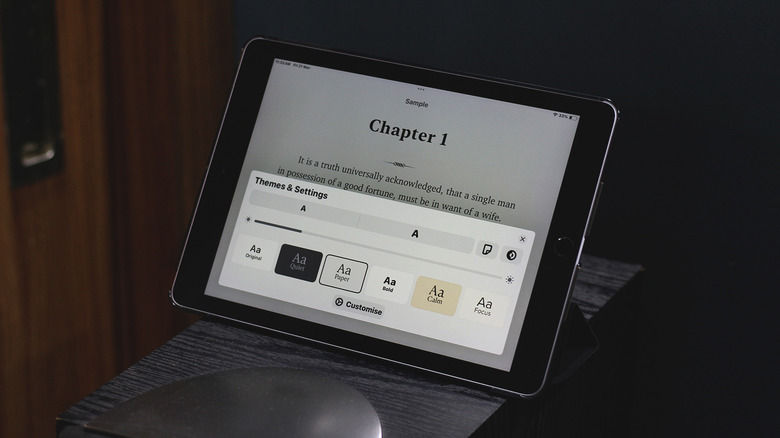
I highly recommend switching the background theme to Sepia during the day. It provides a warm, paper-like hue that reduces the harshness of a pure white screen. For nighttime reading, the Dark or Gray themes are superior as they minimize the total light output of the device.
Steps for customizing Apple Books font and theme settings:
- Open any book in the Books app.
- Tap the Menu icon in the bottom right corner and select Themes & Settings.
- Choose a font like Iowan or Athelas—these serif fonts are specifically designed for long-form reading and help the eye track lines more easily.
- Adjust the Font Size until you can read comfortably without squinting.
- Tap Options to adjust Line Spacing and Character Spacing. Increasing the line spacing slightly can significantly reduce eye strain iPad users experience when text is too cramped.
Another hidden gem is the Bold Text toggle. If you find yourself struggling with thin, modern fonts, enabling bold text in the Books settings or the global iPadOS accessibility menu makes characters pop, which is particularly helpful when reading in low-light conditions.
3. Automate Your Experience with Reading Focus
One of the biggest hurdles to a good reading session is the constant influx of notifications. An iPad is a multipurpose tool, but for reading, you need it to act like a single-purpose device. This is where creating a dedicated reading focus on iPad becomes essential.
An iPad Reading Focus mode allows you to create a distraction-free environment by silencing specific apps and contacts. More importantly, it can change how your iPad behaves the moment you start reading. For instance, you can set a Focus Filter to hide your work email inbox or your social media notifications specifically when this mode is active.
How to set up your Reading Focus:
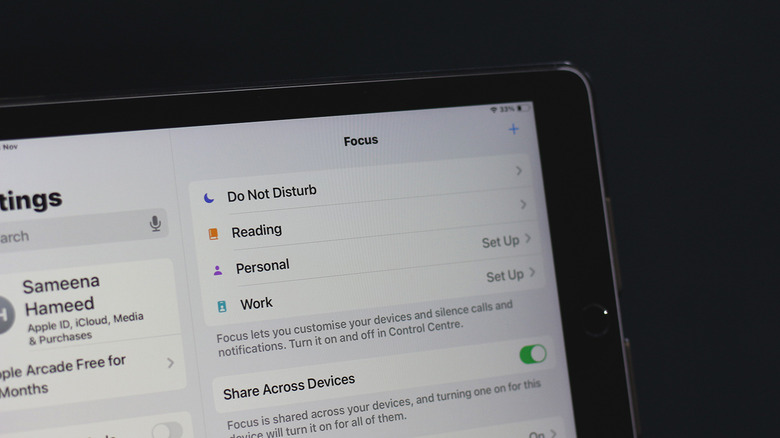
- Go to Settings > Focus.
- Tap the + icon and select Reading.
- Under Allow Notifications, choose to allow only your most essential contacts (or none at all).
- Select Set a Schedule and tap App. Choose your reading apps like Books, Kindle, or Libby. Now, whenever you open these apps, your iPad will automatically silence the world.
- Within the Focus settings, you can also customize your Home Screen to show only a single page containing your reading apps, further reducing the urge to hop into Instagram or Safari.
This level of notification management ensures that your focus remains on the narrative rather than the latest news alert. By automating this process, you eliminate the friction of manually turning on "Do Not Disturb" every time you want to finish a chapter.
4. Beyond Software: Ergonomics for Readers
Even with the most perfect iPad reading settings, your physical posture and habits play a massive role in your overall comfort. Digital eye strain isn't just about the light hitting your retinas; it is also about how your eye muscles and neck are positioned.
I always advocate for the 20-20-20 rule. For every 20 minutes of reading, look at something 20 feet away for at least 20 seconds. This simple habit allows the ciliary muscles in your eyes to relax, preventing the "locking" sensation that often follows hours of close-up work.

Visual ergonomics also dictate that you should keep your iPad at a distance of 20 to 28 inches from your eyes. Holding the device too close forces your eyes to converge more intensely, leading to fatigue. Furthermore, the angle of the device matters. To prevent neck strain, position the iPad at a 15-20 degree downward angle from your eye level.
Tips for a better physical setup:
- Use a Stand: Instead of holding the iPad, use a cover or a dedicated stand to maintain a consistent viewing angle.
- Check Ambient Lighting: Ensure your room is well-lit, but avoid having a bright lamp directly behind you, as this can create a reflection on the screen.
- Blink Often: We tend to blink less when looking at screens, which dries out the eyes. Make a conscious effort to blink to keep your eyes lubricated.
By combining these physical habits with your new iPad reading settings, you create a holistic environment that supports both your enjoyment of the book and your long-term health. Using iPad reduce white point for nighttime reading is only half the battle; the other half is making sure you aren't hunching over your device in the dark.
FAQ
How can I reduce eye strain while reading on an iPad?
To reduce eye strain, you should enable True Tone and Night Shift to manage color temperature and blue light. Additionally, go to Accessibility settings to enable Reduce White Point, which dims the screen intensity beyond standard levels. Following the 20-20-20 rule and maintaining a proper reading distance of 20-28 inches also helps significantly.
How do I turn on reading mode on my iPad?
The iPad does not have a single "Reading Mode" button, but you can create one using Focus. Go to Settings > Focus and add a Reading profile. You can set this to activate automatically when you open apps like Apple Books or Kindle, effectively creating a dedicated reading environment that silences notifications and hides distractions.
How do I use Focus mode for reading on iPad?
Open Settings and tap Focus, then select the Reading option. From here, you can choose which people and apps are allowed to notify you. Use the Add Schedule or Automation feature to link the Focus mode to your reading apps. This ensures that as soon as you start a book, your iPad enters a distraction-free state.
How do I make my iPad screen look like paper for reading?
To simulate a paper-like or e-ink display for eyes, go to the Apple Books app and change the theme to Sepia or Gray. In your global iPad settings, enable True Tone to match ambient lighting and use Reduce White Point to take away the digital "glow" of the screen. Using a matte screen protector can also help mimic the texture and non-reflective quality of paper.
What are the best iPad settings for reading at night?
The best nighttime settings include enabling Night Shift to its warmest setting and turning on Reduce White Point to significantly lower the screen's light output. Inside your reading app, switch to a Dark theme (white text on a black background) to minimize blue light exposure and prevent interference with your sleep cycle.