Quick Facts
- Market Reach: Amazon has sold more than 250 million Fire TV devices globally as of late 2024.
- Usage Statistics: Approximately 36% of connected TV users in the United States access their favorite content through the Fire TV platform.
- Compatibility Requirement: Successful streaming on non-TV displays depends heavily on High-bandwidth Digital Content Protection (HDCP) support to prevent handshake errors.
- App Ecosystem: The platform provides access to over 81,000 apps and supports cloud gaming via Amazon Luna and Xbox Cloud Gaming.
- Power Needs: Most sticks require a 1A power source; however, the 2026 Fire TV Stick HD supports direct power from USB port via USB-C.
- Audio Workaround: Since many monitors lack speakers, using an HDMI audio extractor or Bluetooth audio syncing is often necessary for sound.
Discover how to ensure Fire Stick compatibility with non-TV displays. Whether you are planning on using Fire Stick on computer monitor setups or a backyard projector, we cover the essential HDCP 2.2 and power requirements to get you streaming without a standard television.
Compatibility Checklist
| Component | Requirement | Why it Matters |
|---|---|---|
| Port Type | HDMI Input | Necessary to receive the video signal from the stick. |
| DRM Standard | HDCP 2.2 compatibility | Required for 4K streaming; older screens may limit resolution. |
| Power Source | 5V / 1A (Minimum) | Prevents the device from boot-looping or crashing. |
| Audio Output | 3.5mm, Optical, or Bluetooth | Monitors and projectors often lack high-quality built-in speakers. |
| Network | 802.11ax wireless standard | Recommended for buffer-free 4K and cloud gaming. |
Streaming on Computer Monitors: Solving the HDCP & Power Gap
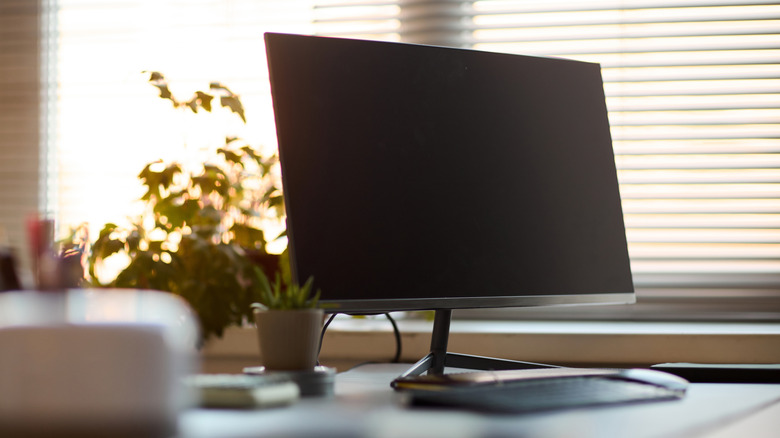
Many of us have an extra computer monitor sitting in a home office that would make a perfect secondary screen for catching up on shows. Using a Fire Stick on computer monitor hardware is entirely possible, but there are two common friction points: Digital Rights Management (DRM) and power delivery.
Most modern displays feature the necessary HDMI ports, but to stream 4K content, the monitor must support HDCP 2.2 compatibility. If your monitor is an older model, you might encounter a Fire Stick HDCP 2.2 error on non-TV screens, which results in a black screen or a message stating the content cannot be displayed. In these cases, the stick may default to 1080p, or you may need an HDCP-compliant splitter to fix the signal handshake.
Power is the second hurdle. While it is tempting to plug the USB cable into the monitor’s built-in USB port, many older displays do not provide enough amperage. This leads to a low-power warning or constant restarting. However, the Fire TV Stick HD 2026 direct power from USB port feature simplifies this by utilizing USB-C power delivery, allowing for a much cleaner look without a bulky wall adapter. When setting up your desk, keep input lag performance in mind if you plan to use the device for cloud gaming, and ensure you are not accidentally plugging into an HDMI output port meant for a second monitor.
Elevating Your Projector Setup: Bypassing Weak Native Apps
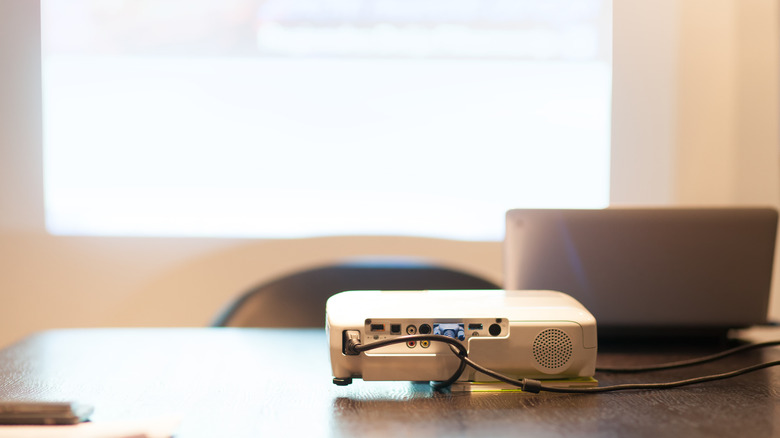
Portable projectors are a favorite for movie nights, but their internal software is often slow and lacks support for major streaming licenses. This is where Fire Stick compatibility becomes a game-changer. By plugging the stick directly into the projector’s HDMI input, you gain access to the fast Vega OS interface and a much wider library of apps.
For a successful outdoor cinema setup, the strength of your wireless connection is critical. Using a stick that supports the 802.11ax wireless standard (Wi-Fi 6 or 6E) ensures that you can stream high-bitrate content even if the projector is a significant distance from your router. If you are researching how to connect Fire Stick to projector without TV units, check the physical clearance around the HDMI port. Some projectors have recessed ports that require the small HDMI extender cable included in the Fire Stick box to fit properly.
If you are looking for the best Fire Stick for portable projectors 2026 has to offer, focus on models that balance low power consumption with high wireless range. These devices turn a simple "dumb" projector into a fully connected home theater in seconds.
The Xbox One Passthrough: A Hidden HDMI Hub
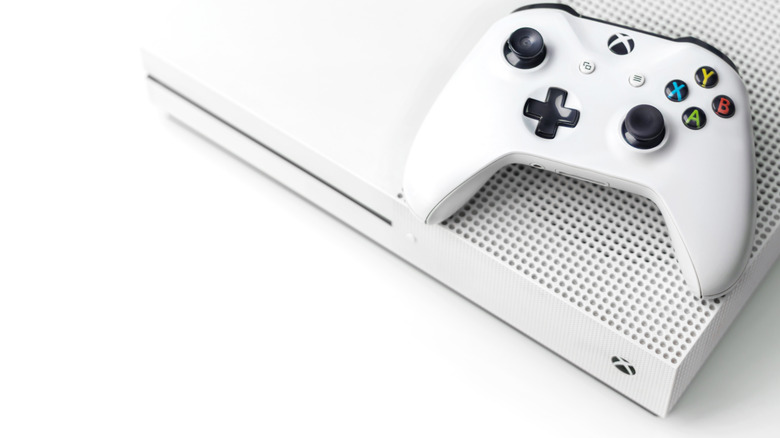
If you have a gaming setup with limited ports, you can actually use your console as a bridge. The Xbox One series is unique because it features an HDMI input port designed for cable boxes. You can use this for using Xbox One as HDMI pass through for Fire Stick streaming.
To set this up, plug your Fire Stick into the HDMI In port on the back of the Xbox. Open the OneGuide app on the console dashboard, and your Fire TV interface will appear within the Xbox environment. This is a brilliant workaround for legacy displays or monitors that only have one available port. It also allows you to stay connected to Xbox Live chats or notifications while watching a movie.
This method also supports basic HDMI-CEC functionality, meaning you might be able to control some aspects of the playback using your console controller. It is a highly efficient way to manage cable routing efficiency in a cramped gaming setup.
Solving the 'Silent Screen' Issue: Audio Extractors & Soundbars
The biggest shock for users moving from a TV to a monitor is the lack of sound. Most professional monitors do not have speakers, and projector speakers are notoriously thin and quiet. To fix this, you have two primary hardware paths.
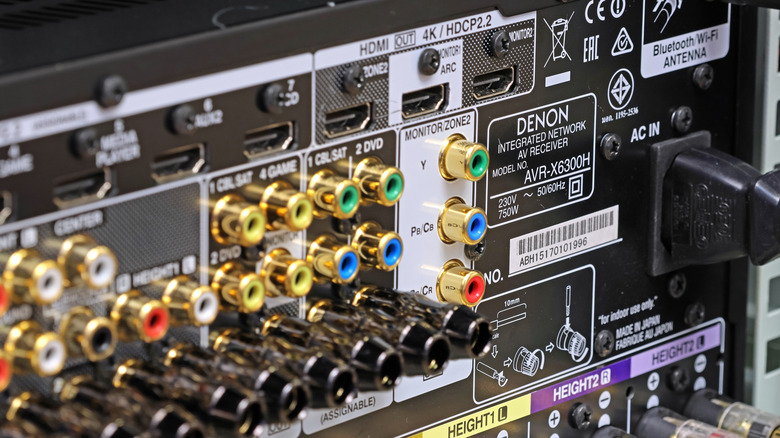
The most professional route is connecting Fire Stick to soundbar HDMI input directly. If your soundbar has an HDMI In and an HDMI Out (ARC/eARC), plug the Fire Stick into the input. The soundbar will strip the audio signal to play through its high-quality drivers and pass the video signal through to your monitor or projector. This ensures the best possible home theater calibration and supports high-end formats like Dolby Atmos.
If you are using computer speakers or headphones, you will need an audio extractor. This small box sits between the Fire Stick and the display, splitting the HDMI signal into a video cable for the screen and an optical or 3.5mm jack for your audio gear. Alternatively, the Fire TV menu offers Bluetooth audio syncing, allowing you to pair your favorite wireless headphones or a portable speaker directly to the stick, which is perfect for private late-night viewing.
FAQ
Will a Fire Stick work with a computer monitor?
Yes, as long as the monitor has an HDMI input port. You must also ensure the monitor is compatible with HDCP standards for protected content, and you will likely need an external speaker or Bluetooth headphones since many monitors lack built-in audio.
Can I use a Fire Stick with a projector?
Absolutely. Most modern projectors feature at least one HDMI port. Using an external streaming stick is often preferred over a projector’s built-in software because it offers better app support, faster performance, and more frequent security updates.
Does a Fire Stick work on any TV with an HDMI port?
Generally, yes. However, very old digital TVs from the mid-2000s may lack the proper HDCP signal handshake required to authorize the video stream. If the TV is 1080p or 4K and has a standard HDMI port, it will almost certainly work.
Can I connect a Fire Stick to a TV using a VGA port adapter?
It is possible, but it is not a plug-and-play experience. You would need a powered HDMI to VGA converter that can handle the HDCP handshake. Because VGA is an analog signal and Fire Sticks are digital, the quality may be lower, and you will need a separate cable to handle the audio.
Is Fire Stick compatible with 5GHz Wi-Fi networks?
Yes, all modern versions of the Fire Stick are compatible with 5GHz Wi-Fi networks. In fact, using the 5GHz band or the newer 6GHz band on Wi-Fi 6E models is highly recommended to reduce interference and provide the bandwidth necessary for 4K Ultra HD streaming.