Quick Facts
- Maximum Speed: Gigabit Ethernet delivers 100–120 MB/s real-world transfer rates, significantly outpacing most standard Wi-Fi setups.
- Latency Advantage: Wired connections offer latency as low as 1ms to 5ms, which is essential for professional-grade gaming and real-time data sync.
- Cable Standard: Cat6 cabling is recommended for optimal 2026 performance to ensure high bandwidth and minimal crosstalk.
- Power Delivery: Power over Ethernet technology allows a single cable to transmit up to 30W of electrical power to compatible hardware.
- No Router Needed: Modern auto-MDI/X ports allow for direct PC-to-PC links without the need for a crossover cable or a central router.
While most people see an RJ45 port as just a way to get online, the versatility of ethernet port uses extends far beyond the web. From lightning-fast data migration to zero-lag gaming, these wired connections offer stability and speed that Wi-Fi simply can't match.
1. High-Speed P2P File Transfer
One of the most underutilized ethernet port uses is the ability to move massive amounts of data directly between two machines. Whether you are migrating to a new workstation or sharing a 100GB 4K video project with a colleague, bypassing your home router can save hours. When you use a standard local network, your data must travel to the router and then back to the second PC, often getting throttled by other household traffic or wireless interference.
A direct ethernet file transfer creates a private, high-speed highway. Most modern computers feature auto-MDI/X technology, meaning they can detect the connection and automatically configure the hardware to talk to each other without needing a specialized crossover cable. To get this working, you simply need a high-quality Cat6 cable and a few minutes in your network settings.
To establish this P2P networking link, you must manually assign a static IP address to each machine. For example, set the first PC to 192.168.1.101 and the second to 192.168.1.102. Ensure the Subnet mask is set to 255.255.255.0 on both. This tells the computers they are on the same private island, allowing for a direct data migration stream.
Pro-Tip: When performing a large data migration, ensure your drives are using the NTFS file system. This allows for individual files larger than 4GB, preventing the transfer from failing halfway through due to legacy file system limits.

This method ensures you are achieving the maximum throughput of your Network Interface Card. If both PCs have Gigabit ports, you can expect real-world speeds of roughly 110 MB/s. This is an ideal way to handle how to transfer large files between two computers using ethernet when an external hard drive is unavailable or too slow.
2. Dedicated Links for NAS and Peripherals
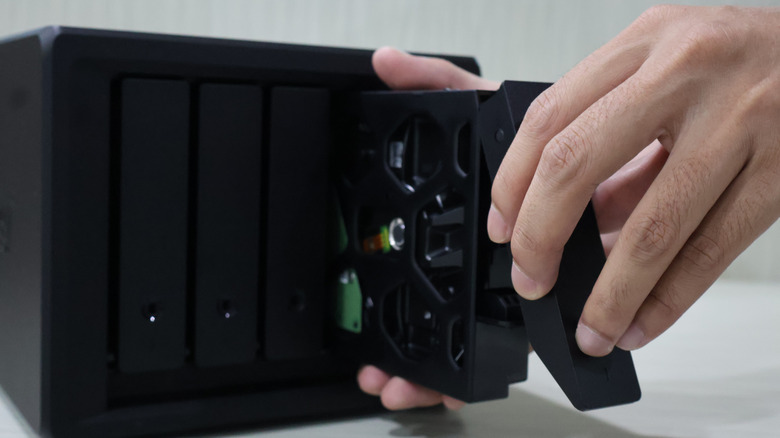
For creative professionals and heavy data users, a Network Attached Storage device is a staple. While many NAS units connect to a router, setting up a direct ethernet connection between pc and nas can drastically improve performance for video editing or large-scale backups. By using a secondary ethernet port on your PC (or a USB-to-Ethernet adapter), you can create a dedicated pipeline for your storage that doesn't compete with your internet traffic.
This direct ethernet connection uses the full bandwidth of the cable to ensure that reading and writing files to your storage array feels as fast as an internal drive. This is particularly useful in environments where the primary network is congested or when the router is located in another room.
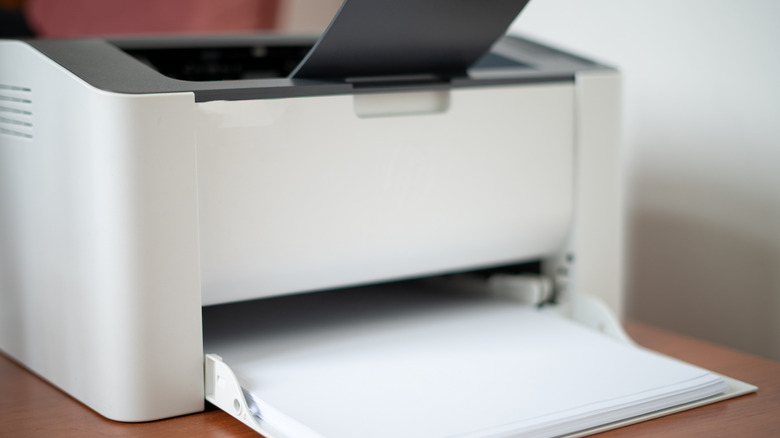
The versatility of the port also extends to legacy hardware. Many older office-grade printers lack wireless capabilities but feature a robust RJ45 port. You can connect old printer to pc via ethernet port directly. This bypasses the need for a complex network setup and provides a more reliable connection than older USB standards. Once connected, you simply go to your network discovery settings, and your PC should be able to communicate with the hardware as if it were on a standard office network.
3. Creating a Low-Latency LAN Gaming Setup
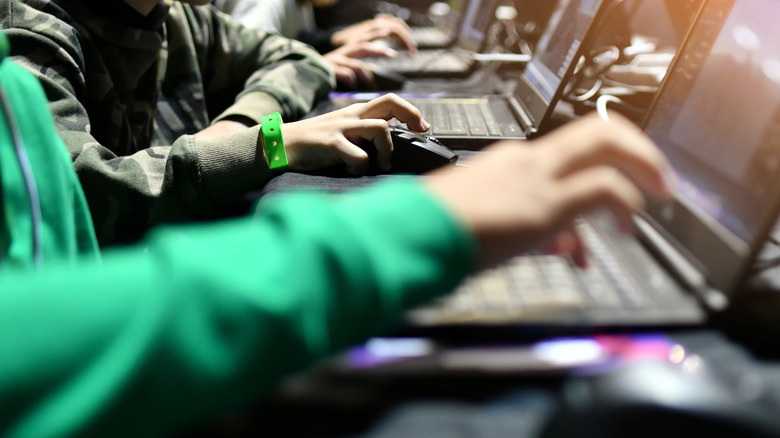
In the world of competitive gaming, every millisecond counts. While Wi-Fi 6 and 7 have made great strides, they still suffer from jitter and packet loss caused by physical obstructions and signal interference from other devices. For the ultimate competitive edge, creating a dedicated lan for lag free local gaming is the gold standard.
Ethernet connections provide a significant performance advantage for competitive gaming by delivering latency as low as 1 to 5 milliseconds, compared to the 10 to 50 milliseconds typically seen with Wi-Fi. By plugging into a local network switch or directly into another PC, you eliminate the "hop" to a wireless access point, ensuring a rock-solid connection.
| Connection Type | Typical Latency | Stability | Real-world Speed |
|---|---|---|---|
| Wi-Fi 6 (5GHz) | 10–50ms | Variable | 200–600 Mbps |
| Ethernet (Cat6) | 1–5ms | Rock Solid | 940–1000 Mbps |
| Powerline Adapter | 15–30ms | Depends on Wiring | 50–200 Mbps |
When you use a lan gaming setup, you are effectively creating a private Local Area Network. This is perfect for "LAN parties" where multiple players are in the same room. Not only does this reduce ping spikes, but it also ensures that the local multiplayer traffic doesn't clog up the household internet connection. If you are playing a game that supports local hosting, the game data never even needs to leave the room, resulting in an experience that feels instantaneous.
4. Internet Connection Sharing (ICS)
There are times when you might find yourself in a situation where one device has internet access (like a laptop connected to a hotel Wi-Fi) but another device (like a desktop PC or an older game console) does not. In these scenarios, the ethernet port becomes a bridge through a feature called Internet Connection Sharing.
Knowing how to share internet from pc to pc via ethernet cable is a vital troubleshooting skill. By connecting the two devices with an ethernet cable, you can go into the Network and Sharing Center on the host PC and allow other network users to connect through its internet connection. The host PC acts as a mini-router, passing its Wi-Fi signal through its ethernet port to the second device.
This is highly effective for updating firmware on legacy consoles or setting up a workstation in a temporary office. It uses the RJ45 connector to turn your laptop into a mobile hotspot, providing a stable wired connection to devices that might have broken or non-existent wireless cards.
5. Powering Devices via PoE and Expansion
The final frontier of modern ethernet port uses involves more than just data; it involves electricity. Power over Ethernet (PoE) technology allows a single cable to transmit both electrical power and data to devices like IP security cameras and smart home hubs, supporting a global market valued at $1.62 billion in 2024.
While most standard PC motherboards do not output PoE directly, you can use a PoE injector or a PoE-compatible network switch to power devices through your ethernet port. This is an elegant solution for home security setups. Instead of running a power cable and a data cable to an outdoor camera, you run a single line of Cat6 cabling. The ethernet port on your PC or switch manages the data stream, while the power is carried over the unused wires within the cable.
Additionally, for those living in large homes where Wi-Fi won't reach the basement or the garage, connecting ethernet port to powerline adapter for better range is a smart move. Powerline adapters use your home’s existing electrical wiring to carry network signals. By plugging your PC into a powerline adapter via its ethernet port, you can extend your network up to 300 meters without drilling holes or running long cables through hallways.
FAQ
What are the main uses of an Ethernet port?
The primary use of an Ethernet port is to provide a wired connection to a local area network or the internet. However, it is also frequently used for direct PC-to-PC file sharing, connecting to Network Attached Storage, providing power to devices via PoE, and bridging internet connections between devices.
Can Ethernet ports be used for data transfer between computers?
Yes, Ethernet ports are highly effective for direct data transfer. By connecting two computers with a Cat6 cable and configuring static IP addresses, you can achieve transfer speeds significantly higher and more stable than those provided by Wi-Fi or standard USB drives.
Is gaming better with an Ethernet connection?
Absolutely. For competitive gaming, Ethernet is superior because it offers much lower latency and eliminates the jitter and signal interference common with wireless connections. A wired link ensures a consistent 1ms to 5ms ping, which is vital for fast-paced titles.
What devices can be connected to an Ethernet port?
Beyond routers and modems, you can connect PC workstations, laptops, NAS units, printers, IP security cameras, smart home hubs, and game consoles. With the right adapters, you can even connect some smart appliances and industrial equipment for localized control.
How do I use an Ethernet port on a laptop without one?
If your laptop is too thin for a traditional RJ45 port, you can use a USB-A or USB-C to Ethernet adapter. These adapters are plug-and-play and allow you to access all the high-speed benefits of a wired connection through your existing USB ports.