Quick Facts
- Average PC Lifespan: Most personal computers now have an average usage period for a personal computer is approximately 7.7 years, proving that hardware longevity is higher than most realize.
- Environmental Impact: Extending the life of your device is the greenest choice, as 95% of a computer's total carbon footprint is generated during the manufacturing phase.
- Replacement Cycles: While users keep PCs for nearly 8 years, the average enterprise replacement cycle is 3.7 years for laptops and 4.6 years for desktops, often due to software bloat rather than hardware failure.
- Top First-Party Tool: Microsoft PC Manager is the safest starting point for official system RAM optimization and cleanup.
- Best for Search: Everything by Voidtools eliminates the CPU-heavy Windows Search Indexing for instant results.
- Best for Deep Cleaning: Bulk Crap Uninstaller targets residual files and orphaned registry entries that standard uninstallers miss.
- Ultimate Customization: The Chris Titus Tech Windows Utility allows for deep Windows telemetry removal via a single PowerShell command.
Why buy a new PC when software optimization can breathe life into your current hardware? Most system decay is caused by background bloatware and inefficient native services. By using the right free system maintenance utilities, you can significantly speed up an old Windows PC. From Microsoft's official PC Manager to deep debloaters, these five Windows optimization tools are designed to reclaim your CPU and RAM resources without costing a dime.
The Myth of the "Obsolete" PC
In my years as a computing editor, I have seen countless users shell out over a thousand dollars for a new laptop simply because their current machine felt sluggish. They assume the processor has "tired out" or the RAM is insufficient for modern tasks. However, the data tells a different story. When we look at the environmental cost of tech, realizing that the vast majority of a device's carbon footprint happens before you even unbox it makes a strong case for repair and optimization.
The reality is that Windows tends to accumulate digital cruft. Background processes, telemetry services, and poorly optimized browsers are the real culprits behind that spinning blue circle. Before you browse for a new machine, you should look at how to speed up old Windows laptop without buying new hardware. By replacing heavy native Windows features with lightweight alternatives and stripping away unnecessary background tasks, a five-year-old machine can often feel as responsive as it did on day one.
1. Microsoft PC Manager: The Official First-Party Fix
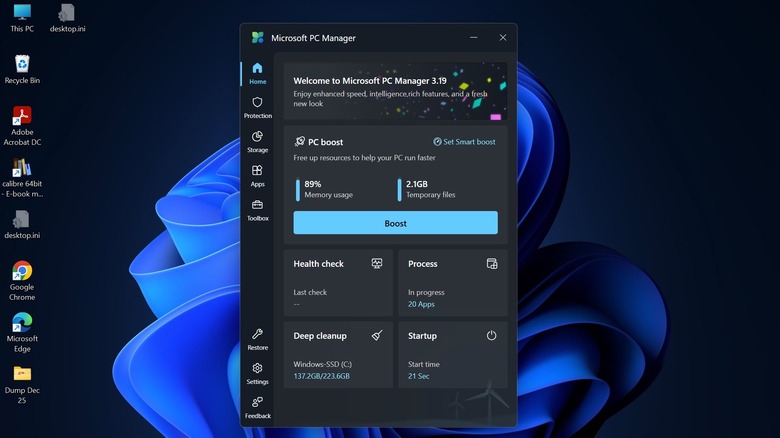
If you are hesitant about using third-party software to tinker with your operating system, Microsoft PC Manager is your best starting point. Developed by Microsoft, this tool provides a safe, curated environment to perform essential system maintenance. It serves as a centralized hub for tasks that are usually buried deep within the Windows Settings menu or Task Manager.
The primary benefit of using Microsoft PC Manager is its one-click boost feature. This function identifies non-essential background processes and temporary files that are hogging your memory. For those looking at using Microsoft PC Manager to improve Windows 11 performance, the app provides a clean interface to manage startup apps and perform a comprehensive health check. It doesn't do anything "radical" like deleting system files, which makes it the most stable option among Windows optimization tools for general users.
Beyond just cleaning, it offers a direct view of what is consuming your system resources. You can terminate high-impact processes without the intimidating interface of the standard Task Manager. It is particularly effective for System RAM optimization, as it can flush standby memory that Windows sometimes fails to release properly. For a free system maintenance utilities option that won't void your warranty or break your OS, this is the gold standard.
2. Everything: Instant Search Without CPU Drain
One of the most resource-heavy components of a Windows installation is the Windows Search Indexer. To provide "instant" search results, Windows constantly crawls your drive in the background, consuming CPU cycles and causing disk latency—especially on older mechanical hard drives. The irony is that even with all that work, the native search often fails to find the files you actually need.
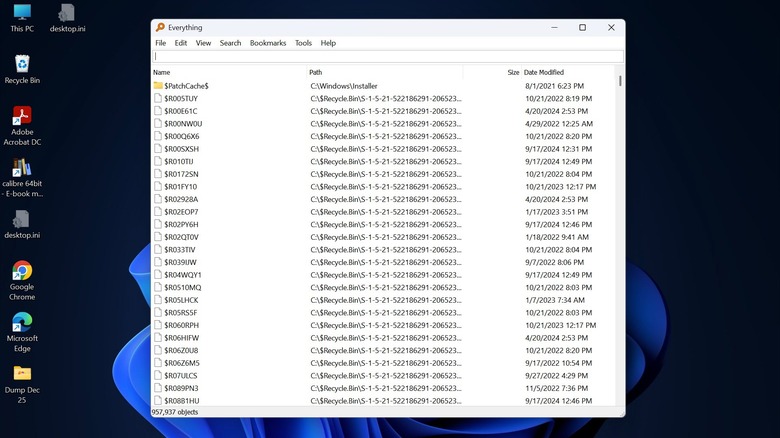
Everything by Voidtools is a game-changer for anyone looking for a fast file search alternative. Unlike the native search, Everything does not crawl your files. Instead, it reads the Master File Table directly. This allows it to index an entire drive with hundreds of thousands of files in just a few seconds. Because it doesn't need to stay active in the background to "watch" every file change with heavy indexing, it is an excellent way to save CPU resources.
When you use Everything, you can safely disable the Windows Search service entirely. This immediately reduces background activity, which is one of the most effective ways to speed up old Windows PC performance. The interface is simple, the memory footprint is negligible, and the search is truly instantaneous. For power users and professionals with deep folder structures, this tool is indispensable.
3. Chris Titus Tech Windows Utility: The Ultimate PowerShell Script
For those who want to go deeper than a simple cleanup, the Chris Titus Tech Windows Utility is perhaps the most powerful tool in a PC builder's arsenal. This isn't a traditional .exe program; it is a script that you run through PowerShell. It is designed for users who want to perform heavy Windows bloatware removal without manually hunting down every hidden setting.
To run it, you simply right-click your Start button, select Terminal (Admin) or PowerShell (Admin), and paste the following command:
irm 'https://christitus.com/win' | iex
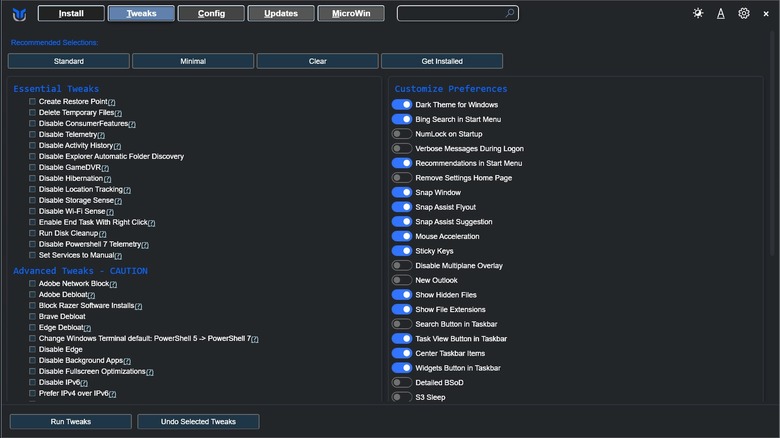
Once the GUI pops up, you are presented with a variety of "Tweaks." The "Desktop" preset is a lifesaver for older systems. It disables unnecessary services, stops the heavy-handed Windows telemetry removal process, and can even remove the Microsoft Edge browser if you prefer a lighter alternative.
This utility is one of the most effective Windows optimization tools because it allows you to set services to "Manual" rather than "Disabled," meaning they won't run in the background but will still work if a specific app needs them. It’s an open-source debloaters dream, providing a "set it and forget it" solution to how to remove Windows 11 bloatware safely with free utilities. By stripping away the tracking and background syncing that modern Windows versions insist on, you reclaim significant processing power for your actual apps.
4. Thorium Browser: Reclaim Your RAM
We spend most of our time in a web browser, but modern browsers like Google Chrome and Microsoft Edge have become incredibly heavy. They are designed for modern systems with 16GB or 32GB of RAM. If you are running an older laptop with 8GB or even 4GB, the browser is likely the single biggest bottleneck in your daily workflow.
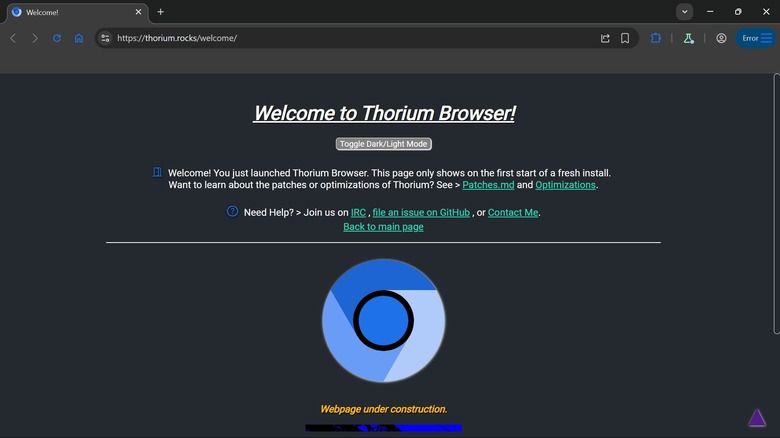
Enter Thorium. Thorium is a Chromium-based browser that is specifically compiler-optimized for the processor architecture you are actually using. While Google distributes a "one size fits all" version of Chrome, Thorium is built to squeeze every bit of performance out of the CPU. This makes it arguably the best lightweight Windows optimization software for low spec PCs because it speeds up the one application you use the most.
In my testing, Thorium feels noticeably snappier on legacy hardware compatibility tests. Pages load faster, and the browser is more responsive when multiple tabs are open. Because it is still Chromium-based, all your Chrome extensions and synced bookmarks will work perfectly. It is a rare example of getting more performance without sacrificing any features. If you are struggling with a speed up old Windows PC project, replacing your browser is often more effective than cleaning your hard drive.
5. Bulk Crap Uninstaller (BCU): Deep Cleaning for Residual Files
When you uninstall a program using the standard Windows "Add or Remove Programs" tool, it almost always leaves something behind. Whether it's folders in your AppData, orphaned registry entries, or scheduled tasks, this residual "crap" builds up over years, eventually slowing down your boot sequence and system responsiveness.
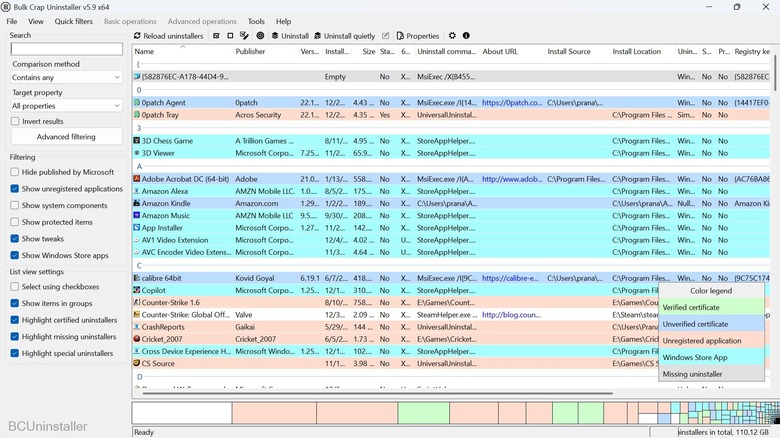
Bulk Crap Uninstaller (BCU) is a professional-grade tool that handles Windows bloatware removal with surgical precision. When you uninstall an app with BCU, it automatically scans for leftover files and registry keys after the official uninstaller finishes. It can even force-uninstall programs that have "broken" uninstallers or those stubborn Windows Store apps that the OS usually prevents you from removing.
One of the best features for those wondering how to fix slow windows boot times with free software is BCU’s ability to highlight startup impacts. It shows you exactly which programs are slowing down your login process and allows you to disable or remove them in bulk. It’s a powerful way to manage your boot sequence optimization and ensure that only the software you actually need is allowed to touch your system resources.
Comparison of Top Optimization Tools
| Tool | Primary Function | Best For |
|---|---|---|
| Microsoft PC Manager | Official Maintenance | Beginners and Windows 11 users |
| Everything | Instant File Search | Replacing heavy CPU indexing |
| Chris Titus Utility | Deep System Tweaks | Disabling telemetry and bloatware |
| Thorium Browser | High-Performance Browsing | Reclaiming RAM on low-spec PCs |
| BCU | Clean Uninstallation | Removing residual files and junk |
Safety First: Maintenance Best Practices for 2026
While these Windows optimization tools are incredibly effective, they must be used with a bit of professional caution. Before running any script or deep debloater, your first step should always be to create a system restore points entry. This ensures that if a specific tweak causes an issue with your hardware drivers or a specific piece of software, you can roll back the changes in minutes.
It is also vital to understand the difference between HDD vs SSD latency management. If you are still running an old mechanical hard drive, tools like Everything will provide a massive boost because they reduce disk thrashing. However, you should never "defragment" an SSD; modern Windows versions handle SSD maintenance automatically via the TRIM command. Over-optimizing an SSD can actually reduce its lifespan without providing any speed benefit.
Finally, remember that system maintenance utilities are most effective when used sparingly. You don't need to clean your registry every day. A monthly health check using Microsoft PC Manager and a periodic audit of your startup apps with BCU is usually enough to keep an old system running smoothly for years to come.
FAQ
Do Windows optimization tools actually improve performance?
Yes, they can significantly improve performance by reducing the number of background processes competing for CPU and RAM. On older systems, removing telemetry and switching to lightweight search and browsing tools can make the OS feel significantly more responsive. However, they cannot overcome physical hardware limitations like a failing drive or an ancient dual-core processor.
What is the best free Windows optimization tool?
For most users, Microsoft PC Manager is the best overall tool because it is safe, official, and easy to use. For power users looking to strip Windows down to its bare essentials, the Chris Titus Tech Windows Utility is the most comprehensive free solution available.
Is it safe to use third-party system optimizers?
It depends on the tool. Established open-source projects like Everything and Bulk Crap Uninstaller are highly respected and safe. You should generally avoid "Registry Cleaners" that promise magical speed boosts, as they can often delete essential system keys. Always stick to well-documented tools and create a restore point before making major changes.
How can I optimize Windows 11 for gaming?
The best way to optimize for gaming is to use the Chris Titus utility to disable background telemetry and unnecessary services that cause micro-stutters. Additionally, ensuring your "Game Mode" is on in Windows settings and using Bulk Crap Uninstaller to remove manufacturer-installed bloatware will free up resources for your GPU and CPU.
Do I really need a registry cleaner for Windows?
In modern versions of Windows, registry cleaners are largely unnecessary and can sometimes be harmful. The registry is a massive database, and removing a few hundred "unused" keys will not provide a measurable speed boost. Tools like BCU are better because they only target registry keys specifically linked to uninstalled programs.
How do I clean up my PC to make it run faster?
Start by using Microsoft PC Manager to clear temporary files and optimize RAM. Next, use Bulk Crap Uninstaller to remove any apps you no longer use. Finally, address the biggest resource hogs by using Everything for search and Thorium for web browsing. This combination addresses the three main pillars of system speed: disk usage, memory availability, and CPU load.
Conclusion
Building a faster PC doesn't always require a credit card. In an era where 95% of a computer's carbon footprint is tied to its production, extending the life of your current hardware is both economically and environmentally responsible. By leveraging official tools like Microsoft PC Manager for basic upkeep and powerful utilities like the Chris Titus script for deep debloating, you can bypass the "planned obsolescence" that often drives unnecessary upgrades.
Most users will find that after a thorough cleaning with Bulk Crap Uninstaller and a switch to a more efficient browser like Thorium, their "slow" PC is actually more than capable of handling modern workloads. Give these free tools a try before you head to the store—you might find that your best new PC is the one you already own.