Quick Facts
- OS Version: iPadOS 26.2 (Current Release)
- Market Status: Apple remains the tablet leader with a 38.6% market share as of 2024.
- Top Update: Improved Stage Manager with native tiling for up to 4 app windows.
- Files Capability: Native PDF merging and Mac-like column view for metadata.
- Adoption Rate: 81% of iPads introduced since 2021 have adopted the latest software frameworks, setting a high bar for 2026.
- Hardware Requirement: Best experienced on M-series silicon for full external display support and high-speed multitasking.
iPadOS 26 transforms the tablet experience with desktop-class iPad hidden features like the Files app's native PDF merging and a new system-wide 'Exposé' view for multitasking. These tools, combined with M-series silicon performance, allow the iPad to serve as a genuine laptop replacement for power users and creative professionals.
As a specialized editor who has tracked every iteration of the iPad since its inception, I have seen the device shift from a "giant iPhone" to a specialized creative tool, and now, to a formidable workstation. With the release of iPadOS 26.2 in early 2026, the gap between tablet and laptop has never been narrower. While many users stick to the basics of web browsing and media consumption, there is a suite of iPadOS 26 hidden productivity features that most people overlook. If you are looking to squeeze more value out of your device, these iPad hidden features are essential for modern workflows.
1. The New 'Windowed Apps' Paradigm
The era of struggling with fixed Split View layouts is largely over. In the latest update, Apple has doubled down on a windowed environment that feels much more natural for those coming from a macOS background. The core of this shift is an improved version of Stage Manager that allows for native tiling. Instead of the overlapping windows of the past that sometimes obscured critical data, you can now snap up to four app windows into a grid simultaneously.
For users who need to monitor a Slack channel, keep a research document open, and run a spreadsheet at the same time, this is a massive upgrade. You can find the new window controls at the top of every app—look for the traffic light buttons similar to those on a Mac (red, yellow, and green). Tapping the green button now offers a set of tiling presets, allowing you to quickly organize your workspace customization without manual dragging. This evolution in iPadOS multitasking tips makes the 13-inch iPad Pro feel significantly larger than its physical dimensions suggest.
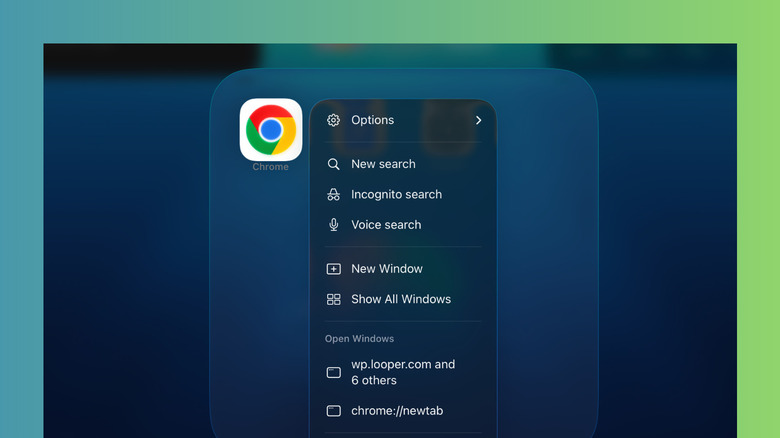
When you are deep in a project, you can use the App Switcher to jump between these tiled groups, treating each set of four apps as a dedicated workspace. This approach minimizes the mental friction of moving between tasks. If you are looking for multitasking tips for iPad Stage Manager, remember that you can now swipe down from the top edge to reveal a hidden menu bar, giving you instant access to window management controls without leaving your current app.
2. Desktop-Class File Workflows
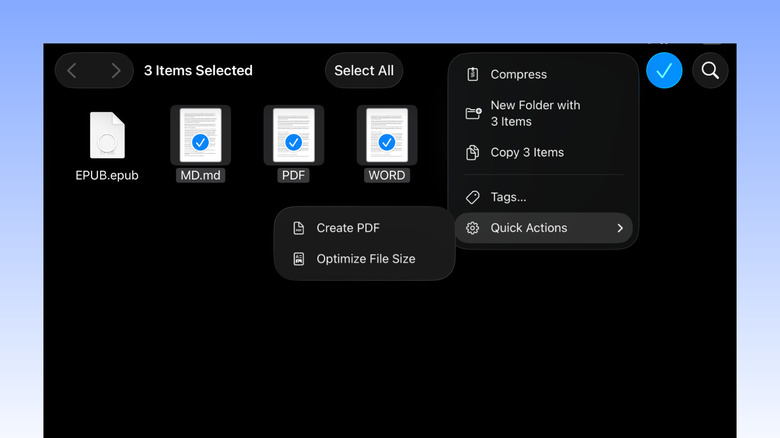
For years, the Files app was the Achilles' heel of the iPad experience. That has changed. In 2026, the app has gained several desktop-class capabilities that simplify iPad Files app workflows. One of the most requested features is finally here: native PDF merging. You no longer need third-party apps or complex Shortcuts to combine documents. Simply select multiple files—whether they are JPGs, PDFs, or even text files—long-press, and select Merge. The app instantly creates a single, high-quality PDF in the same directory.
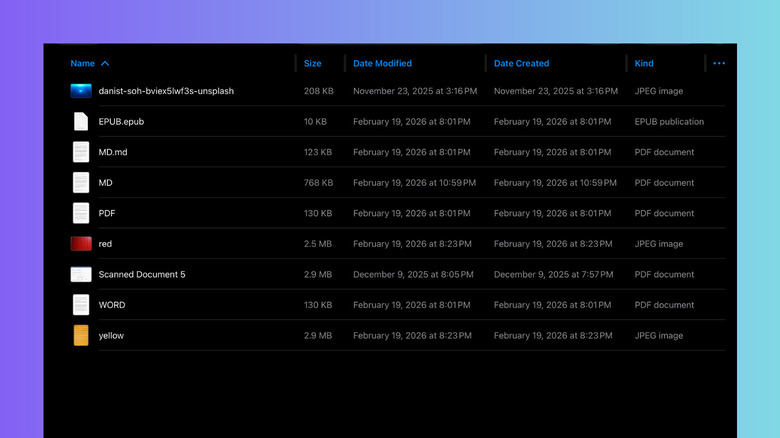
Beyond merging, the organization of data has seen a major overhaul. You can now enable a Mac-like column view that displays extensive metadata. This is a game-changer for photographers and designers who need to see file dimensions, color profiles, or creation dates at a glance. By utilizing iCloud Drive integration, these metadata tags sync across all your devices, ensuring that your file management remains consistent whether you are on your iPad or your MacBook.
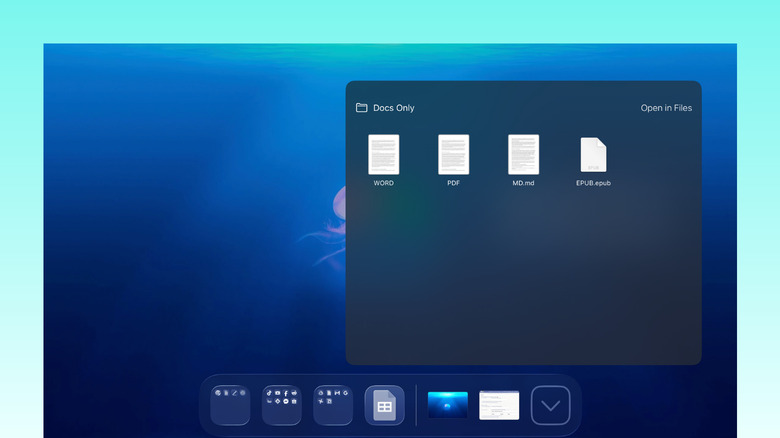
Another part of these iPad Files app productivity hacks is the ability to pin specific folders directly to the Dock. If you are working on a long-term project, you don't have to open the Files app and navigate through layers of directories. Just drag the folder to the right side of your Dock for instant, one-tap access.
3. Mastering the iPad Laptop Replacement Guide
To truly treat your iPad as a workstation, you must master the synergy between the hardware and the hidden software shortcuts. Many users are unaware that the iPad now supports a deep library of Keyboard shortcuts that mirror macOS. For instance, Command-M will now minimize your current window, and Command-Tab features an enhanced switcher that shows every open window, not just the most recently used apps.
The real power of a modern iPad laptop replacement guide lies in how you handle external displays. When connected to a monitor, the M-series silicon enables a true extended desktop. You can move windows between the tablet and the screen with trackpad precision, allowing for a dual-monitor setup that was once reserved for laptops. If you are wondering how to use iPad as a laptop replacement 2026, the answer is in the peripherals. Using a Magic Keyboard or a third-party mouse unlocks a hidden trackpad gesture: a three-finger swipe up and hold triggers the system-wide 'Exposé' view, showing every active app group across both screens.
4. Enhanced Gestures & Apple Pencil Integration
Navigation on the iPad is designed to be fluid, but many of the most powerful movements are hidden from the casual user. The Apple Pencil is no longer just for drawing; it is a precision navigation tool. One of my favorite Apple Pencil quick note gestures for iPadOS is the ability to launch a note directly from the lock screen. Simply tap the pencil on the display when the screen is off, and a fresh note appears instantly.
For those who use their tablet for heavy research, the Scribble functionality has been refined to include Live Text OCR. This means you can handwrite a note, and the system will automatically recognize the text, making it searchable within the Notes app or even across the entire OS via Spotlight. The new 'Exposé' swipe-up-and-hold gesture also works with touch; by swiping up from the bottom and pausing, you get a bird's-eye view of your entire workspace, which is far more efficient than scrolling through the standard app switcher.

5. Multi-Instance App Power
The final piece of the productivity puzzle is the ability to open multiple windows of the same app iPadOS. This is particularly useful for apps like Safari or Microsoft Word. Imagine having two different Word documents open side-by-side while a third window of Safari is tiled underneath them. This multi-instance capability is what allows the iPad to handle complex research and writing tasks that previously required a Mac.
To manage these instances, look for the hidden system menu bar. By swiping down from the very top of the screen while an app is active, you reveal a list of all open windows for that specific application. This makes it incredibly easy to jump between different browser tabs or document drafts. Furthermore, iPadOS now remembers orientation-specific layouts. If you have a specific four-window setup you use in landscape mode for "Work," the iPad will save that exact configuration even if you rotate the device or close the apps, allowing you to return to your flow state in seconds.
With Apple shipping approximately 57 million units in 2024, the developer ecosystem has responded by making these pro-level features more robust. Whether you are using Universal Control to move your cursor between an iPad and a Mac, or relying on the Drag and drop functionality to move assets between tiled windows, the iPad is no longer just a companion device. It is a powerhouse in its own right.
FAQ
What are the most useful hidden features on iPad?
One of the most useful hidden features is the ability to merge various file types into a single PDF directly within the Files app. Additionally, the new tiling system in Stage Manager allows you to lock up to four windows into a desktop-like grid, which is a massive boost for productivity compared to older multitasking methods.
How do I access the hidden gestures on my iPad?
Most hidden gestures involve the edges of the screen or the Apple Pencil. For instance, swiping from the bottom-right corner with your finger or pencil launches a Quick Note. Swiping up from the bottom and holding for a second triggers the 'Exposé' view, which lets you see all your active app groups at once.
What are some secret iPad keyboard shortcuts?
Beyond the standard copy and paste, Command-M is a powerful shortcut to minimize the current window, and Command-Space opens Spotlight for instant searching. If you use a hardware keyboard, holding down the Command key in any app will bring up a cheat sheet of all available shortcuts for that specific application.
How can I use Split View and Slide Over on iPad?
While Stage Manager is the new standard, you can still use Split View by dragging an app icon from the Dock onto the side of an open app. Slide Over is achieved by dragging an app into the center of the screen, where it will hover as a floating window. However, for the best experience in 2026, enabling Stage Manager in the Control Center is recommended for its superior window management.
How do I find hidden apps or files on an iPad?
The App Library, found by swiping all the way to the last page of your home screen, automatically categorizes every app installed on your device, including those hidden from your home screen. For files, the search bar within the Files app now supports advanced filters like file kind and size metadata, making it easy to locate buried documents.
How do I enable the hidden trackpad feature on the iPad keyboard?
If you are using the on-screen keyboard, you can turn it into a trackpad by holding two fingers down anywhere on the keys. The letters will disappear, and you can slide your fingers to move the cursor with precision. For hardware keyboard users, this is replaced by the physical trackpad, which supports multi-finger gestures for switching apps and opening the App Switcher.