Quick Facts
- Ad Removal: To stop intrusive marketing, navigate to the Terms & Privacy settings to disable Automatic Content Recognition (ACR) and interest-based ads.
- UI Speed: Disable the Auto Run Smart Hub feature and clear the app cache to reduce the system's main-thread processing load.
- Network Strategy: Setting your DNS to a filtering service like AdGuard (94.140.15.15) can block ads at the connection level before they reach the interface.
- Peak Brightness: Turn off all Eco Mode and Energy Saving settings, as these typically throttle brightness while saving less than $7 per year.
- Visual Fidelity: Disable Picture Clarity (formerly Auto Motion Plus) to eliminate the soap opera effect and restore the original 24fps cinematic look.
- Expert Tip: For the most responsive experience, use an external streaming device like an Apple TV 4K or Shield TV instead of the native Tizen OS apps.
To improve the responsiveness of your Samsung TV's home screen, complete initial firmware updates and then consider disconnecting the device from Wi-Fi. Using an external streaming device instead of the built-in Tizen OS apps prevents background ad-loading processes from slowing down the system interface and navigation. You can further optimize Samsung TV settings by disabling Automatic Content Recognition (ACR), turning off the 'Auto Run Smart Hub' feature, and setting your DNS to 94.140.15.15 to block ads.
Buying a premium television today often feels like a dual-purchase: you are paying for top-tier Mini-LED or OLED hardware, but you are also receiving a software package that treats your living room like a digital billboard. As a smart home editor, I have spent years integrating connected appliances, and I have seen how Samsung Tizen OS optimization has become increasingly difficult as the interface becomes more cluttered. Out of the box, a modern Samsung TV is designed to track what you watch and serve you tailored content through various sponsored rows.
The frustration is real. Research shows that approximately 36% of viewers rank television as the most disruptive environment for encountering advertisements, largely due to high ad loads and repetition. When your TV is busy fetching ad assets and tracking your viewing habits, it creates a perceptible lag in the user interface. By taking ten minutes to dive into the deeper menus, you can reclaim your privacy and significantly boost your system responsiveness.

1. Eliminate Intrusive Ads and Tracking (ACR)
The primary reason your home screen feels heavy is a technology called Automatic Content Recognition (ACR). ACR works by "fingerprinting" the pixels on your screen to identify exactly what you are watching—whether it is a Blu-ray, a video game, or a cable broadcast. This viewing data collection is then used to serve you interest-based ads. While Samsung uses this to power its free services, it adds significant background activity that can cause remote control input delay.
To disable this tracking and improve your Samsung TV ad removal efforts, you need to find the privacy hub. On most modern models, navigate to Settings > All Settings > General & Privacy > Terms & Privacy. Within this menu, look for "Privacy Notice." You should specifically uncheck "I agree to the Viewing Information Services" and "I agree to Interest-Based Advertisements."
By opting out, you are essentially telling the TV to stop taking screenshots of your content and sending them to a server for analysis. This simple change reduces the background data overhead and is the first step in a comprehensive Samsung TV interest based ads removal guide. You might see a warning that some "smart features" will be disabled, but in most cases, this simply means you will not receive "recommended" shows based on your history, which is a fair trade for a faster UI.
2. Advanced Ad-Blocking: The DNS Strategy
Even after you opt out of tracking, the Smart Hub interface may still try to pull banners for Samsung TV Plus. This service has grown massively, with Samsung TV Plus serving more than 100 million monthly active users globally as of early 2026. While free content is great, the ad-delivery system can cause the home bar to stutter during navigation.
The "nuclear option" for blocking ads without affecting your streaming apps is to change your DNS settings at the network level. This prevents the TV from reaching the specific servers that host ad content.
Expert Recommendation: Use AdGuard DNS
To block ads at the system level, change your DNS server to: 94.140.15.15
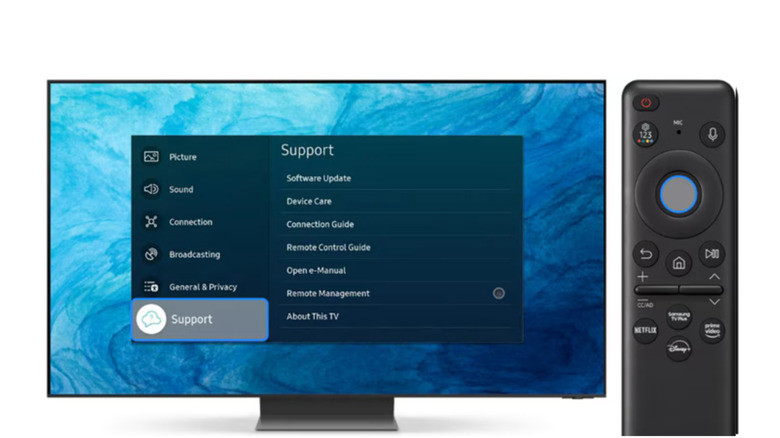
To implement this, go to Settings > All Settings > Connection > Network > Network Status. Once the check is complete, select IP Settings. Scroll down to DNS Setting and change it from "Get Automatically" to "Enter Manually." Type in the AdGuard IP address provided above. This third-party DNS filters out known ad domains before they ever reach your screen, resulting in a cleaner look for your Smart Hub and potentially faster app startup time because the system isn't waiting for ad assets to load.
3. Boost Tizen OS Fluidity and App Speed
If you have ever felt like your remote is "lagging," you are likely experiencing a delay in JavaScript execution on the Tizen OS main thread. Samsung’s interface is essentially a web-based overlay, and when it is cluttered with auto-playing videos and unused apps, the system responsiveness suffers.
One of the most effective Samsung TV settings for speed is to stop the Smart Hub from launching every time you turn on the TV. If you primarily use a game console or a cable box, you don't need the Smart Hub to pop up and block your view. Navigate to Settings > All Settings > General & Privacy > Start Screen Options and uncheck Auto Run Smart Hub. This ensures the TV boots directly to your last used input.
Additionally, take a moment to delete unused apps. Every pre-installed app that you don't use is still taking up storage space and occasionally checking for updates in the background. Go to the Apps section on the home screen, select the Settings icon (top right), and delete anything you don't use. This clears up the cache and reduces memory pressure, which is vital for maintaining user interface fluidity. If the system still feels sluggish, check for a firmware versioning update or consider updating Samsung TV software via USB for a cleaner installation.
4. Unlocking Peak Brightness: Kill Eco Mode
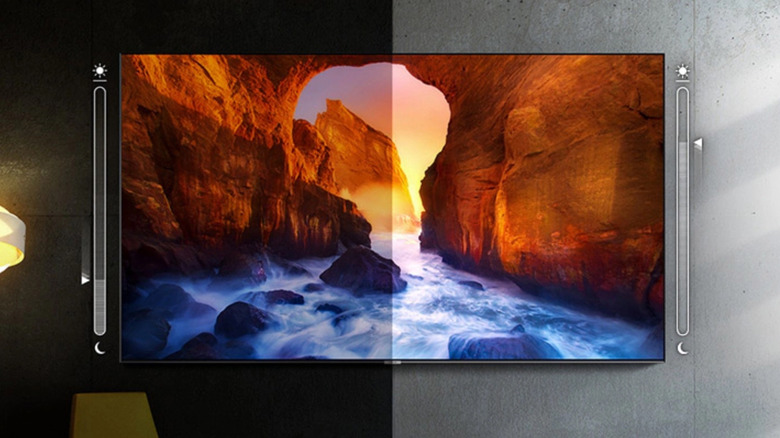
Samsung TVs are often shipped in "Eco" or "Energy Saving" modes to meet regulatory requirements. While these settings are well-intentioned, they often make the screen look dull and dim because they use an ambient light sensor to throttle the backlight. For a high-end display, this is like putting a speed limiter on a Ferrari.
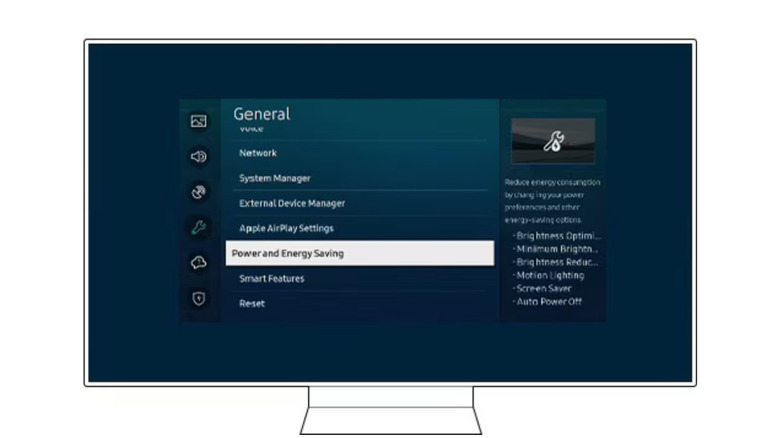
The energy savings from these features are negligible. In a typical household, disabling Eco Mode only adds about $7 per year to your electricity bill. In exchange, you get the full brightness and HDR impact you actually paid for. To fix this, navigate to Settings > All Settings > General & Privacy > Power and Energy Saving.
| Feature | Eco Mode ON | Eco Mode OFF |
|---|---|---|
| Brightness | Throttled / Dim | Peak Panel Performance |
| HDR Impact | Limited | Maximum Contrast |
| Color Accuracy | Often Warped | Consistent |
| Annual Cost | Lower (~$15/yr) | Standard (~$22/yr) |
Make sure to turn off Brightness Optimization, Minimum Brightness, and Energy Saving Solution. This is the most common answer for users wondering how to turn off Eco Mode on Samsung TV and why their screen feels too dark during the day.
5. Restoration of Cinematic Quality: Fix Motion Smoothing
Nothing ruins a high-budget film faster than the "soap opera effect." This is caused by motion smoothing (which Samsung calls Picture Clarity or Auto Motion Plus). It artificially inserts frames into the video to make the motion look "smoother," but it often results in weird visual artifacts and makes a movie look like a cheap home video.
To achieve true visual accuracy and cinematic quality, you should turn this off or at least customize it. Go to Settings > All Settings > Picture > Expert Settings > Picture Clarity Settings. You can set this to "Off" entirely, or if you prefer a tiny bit of smoothing without the soap opera effect, set it to "Custom" and keep the Blur Reduction and Judder Reduction sliders at 3 or lower.
For those who want the most "hands-off" accurate experience, look for Filmmaker Mode in the main picture settings. This mode automatically disables all unnecessary picture processing and sets the color temperature to a natural D65 white point, ensuring you see the film exactly as the director intended. This is the ultimate way to handle how to turn off motion smoothing on Samsung TV while keeping input latency low for gaming.
FAQ
How do I turn off motion smoothing on my Samsung TV?
To disable the soap opera effect, go to Settings > All Settings > Picture > Expert Settings > Picture Clarity Settings and set the feature to Off. Alternatively, switching your picture mode to Filmmaker Mode will automatically disable motion smoothing and most other artificial processing.
Why is my Samsung TV screen so dark and how do I fix it?
A dark screen is usually caused by active energy-saving features. Navigate to Settings > All Settings > General & Privacy > Power and Energy Saving and turn off Brightness Optimization. This prevents the TV from dimming the screen based on the light in your room.
Where is the settings menu located on a Samsung TV?
On most Samsung remotes, press the Home button and navigate all the way to the left to find the Settings (gear icon). On newer models, you can press the Settings/Number/Color button or the Quick Settings button to access the menu overlay immediately.
How do I access the expert picture settings on a Samsung TV?
Navigate to Settings > All Settings > Picture, then scroll down to find Expert Settings. This sub-menu contains advanced controls for white balance, gamma, local dimming, and color space settings.
How do I reset my Samsung TV to its factory settings?
If your UI is still laggy after optimization, go to Settings > All Settings > General & Privacy > Reset. You will be prompted for a PIN (the default is usually 0000). This will wipe all apps and return the software to its out-of-the-box state.