Quick Facts
- Hardware Requirement: You must use an Apple TV 4K (2nd generation) or later to support the Audio Return Channel feature.
- Cable Standard: An Ultra High Speed HDMI 2.1 cable is necessary to handle the high bandwidth required for uncompressed audio.
- Port Selection: The cable must be plugged into the specific HDMI port on your television labeled ARC or eARC.
- Software Sync: Both your Apple TV and your HomePods must be assigned to the same Room within the Apple Home App.
- Audio Support: This setup allows for Dolby Atmos on HomePod and Spatial Audio for all connected devices, including gaming consoles.
- Primary Benefit: It enables the Apple TV to act as a receiver, routing sound from a PlayStation 5, Xbox, or cable box to your HomePods wirelessly.
Experiencing issues with your HomePods and Apple TV? The secret often lies in your HDMI port configuration. By leveraging Apple TV eARC, you can turn your HomePods into the central audio hub for every device connected to your television, including game consoles. To enable this, connect a compatible Apple TV 4K to your TV's HDMI ARC or eARC port using an HDMI 2.1 cable. In Settings > Video and Audio > Audio Output, set HomePod as the default audio output and toggle Play Television Audio to On.
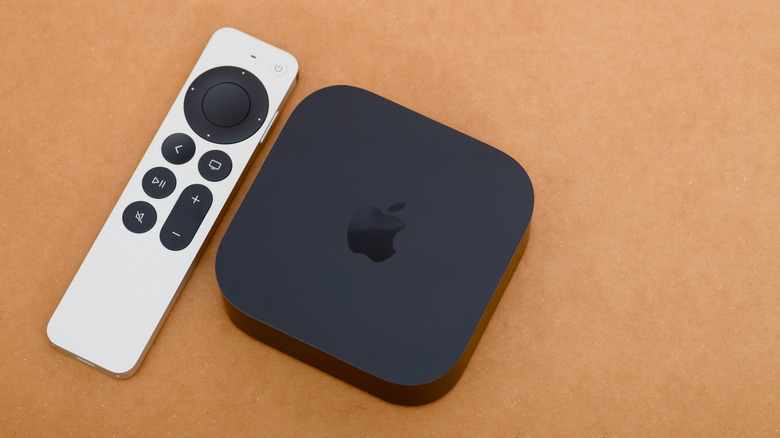
As a smart home editor, I often see users frustrated when their expensive HomePod stereo pair only works within the Apple TV interface. They switch to their PlayStation 5 or a Nintendo Switch, and suddenly the room goes quiet or reverts to the thin, tinny sound of built-in TV speakers. This happens because the system isn't utilizing the Enhanced Audio Return Channel. Setting up Apple TV eARC correctly is the bridge that transforms your smart speakers into a legitimate home theater system that serves every piece of hardware in your media cabinet.
The Hardware Check: HDMI 2.1 and Port Labeling
Before diving into the tvOS menus, we have to look at the physical foundation of your setup. Not all HDMI ports or cables are created equal, and this is where most troubleshooting begins and ends. The technology we are using is eARC, which stands for Enhanced Audio Return Channel. While the older ARC standard (v1.4) could handle basic compressed 5.1 surround sound, eARC (v2.1) provides significantly more bandwidth.
This extra bandwidth is critical because Apple TV uses a specific format called Digital Plus with Dolby Atmos or uncompressed LPCM via a container called MAT (Metadata-enhanced Audio Transmission). To move this much data from your TV back to the Apple TV and then wirelessly to your speakers without lag, you need the right pipe. This is why hdmi 2.1 cable requirements for apple tv earc are so strict. You should specifically look for a cable certified as Ultra High Speed HDMI. These cables support up to 48Gbps, ensuring that high-fidelity signals don't drop out.
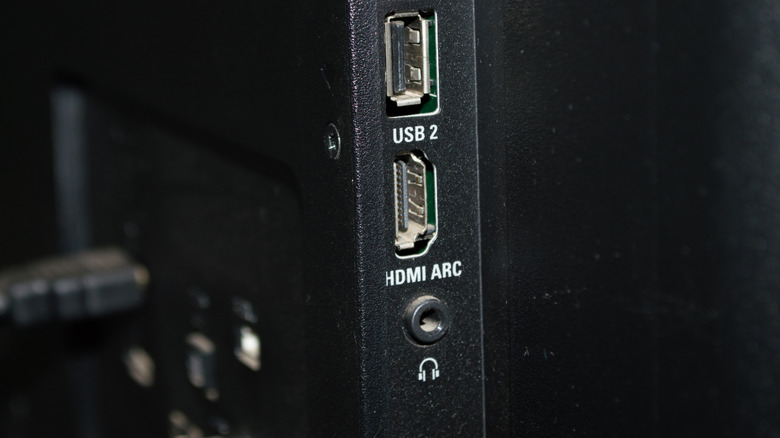
Physical port labeling is the next hurdle. Look at the back or side of your television. You will notice that one, and usually only one, of the HDMI inputs is specifically marked with the letters ARC or eARC. Even if your TV has four HDMI 2.1 ports, the audio return functionality is typically hardwired to a single port. If your Apple TV is plugged into HDMI 1 but the eARC label is on HDMI 3, the system will never work. Move your Apple TV to that specific port immediately.
According to official technical specifications, the Apple TV 4K (2nd generation) or later is the only Apple TV model that supports HDMI ARC and eARC to route audio from all television sources to HomePod speakers. If you are using the original 2017 Apple TV 4K, you will be able to play Apple TV content through your HomePods, but you cannot route external devices like a cable box through it.
Step-by-Step: Enable Audio Return Channel on Apple TV
Once the hardware is physically connected, it is time to configure the software. This process involves both your television's internal settings and the tvOS interface. The first thing you must do is enable HDMI-CEC (Consumer Electronics Control) on your TV. Manufacturers love to give this feature proprietary names: Samsung calls it Anynet+, LG calls it SimpLink, and Sony calls it BRAVIA Sync. Regardless of the name, this protocol allows your TV and Apple TV to communicate about power and audio routing.
With HDMI-CEC active, turn your attention to the Apple TV. Follow these steps to enable audio return channel on apple tv 4k settings:
- Open the Settings app on your Apple TV.
- Navigate to Video and Audio.
- Select Audio Output.
- Ensure that your HomePod (or HomePod stereo pair) is selected under the Default Audio Output section. You cannot use eARC if the audio is set to "TV Speakers."
- Look for the section titled Audio Return Channel.
- Select Play Television Audio. It should change from "Off" to "On (eARC)" or "On (ARC)."
During this process, you might see the screen flicker for a moment. This is normal; it is the Apple TV and the television performing a "handshake" to establish the Audio Passthrough connection. Once active, the Apple TV starts listening to the audio coming in from the TV through the HDMI 2.1 for Apple TV 4K connection and then beaming it over a dedicated 5GHz ad-hoc Wi-Fi connection to your HomePods.
If you are choosing between homepod default audio output vs earc, remember that the "Default Output" setting merely tells the Apple TV to use the speakers for its own apps (like Netflix or Apple TV+). The eARC setting is what allows it to handle "outside" audio from the rest of your TV's inputs.
Beyond Streaming: Playing PlayStation and Xbox Audio via HomePod
The real magic of the Apple TV eARC configuration is how it handles external inputs. For many of us, the gaming console is the primary entertainment hub alongside the Apple TV. When you are playing playstation audio through homepod via apple tv earc, you aren't just getting stereo sound; you are often getting a full Spatial Audio experience.
Since the Apple TV 4K can wirelessly transmit high-quality audio from any device connected to the TV, your HomePods essentially become the speakers for your PS5 or Xbox Series X. For gamers, this is a massive upgrade over standard TV speakers or even mid-range soundbars. The computational audio in the HomePod adjusts the sound stage based on the room's acoustics, providing a sense of depth and height that is vital for immersive gaming.
One concern many users have is Audio Latency. When you play a fast-paced shooter, you can't have the sound of a gunshot arriving half a second late. Because Apple uses a proprietary high-speed wireless protocol between the Apple TV and the HomePods, the lag is virtually imperceptible. However, for the best results, ensure your Apple TV is connected to your router via Ethernet. This frees up the internal Wi-Fi antennas to focus entirely on the connection to the HomePods, reducing interference and maintaining that crystal-clear Dolby Atmos on HomePod performance.
Troubleshooting: Why is Apple TV eARC Not Working?
If you have followed the steps above and the setting for Apple TV eARC is still grayed out or simply won't turn on, there are a few common failure points to check. The most frequent issue I encounter in professional setups is the Apple Home App configuration. For the Apple TV to acknowledge the HomePods as a permanent audio solution, they must be assigned to the identical "Room" in the Home app. If your Apple TV is in the "Living Room" but your HomePods are labeled "Den," the option for eARC may not even appear.
Here is a quick checklist if you find that apple tv 4k earc homepod not working:
- Check the Room Assignment: Open the Home app on your iPhone or iPad. Long-press your Apple TV and your HomePods to ensure they are in the same room.
- Update Everything: It sounds cliché, but it is vital. Ensure your TV's firmware is updated. Some older LG and Sony models required a software patch to fully support eARC handshaking with Apple devices.
- Restart the Chain: Power cycle your TV, Apple TV, and HomePods. Unplug them from the wall for 30 seconds to clear the HDMI-CEC cache.
- Verify the Cable: If you are using an old HDMI cable from five years ago, it likely lacks the bandwidth. Swap it for a verified Ultra High Speed HDMI cable.
Remember that to enable the Audio Return Channel feature, the Apple TV 4K must be connected to the specific HDMI port on the television labeled with an ARC or eARC tag. If you've plugged it into a standard HDMI port, the "Play Television Audio" option will remain grayed out regardless of your other settings.
FAQ
Does Apple TV 4K support eARC?
Yes, but only the Apple TV 4K (2nd generation, 2021) and the Apple TV 4K (3rd generation, 2022) support the eARC feature. Older models like the 1st generation Apple TV 4K or the Apple TV HD do not have the necessary hardware to receive audio from a television via HDMI.
How do I set up eARC on Apple TV?
To set up the feature, connect your compatible Apple TV 4K to the eARC-labeled HDMI port on your TV using a high-speed cable. Then, go to Settings > Video and Audio > Audio Output on the Apple TV. Set your HomePods as the default output and then enable the Play Television Audio option.
Can I use HomePods for TV audio via Apple TV eARC?
Yes, this is the primary purpose of the feature. Once enabled, any audio that your television receives—whether from its built-in tuner, a gaming console, or a Blu-ray player—will be sent to the Apple TV and then wirelessly transmitted to your HomePods.
Why is my Apple TV eARC not working?
The most common reasons include using an incompatible HDMI cable, plugging into the wrong HDMI port on the TV, or having the Apple TV and HomePods assigned to different rooms in the Home app. Additionally, ensure that HDMI-CEC is turned on in your TV settings.
Can Apple TV pass through audio from other devices?
Yes, when eARC is enabled, the Apple TV acts as a transparent audio bridge. It takes the uncompressed audio signal from your other HDMI devices (like an Xbox or PS5) and passes it through to your HomePods, supporting high-quality formats like Dolby Atmos.
If you still experience occasional audio dropouts or "popping" sounds, I highly recommend checking your cable certification. Look for the holographic "Ultra High Speed HDMI" label on the packaging. In the world of high-bandwidth smart home setups, the cable is often the weakest link. Once you have that solid connection, the seamless integration of your HomePods and television will completely change how you experience home entertainment.