Quick Facts
- The Problem: Overheating is responsible for up to 60% of premature hardware failures in computing devices.
- The Impact: Thermal throttling can reduce a laptop's processor speed by 40% to 50% when internal temperatures reach between 90°C and 100°C.
- Passive Gain: Simply elevating a laptop 2-3cm can drop internal temperatures by 5-10°C by improving natural ventilation.
- Active Gain: High-end sealed pads like the IETS GT600 can drop temperatures by up to 20°C using pressurized air.
- Optimal Range: Aim to keep internal components between 50°F and 95°F to ensure maximum component longevity.
- Top Tech: The best solutions in 2026 utilize industrial-grade foam gaskets to create static pressure, forcing air through the chassis.
A laptop cooling pad is an essential USB-powered device that uses fans or elevation to lower internal temperatures. By enhancing heat dissipation and airflow volume, these gadgets prevent laptop overheating and protect against thermal throttling during intensive tasks.
Understanding the Heat Problem: Why Laptops Fail
We have all experienced it: the fans in your laptop start screaming like a jet engine during a Zoom call, or your frame rate suddenly drops to a slideshow while you are editing 4K video. Modern laptops are marvels of engineering, but they are fighting a losing battle against physics. As manufacturers push for thinner chassis and more powerful silicon, the space for traditional copper heatsinks and large fans has evaporated. This creates a thermal bottleneck that does more than just make your lap uncomfortable; it actively kills your hardware.
According to industry data, overheating is responsible for up to 60% of premature hardware failures. When heat cannot escape, it lingers around delicate components like the voltage regulator modules and the battery, accelerating component degradation prevention efforts into a losing game. The system tries to save itself through a process called thermal throttling. When internal sensors detect temperatures hitting the 90°C to 100°C range, the system intentionally slows down the clock speed. Research shows this can reduce a laptop's processor speed by 40% to 50%, effectively turning your high-end workstation into a budget machine from five years ago.
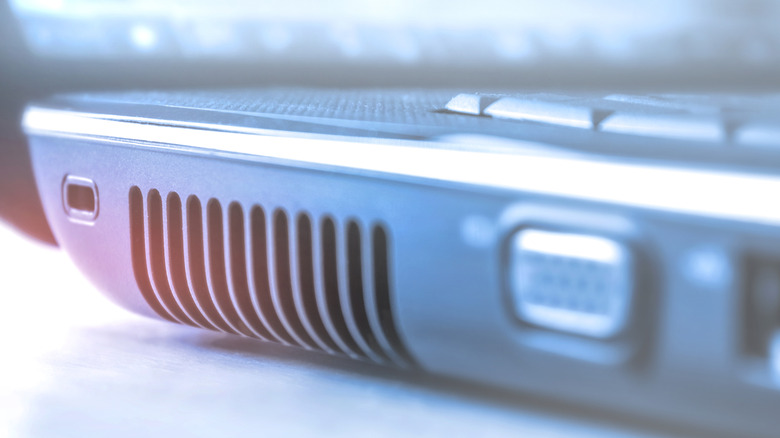
Another hidden enemy is heat backflow. This occurs when a laptop sits flat on a desk, and the hot air exhausted from the rear or sides is immediately sucked back into the intake vents because there is no clearance. Using a laptop cooling pad solves this by creating a dedicated "cold air" zone, ensuring that the air entering your system is significantly cooler than the air leaving it. This simple separation is the foundation of maintaining system stability and ensuring benefits of using a cooling pad for laptop hardware longevity.
Active vs. Passive Laptop Cooling: The TDP Matrix
When shopping for a solution, you will generally find two categories: active and passive. The right choice depends almost entirely on your laptop's Thermal Design Power (TDP) and your typical workload.
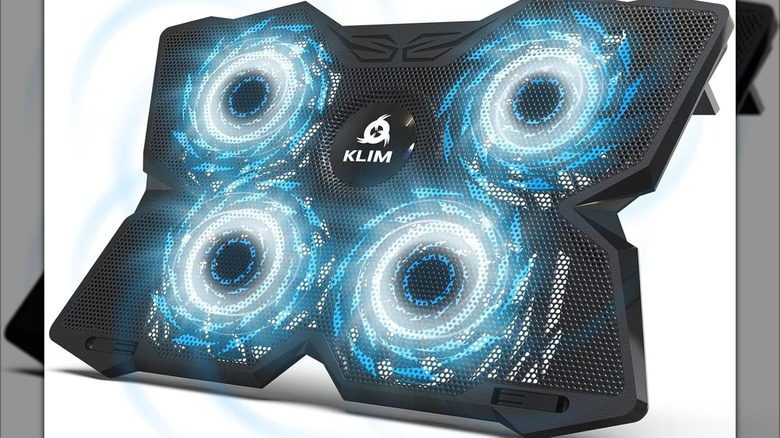
Passive coolers are essentially ergonomic stands. They have no fans and rely on aluminum mesh surface materials and elevation to enhance natural convection. These are perfect for fanless laptops like the MacBook Air or ultra-portables used for basic office tasks. Active pads, on the other hand, use integrated fans powered by a USB port to force air into the laptop intake vents. If you are using a gaming laptop cooler, you are almost certainly looking at an active model.
To help you decide, I have broken down the requirements based on hardware intensity:
| Laptop Category | Typical TDP | Recommended Cooling Type | Expected Temp Drop |
|---|---|---|---|
| Ultra-portables / Fanless | < 15W | Passive Stand | 3°C - 5°C |
| Professional / Business | 15W - 45W | Standard Active Pad | 5°C - 10°C |
| Gaming / Workstation | 45W - 125W+ | High-Performance Turbo Pad | 10°C - 20°C |
For users who prioritize a silent workspace, the quietest laptop cooling pads for office use are usually passive stands or active pads with large, slow-spinning fans (around 800 RPM). However, if you are a power user, you need to prioritize airflow volume over acoustics. The best active vs passive laptop cooling pad debate usually ends with a compromise: passive for the library, active for the battle station.
Advanced Cooling Tech: Seals and Static Pressure
The biggest myth in the PC hardware world is that "more fans equals better cooling." I have tested five-fan cooling pads that performed worse than a single-fan unit. The reason is static pressure. Most cheap cooling pads just blow air loosely toward the bottom of your laptop. Much of that air escapes out the sides before it ever enters the machine.
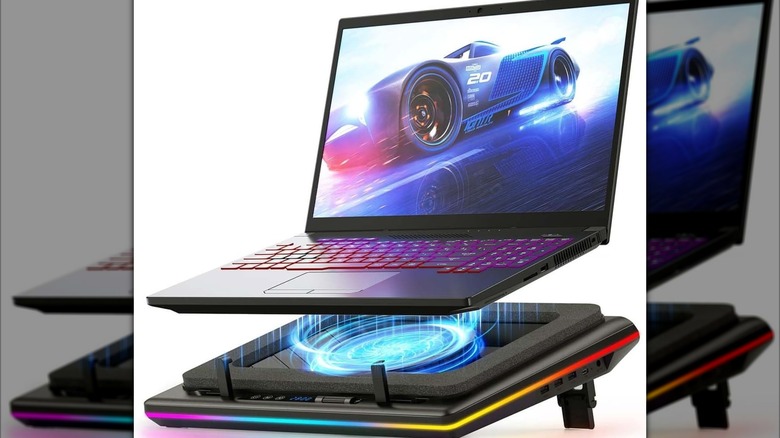
The new gold standard for a high performance turbo fan cooling pad for gaming involves a sealed ecosystem. Brands like IETS and Llano have pioneered the use of industrial-grade foam gaskets. These gaskets create a seal between the cooling pad and the bottom of your laptop. Instead of air bouncing off the bottom, the high-pressure turbo fan forces every cubic inch of air through your laptop's intake. This method is incredibly effective at preventing heat backflow and can result in temperature drops that were previously impossible for a peripheral.
Spec Block: IETS GT600 Professional
- Fan Speed: 800 - 3,000 RPM (Adjustable)
- Max Noise: 55 dB
- Cooling Tech: Sealed Magnetic Foam Gasket
- Feature: Built-in Dust Filter to prevent internal fan fatigue
- Price Range: $70 - $90
While these "super coolers" are highly effective, they do compete with the external vacuum fan vs cooling pad for laptops category. Vacuum coolers attach directly to the exhaust vent to "suck" air out faster. In my experience, while vacuum coolers are portable, they often put undue stress on the internal fan bearings. A laptop cooling pad with adjustable fan speed that uses static pressure is a much safer long-term investment for your hardware.
Buying Guide: Noise, Power, and Safety
Before you pull the trigger on a new laptop cooling pad, there are a few practical realities you need to consider. Performance often comes at a cost, and I’m not just talking about the price tag.
The Performance-Noise Paradox
A fan spinning at 4,500 RPM will sound like a vacuum cleaner. If you use open-back headphones or work in a shared space, a high-speed gaming laptop cooler might be too disruptive. Look for pads that offer granular control over fan speeds. This allows you to crank the cooling during a heavy render and dial it back for web browsing.
USB Power Risks
Most cooling pads draw power from your laptop's USB port. While this is convenient, high-performance fans can pull significant current. For the most powerful active pads, I recommend using a dedicated wall-plug power brick rather than your laptop's port. This prevents unnecessary wear on your motherboard’s power delivery system and ensures the pad has enough juice to hit its maximum RPM.
Ergonomics and Build Quality
Don’t ignore the "stand" part of the cooling pad. Ergonomic height adjustment is vital for preventing neck strain. Look for pads that offer multiple tilt angles. In terms of materials, an aluminum mesh surface is always superior to plastic; aluminum acts as a secondary heatsink, helping to pull heat away from the bottom casing through thermal management even when the fans are off.
Maintenance and Longevity
Just like your laptop, a cooling pad is a dust magnet. The best models now include removable air filters. Cleaning these every month is essential to maintain airflow volume and prevent internal fan fatigue. If your pad doesn't have a filter, a quick blast of compressed air through the mesh every few weeks will keep it running efficiently.
FAQ
Do laptop cooling pads actually work?
Yes, they work by increasing the volume of air available to the internal cooling system and by providing better exhaust clearance. For standard pads, you can expect a 5°C to 10°C reduction. For high-end sealed pads that utilize static pressure, reductions of up to 20°C are possible, which significantly helps prevent laptop overheating.
Are laptop cooling pads worth it for gaming?
For gaming, a cooling pad is almost a necessity. Gaming laptops generate massive amounts of heat in a confined space, often leading to thermal throttling. A high performance turbo fan cooling pad for gaming keeps temperatures stable, allowing the GPU and CPU to maintain their boost clocks for longer periods, which results in smoother frame rates.
Does a cooling pad improve laptop performance?
A cooling pad does not "overclock" your laptop, but it allows the hardware to run at its intended maximum speed. By keeping the system away from the 90°C thermal limit, the pad prevents the processor from down-clocking. This ensures that you get 100% of the performance you paid for during intensive tasks.
Do laptop cooling pads drain the battery?
If the pad is powered by the laptop's USB port, it will contribute to battery drain. Most standard pads draw about 1W to 5W of power, which might reduce battery life by 10% to 15%. For this reason, it is best to use active cooling pads while the laptop is plugged into a wall outlet.
Are active or passive cooling pads better?
The choice depends on your hardware. Passive pads are better for low-power, fanless laptops where silence and ergonomics are the main goals. Active pads are better for any laptop with an internal fan, as the forced airflow directly assists the internal cooling system in managing higher thermal loads.