Quick Facts
- Best Sound Mode: Cinema or Standard (avoid 'Sport' preset)
- Key EQ Fix: Boost Midrange (1kHz-3kHz) while lowering heavy Bass
- Physical Rule: Keep speakers 6-12 inches away from walls
- Speech Boost Names: 'Clear Voice' (LG), 'Amplify' (Samsung), 'Voice Zoom' (Sony)
- App Watchout: Check if streaming apps are forcing 5.1 audio on 2.0 setup
- NGA Impact: Over 3 billion devices now support Next Generation Audio like Dolby Atmos
To hear sports commentators more clearly, prioritize best tv sound settings that boost midrange frequencies and reduce heavy bass. Use Clear Voice or Speech Boost modes to highlight human speech while minimizing auditory masking from crowd noise. For the best balance, the Standard or Dialogue preset is frequently more effective than dedicated sports modes, and establishing a custom equalizer profile can further isolate vocals from the stadium atmosphere.
Tip 1: The 'Sport Mode' Myth and Why Cinema Wins
Every major manufacturer includes a dedicated Sport mode in their menu, marketed as a one-button solution for Game Day. However, as an audio editor, I frequently advise readers to steer clear of it. The paradox of the hardware-level sport preset is that it usually prioritizes high-contrast, over-saturated visuals and ambient crowd noise. While the intention is to make you feel like you are in the stands, the result is often a chaotic soundstage where the play-by-play commentary is buried under a roar of stadium atmosphere and low-frequency rumble.
Instead, I recommend experimenting with Cinema or Movie modes. These presets are designed with a more balanced dynamic range in mind. The goal of cinema audio is to preserve dialogue while maintaining a broad soundstage for orchestral scores—a goal that mirrors the requirements of a sports broadcast. When you use a more neutral setting, the audio-to-video sync often feels more natural because the processor isn’t struggling to apply artificial "action smoothing" filters that can actually distract from the fast-paced motion of the ball.
For users trying to find the best sound mode for sports on tv, following a "less is more" philosophy is often the winning strategy. If you are using a high-end setup, such as looking for the best sound settings for samsung tv with soundbar, you might find that the Standard mode provides the most accurate reproduction of the original broadcast signal.
| Feature | Sport Mode | Cinema/Standard Mode |
|---|---|---|
| Commentary Clarity | Often Muffled | Prioritized and Crisp |
| Crowd Noise | Exaggerated/Loud | Balanced/Submersive |
| Audio Accuracy | High Processing | Low Processing |
| Bass Control | Boomy and Masking | Tight and Controlled |
Whether you are seeking the best sound settings for lg tv or navigating the complex menus to find the best sound settings for sony bravia 4k tv, the "Sport Mode" button often does more harm than good to the nuanced commentary you actually want to hear.
Tip 2: Master the Equalizer for Dialogue Clarity
If your TV or soundbar allows for manual adjustments, the equalizer (EQ) is your most powerful tool. The primary reason viewers struggle to hear the announcer is a phenomenon called auditory masking. This occurs when low-frequency sounds, like the low-end thrum of a stadium or the roar of 50,000 fans, occupy the same acoustic space as the higher-pitched frequencies of the human voice.
To solve this, you should look into your best equalizer settings for tv. First, consider lowering the bass or the frequencies below 250Hz. This reduces the "muddiness" of the broadcast. Next, you want to focus on the midrange frequencies. Most human speech resides between 1kHz and 3kHz. By providing a slight boost (2-4dB) in this specific range, you can essentially lift the commentator out of the mix.
If you don't want to fiddle with individual sliders, many brands offer specific "speech boost" names that automate this EQ shift:
- Samsung: Amplify Mode (found under Sound > Expert Settings)
- LG: Clear Voice Pro or Dialogue
- Sony Bravia: Voice Zoom
- Vizio: Dialogue Enhancement
These settings are particularly useful for those searching for the best tv sound settings for dialogue. By using these features, you can effectively use surround sound processing to isolate the center channel—where the speech lives—while keeping the left and right channels for the ambient stadium sounds. If you are configuring the best sound settings for samsung tv with soundbar, check if the soundbar has its own dedicated "Active Voice Amplifier" feature, which uses a microphone to sense ambient room noise and adjust dialogue volumes in real-time.
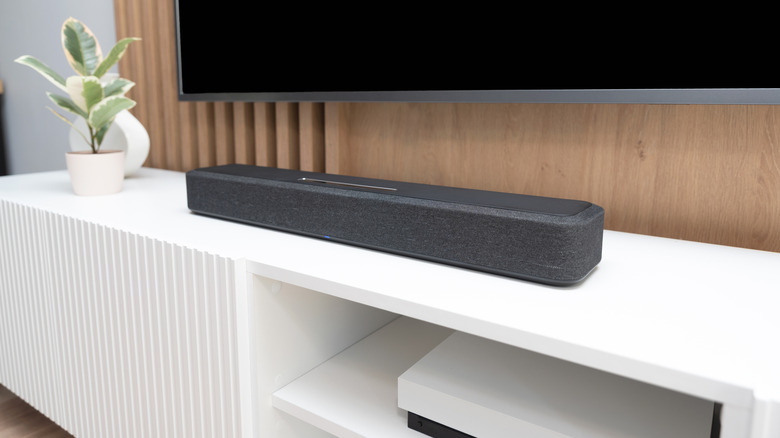
When watching late-night games, you might also consider turning on "Night Mode" or Dynamic Range Compression. This won't necessarily improve the tone, but it prevents sudden spikes in volume (like a goal horn or a commercial break) from waking up the household while keeping the quiet commentary audible. This is one of the most effective ways to learn how to hear commentators better on tv without constantly reaching for the remote.
Tip 3: Physics Matter—Speaker Placement and Walls
Even the most expensive audio equipment will sound subpar if it is physically poorly positioned. One of the most common mistakes I see in home theater setups is pushing speakers or soundbars directly against the wall. When a speaker is too close to a flat surface, the sound waves bouncing off the back wall combine with the forward-facing waves, creating acoustic reflections. These reflections can cause "phase cancellation," which results in a muddy, indistinct frequency response.
To combat this, follow the "6-to-12 inch rule." Try to keep your speakers at least half a foot away from the wall. This small gap allows the sound to breathe and reduces the low-end build-up that often masks speech. This is a critical step when determining how to position speakers for watching sports to ensure you get the maximum clarity from the commentary team.
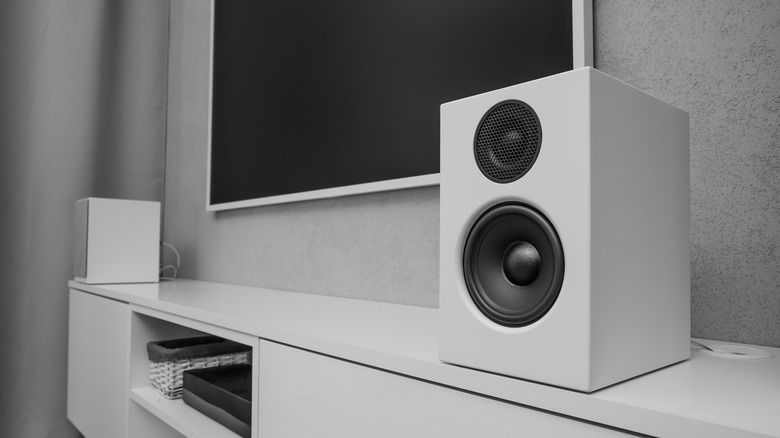
Additionally, ensure there is a clear "line of sight" between the speaker drivers and your ears. High-frequency sounds are highly directional. If your soundbar is tucked behind a decorative plant or positioned low on a shelf, the clarity of the treble will be significantly reduced. For true audio immersion, the tweeters should be as close to ear level as possible. This simple adjustment preserves the intended dynamic range of the stadium environment while keeping the mid-to-high frequencies crisp.
The importance of this setup is backed by current trends in broadcasting. A recent study conducted by Nielsen found that audiences reported a 40% increase in engagement when experiencing sports broadcasts with immersive audio. Proper physical setup is the foundation upon which that immersion is built.
Tip 4: Sync and Streaming App Calibration
In the modern era of streaming, the problem isn't always your TV—it might be the app. Many streaming services default to a 5.1 surround sound signal. If you are listening through a 2.0 system (just your TV’s built-in speakers), the app has to "downmix" that audio. During this process, the critical center channel data—which carries 90% of the dialogue—can be lost or significantly reduced in volume.
If you are struggling with low voice volume, check the settings within the app (like ESPN+, Peacock, or Hulu). If you don't have a 5.1 setup, force the app to "Stereo" or "2.0" mode. This will ensure that the voice data is properly routed to your left and right speakers rather than being sent to a non-existent center speaker. This is a common fix when looking for the best sound settings for roku tv or other smart platforms.
Furthermore, pay attention to the rise of Next Generation Audio (NGA). As of 2025, more than 3 billion consumer devices, including smartphones, tablets, and home entertainment systems, are capable of supporting NGA technologies like Dolby Atmos. These technologies allow broadcasters to deliver "object-based" audio, meaning you can eventually choose to turn the commentators up or the crowd down independently.
Finally, tackle any audio-to-video sync issues immediately. There is nothing more frustrating than hearing the "crack of the bat" before you see it happen on screen. Most modern TVs have an "Audio Delay" or "Lip Sync" setting in the sound menu that allows you to shift the audio in milliseconds to match the visuals perfectly.
Recent industry statistics indicate a 25% increase in viewer satisfaction for virtual events that incorporate spatial audio to bridge the gap between physical and virtual experiences. By ensuring your software and hardware are in perfect harmony, you can bring that professional stadium feel directly into your living room.
FAQ
How to adjust TV sound to hear voices better?
To hear voices more clearly, locate your equalizer settings and boost the midrange frequencies between 1kHz and 3kHz. Additionally, turn down the bass (low frequencies below 250Hz) to prevent the "stadium roar" from drowning out the announcers. Many TVs also offer a speech boost or clear voice mode that automates this process.
Which sound mode is best in a smart TV?
For most content, including sports, the Standard or Cinema/Movie mode is the best choice. While it might seem counterintuitive, the dedicated Sport mode often prioritizes loud ambient noise and over-saturated colors, which can make the commentary harder to hear and the motion look unnatural.
How to improve TV sound quality?
Improving sound quality starts with physical placement; ensure your speakers or soundbar are at least 6 inches from the wall to reduce muddy reflections. Beyond that, disable artificial "surround sound" simulations if they make the audio feel hollow, and consider an external soundbar to provide a wider frequency range than built-in speakers can offer.
Which TV sound setting is best?
There is no single "best" setting, but the Standard profile with slight manual EQ adjustments is usually the most accurate. If you are in a noisy room, use the Amplify or Speech Boost setting. If you are watching at night, use Dynamic Range Compression (Night Mode) to balance the volume between quiet talk and loud commercials.
How do I get the best sound out of my TV?
First, ensure your speaker placement is clear of obstructions. Second, check your source settings; if you are using TV speakers, make sure your streaming apps are not trying to output 5.1 surround sound, which can cause dialogue to disappear. Finally, use a high-quality HDMI ARC or eARC connection to maintain the highest possible audio fidelity from your devices.