Quick Facts
- Time to Install: 5 minutes
- Required Tools: Phillips screwdriver
- Protocol: Z-Wave Plus (Long Range)
- Security: S2 Framework & 128-bit AES encryption
- Durability: IP65 Waterproof & BHMA Grade AAA
- Battery Life: 10 months (4x AA batteries)
- Compatibility: Samsung SmartThings, Hubitat, Home Assistant, Ring Alarm
To complete your Bolt Z-Wave setup, start by replacing your physical deadbolt using a Phillips screwdriver and the provided four screws. Once the hardware is mounted, put your smart home hub into inclusion mode and activate the pairing sequence on the lock through the mobile app or keypad to establish a secure connection using the S2 security framework.
Hardware Installation: The 3-Minute Physical Build
When it comes to home automation, many people hesitate because they fear a complex afternoon of wiring and drilling. However, the Bolt Z-Wave installation steps are remarkably straightforward, even for someone who rarely picks up a tool. The process begins with the removal of your old deadbolt. Once the door is clear, the Ultraloq Bolt series shows why it is a leader in DIY convenience. The hardware installation for the Ultraloq Bolt series is designed for a fast setup process that requires only four screws and can be completed in minutes on standard doors.
First, slide the deadbolt mechanism into the door hole. You will want to ensure the word Up is facing upward to ensure the internal gears align correctly. Secure it with two screws, but do not over-tighten them yet. Next, take the exterior assembly, which houses the biometric sensor and the keypad. Feed the internal cable underneath the bolt and through the door. This cable is the lifeline of your lock, so handle it with care to avoid pinching the delicate wires.
On the interior side of the door, you will align the interior mounting plate. This plate acts as the anchor for the entire system. Pass the internal cable through the designated slot in the plate and secure it using the remaining two screws. This is where the physical integrity of the lock is established. Before moving to the final assembly, check that the deadbolt moves freely within the strike plate. If there is any friction or if the bolt jams, it will put unnecessary strain on the motor and significantly reduce your battery performance.
Once the plate is firm, connect the internal cable to the battery-powered assembly. You will hear a satisfying click when the pins align. Slide the assembly onto the mounting plate and secure it. Finally, insert four high-quality AA batteries. As the power flows, the lock will perform a self-test. Watch for the light on the keypad and listen for the motor as it calibrates the bolt direction. This physical foundation is essential for a reliable smart home experience.
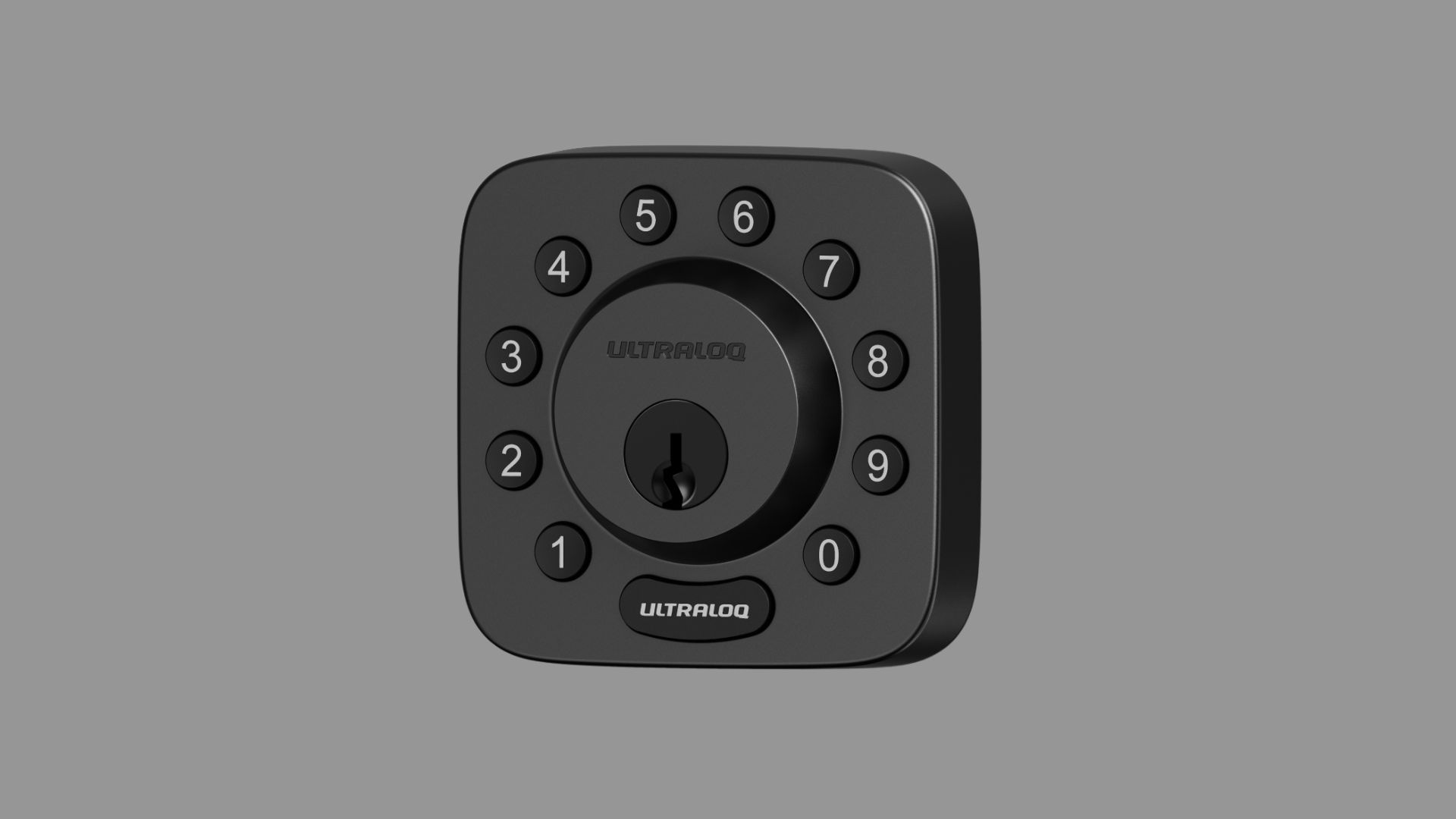
Technical Pairing: Connecting to Your Z-Wave Hub
With the physical lock in place, the next phase of your Bolt Z-Wave setup is digital. This lock is a Z-Wave Plus certified smart lock that utilizes the Security 2 (S2) framework to provide encrypted communication between the device and its hub. This is a critical distinction for security-conscious homeowners. Unlike older smart devices that might transmit data openly, this lock uses 128-bit AES encryption to ensure that your digital keys are just as secure as your physical ones.
To begin the pairing Bolt lock with Z-Wave hub process, you must first prepare your smart home hub. Whether you are using Samsung SmartThings, Hubitat, or Home Assistant, find the option to add a new device and enter inclusion mode. This tells your hub to listen for new devices broadcasting on the 912 MHz frequency.
Caution: The 30-Second Rule Once your hub is in inclusion mode, you typically have a 30-second window to initiate the pairing sequence on the lock itself. If the lock does not find the gateway pairing within this timeframe, it will time out to save battery, and you will need to restart the process.
On the lock side, open your mobile app and navigate to the Z-Wave smart lock configuration settings. You will be prompted to enter a specific pairing sequence, which usually involves pressing a button on the interior assembly or entering a code on the keypad. During this time, the lock and hub perform a digital handshake. This is where the S2 security framework shines; it will likely ask you to scan a QR code or enter a 5-digit DSK code found on the lock’s packaging or battery compartment. This ensures that you are pairing the specific lock in your hand and not a neighbor’s device.
Successful pairing is usually signaled by a long beep and a green flash on the lock’s LED. Once the device appears in your hub's interface, you can rename it—perhaps Front Door or Side Entry—to make your home automation routines easier to manage. This mesh networking capability of Z-Wave Plus ensures that if your hub is far from the door, other plugged-in Z-Wave devices in your home can act as repeaters to strengthen the signal.
Advanced Configuration: Features and Integration
Now that the connection is live, it is time to tailor the Z-Wave smart lock configuration to your lifestyle. The mobile app interface is your command center here. One of the first things I recommend is the Bolt Z-Wave fingerprint reader calibration tips. For the best results, register your primary finger multiple times at different angles. This biometric sensor is designed for speed, but a thorough initial calibration ensures it works even if your finger is slightly damp or positioned poorly.
Security is not just about keeping people out; it is about making sure the door is locked behind you. By default, the Ultraloq U-Bolt Z-Wave smart lock is programmed with an auto-lock function that automatically secures the deadbolt 30 seconds after the door has been unlocked. You can easily adjust this by setting up Bolt Z-Wave auto-lock timer in the app. Some users prefer a 60-second delay for a more relaxed entry, while others want it locked immediately.
Another powerful feature is configuring Bolt Z-Wave guest access codes. This is perfect for dog walkers, house cleaners, or visiting family. You can generate permanent codes or temporary ones that expire after a certain date. Because the lock is integrated into your hub, you can receive a notification on your phone the moment a specific code is used.
Finally, consider integrating Bolt Z-Wave with Alexa and Google Home. By linking your Z-Wave hub to your voice assistant, you can simply say, "Alexa, lock the front door" as you’re heading to bed. For safety reasons, unlocking via voice usually requires a secondary voice PIN, ensuring that no one can shout through a window to gain entry to your home.
Troubleshooting and Maintenance
Even the best technology requires a little upkeep. To ensure long-term performance, Bolt Z-Wave smart lock battery maintenance is key. The lock typically runs for about 10 months on four AA batteries. I suggest using high-quality alkaline or lithium batteries rather than rechargeable ones, as rechargeable batteries often have a lower voltage that can cause the lock to report a low battery status prematurely. Always keep an eye on the battery level through your mobile app.
If you ever experience connectivity drops, the first step in troubleshooting Bolt Z-Wave connection issues is to check for interference. Since Z-Wave operates on a lower frequency than Wi-Fi, it is generally stable, but thick walls or large metal objects can sometimes hinder the signal range extension. If the lock becomes completely unresponsive, you may need to perform a factory reset.
Note: Reset Cues To perform a 10-second factory reset, locate the reset button inside the battery compartment. Press and hold it for a full 10 seconds. Listen for the beep cues; a series of rapid beeps will confirm the lock has been wiped and is ready for a fresh Bolt Z-Wave setup.
Lastly, stay on top of software improvements by updating Bolt Z-Wave firmware via mobile app regularly. Manufacturers often release patches that improve motor efficiency, biometric sensor accuracy, and Z-Wave signal stability. The app will usually notify you when an update is available; just make sure your phone stays near the lock during the update process to prevent a connection break.
FAQ
How do I set up a Bolt Z-Wave smart lock?
The process involves two main phases: a physical installation using a Phillips screwdriver to mount the deadbolt and keypad, followed by a digital pairing process where you connect the lock to a Z-Wave Plus compatible hub using the mobile app and the S2 security framework.
Which smart home hubs are compatible with Bolt Z-Wave?
The lock is designed to work with any Z-Wave Plus certified hub. Popular options include Samsung SmartThings, Hubitat, Home Assistant, and the Ring Alarm system. It also integrates with Amazon Alexa and Google Home through these hubs for voice control.
How do I pair a Bolt lock with a Z-Wave network?
Put your hub into inclusion mode first. Then, follow the instructions in the mobile app to trigger the pairing sequence on the lock. You will need to provide the S2 security DSK code or scan the QR code to finalize the encrypted connection between the lock and your gateway.
Why is my Bolt Z-Wave lock not connecting to the hub?
Connectivity issues are often caused by the hub being too far from the door, a low battery, or the pairing sequence timing out. Ensure your hub is within range or use Z-Wave repeaters, and make sure you initiate the lock's pairing mode within 30 seconds of putting the hub in inclusion mode.
How do I factory reset a Bolt Z-Wave lock?
Remove the battery cover and locate the small reset button. Press and hold this button for 10 seconds until you hear a sequence of beeps. This will erase all user codes and network settings, allowing you to start the configuration from scratch.
How do I add a Bolt Z-Wave lock to Samsung SmartThings?
In the SmartThings app, tap the plus icon to add a device and select the brand or Z-Wave device type. Once the hub is searching, trigger the pairing mode on your lock. SmartThings will identify the lock, ask for the S2 security pin, and then add it to your list of controlled devices.