Quick Facts
- Failure Rate: Laboratory testing indicates that 37% of non-certified USB-C cables sold on major platforms fail basic safety standards.
- The Killer Component: A missing or incorrect 56k ohm pull-up resistor can cause a device to draw more power than it can handle.
- Immediate Damage: Miswired cables can bridge power pins to ground, resulting in the instant destruction of a $1,500 Chromebook Pixel or similar high-end hardware.
- Cleaning Hazards: Using metal tools like paper clips for cleaning can cause an electrical short circuit that fries the motherboard.
- Safety Marker: Always verify the presence of an E-marker chip in cables intended for 60W or higher power delivery.
- Industry Standard: Prioritizing USB-IF certification is the most effective way to ensure your hardware remains safe from voltage surges.
Your Chromebook's refusal to power on might not be a battery issue—it could be a hardware failure caused by a sub-standard cable. Chromebook USB safety is critical because non-compliant cables can deliver excessive voltage, leading to permanent motherboard shorts. Using a non-compliant or cheaply made USB-C cable can cause a power imbalance or short circuit that destroys a Chromebook motherboard. If a cable lacks a proper 56k ohm pull-up resistor or features incorrect wiring, it can deliver excessive voltage that prevents the laptop from powering on. Always prioritize USB-IF certified cables that adhere to Power Delivery standards to ensure device longevity.
The Silent Killer: How Bad Cables Short Your Motherboard
In my years of testing hardware, I have seen plenty of ways a PC can die, but the most frustrating is the "silent kill"—when a simple charging cable turns a functional laptop into a useless brick. When you plug a USB-C cable into your Chromebook, a complex handshake occurs. The device and the power source negotiate the correct voltage and amperage. This process relies on the Power Delivery standard to prevent overcurrent protection from being overwhelmed. However, if the cable is poorly manufactured, this negotiation fails, and the consequences are often terminal.
The technical culprit is usually the 56k ohm pull-up resistor. This tiny component is essential for USB-C to USB-A cables because it tells the Chromebook how much current it is allowed to draw from a legacy power source. Without it, the Chromebook may try to draw 3 amps from a source only capable of providing 1 or 2 amps. This creates extreme voltage fluctuations and heat, leading to internal circuit failure. In a 2022 test of 43 USB-C to USB-A cables, 10 of the cables were found to be dangerous because they lacked these essential safety measures.
Physical pin misalignment is another major risk. USB-C connectors are incredibly dense, with 24 pins packed into a tiny space. Cheap cables often have "folded" metal shells rather than a seamless deep-draw design. These folded shells can lose their shape over time, causing the pins to bend or shift. If a power pin touches a data pin or a ground pin, it can cause a catastrophic short. This was famously demonstrated when a miswired USB-C cable destroyed a $1,500 Chromebook Pixel by incorrectly connecting the ground pin to the power pins, proving that even premium hardware is vulnerable to a $5 cable.
Buying Guide 2026: Identifying Safe vs. Fake USB-C Cables
Navigating the market for certified USB-C cables for Chromebook requires a critical eye. You cannot rely on the price tag or the aesthetic of the cable alone. Many cables marketed with fancy braided nylon and gold-plated connectors lack the internal circuitry required for preventing Chromebook motherboard damage. To protect your investment, you need to look for specific technical markers that distinguish a safe cable from a dangerous one.
The most important indicator is USB-IF certification. The USB Implementers Forum is the body that sets the standards for USB technology. A cable that carries their logo has undergone rigorous testing to ensure it adheres to the Power Delivery standard and includes the necessary 56k ohm pull-up resistor. Furthermore, for cables rated for more than 60W of power, look for the E-marker chip. This chip acts as a communication hub between the charger and the Chromebook, regulating the flow of electricity to prevent thermal throttling and surges.
| Feature | Safe Cable (Certified) | Dangerous Cable (Non-compliant) |
|---|---|---|
| Connector Shell | Seamless, deep-draw steel | Visible seam, folded metal |
| Resistor | Correct 56k ohm pull-up | Missing or 10k ohm (too low) |
| Safety Chip | E-marker chip (for 60W+) | No electronic identification |
| Certification | USB-IF logo on packaging | Generic "Fast Charge" claims |
| Build Quality | Thick gauge wire, reinforced stress points | Thin, flimsy, or overly stiff |
Beyond the internal specs, physical durability matters. I recommend cables with braided nylon for durability to prevent the internal wiring from fraying, which is another common cause of shorts. If you frequently use your laptop in bed or on a couch, an L-shaped connector can reduce strain on the port, further protecting against symptoms of a damaged Chromebook USB port like loose connections or intermittent charging. Identifying fake USB-C cables that damage laptops is about looking past the marketing and checking for these engineering fundamentals.
Maintenance Safety: Cleaning Ports Without a Short Circuit
A common reason why your Chromebook won't turn on after using a new cable is that the physical port itself has become compromised. Dust, lint, and debris accumulate in the USB-C port over time. When you jam a connector into a dirty port, you compress that debris against the delicate pins, which can lead to pin misalignment or a bridge that creates an electrical surge. However, the way you clean the port is just as dangerous as the dirt itself.
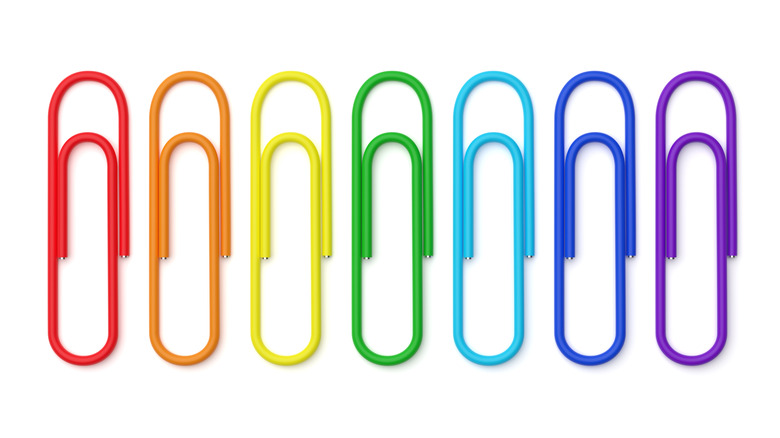
The Chromebook USB port cleaning guide is simple: never use metal. I see many people reach for a paper clip or a sewing pin to dig out lint. This is a recipe for disaster. Because USB-C ports carry live power, even when the laptop is off, a metal tool will bridge the pins and cause an immediate internal circuit failure. Instead, your first line of defense should always be compressed air canisters. A few short bursts can often dislodge most debris without any physical contact.
Warning: Never use conductive materials like safety pins, staples, or paper clips to clean any electronic port. The risk of using non-compliant USB-C cables on Chromebook is mirrored by the risk of manual cleaning with metal; both can result in a dead motherboard in less than a second.
If compressed air doesn't work, you must use a non-conductive tool. A toothpick carved into a thinner point or a specialized plastic electronic cleaning tool is the only safe way to manually remove stubborn lint. Be gentle; the goal is to how to safely remove debris from USB-C port without metal while preserving the integrity of the center tongue where the pins reside. If you feel resistance, do not force it, as you may permanently bend a pin, leading to the same symptoms of a damaged Chromebook USB port you were trying to avoid.
Troubleshooting: What to Do When It Won't Turn On
If your Chromebook is already refusing to power on after a charging session, don't panic yet. Sometimes the system triggers a safety "lockout" to prevent further damage after detecting a voltage surge or thermal throttling from a bad cable. The first step is what I call Hardware Isolation. Unplug everything—every charging cable, USB hub, mouse, and flash drive. Sometimes a faulty peripheral can "back-feed" power into the system, preventing it from booting.
Once the ports are clear, try a hard reset. This doesn't delete your data; it simply restarts the hardware controller that manages power. On most Chromebooks, you do this by holding the Refresh key and tapping the Power button. If the device was stuck in a protected state due to a minor electrical surge, this will often bring it back to life. However, if the motherboard has suffered a physical short circuit from a miswired cable, a hard reset will not help.
If the hard reset fails, check for a broken USB cable cause a Chromebook short circuit by inspecting the port with a flashlight. Look for charred plastic, a burnt smell, or pins that look fused together. If you see any of these, the motherboard likely needs professional repair or replacement. It is a harsh lesson, but it underscores why Chromebook USB safety must be a priority from day one. Using the right cable isn't just about charging speed; it is about the survival of your computer.
FAQ
Can a low-quality USB-C cable damage my Chromebook?
Yes, a low-quality cable can cause permanent damage to a Chromebook motherboard. If the cable lacks the mandatory 56k ohm pull-up resistor or has poor internal wiring, it can deliver incorrect voltage levels that fry internal circuits. Physical defects in cheap connectors can also bend the pins inside your port, leading to short circuits.
Is it safe to plug a random USB into a Chromebook?
It is generally not safe to plug an unknown or unverified USB cable or device into your Chromebook. Beyond the risk of malicious software, "random" cables found in bins or bought for a dollar often skip essential safety certifications. This can lead to power surges that the Chromebook's internal overcurrent protection may not be able to stop in time.
What are the risks of using a USB hub with a Chromebook?
The primary risk with a USB hub is "back-powering." If a hub is cheaply made, it might incorrectly send power from its own power supply back into the Chromebook through a data port. This can overwhelm the motherboard's power management system. Always use hubs from reputable brands that specifically mention compatibility with the Power Delivery standard.
How do I safely eject a USB drive on a Chromebook?
To safely eject a drive, open the Files app and click the Eject icon next to the drive's name in the left-hand sidebar. While Chromebooks are better at handling abrupt removals than older PCs, failing to eject can cause file system corruption. More importantly, wait for any active data transfers to finish to prevent electrical arcs that could potentially occur if a port is damaged.
Can using the wrong USB-C charger harm a Chromebook battery?
While most modern Chromebooks can negotiate power with various chargers, using a non-certified or underpowered charger can cause issues. A charger that doesn't follow the Power Delivery standard may cause the battery to heat up excessively, leading to thermal throttling and reduced battery lifespan. Always use a charger that meets or exceeds the wattage requirements of your specific Chromebook model.