Quick Facts
- Risk Level: High - disabling this service can cause immediate system instability and frequent application crashes.
- Primary Loss: You will lose push notifications via Firebase Cloud Messaging and the background security of Google Play Protect.
- 2026 Impact: Upcoming AI features, including Gemini and Rambler integrations, will fail to function without this framework.
- Reversibility: Yes, the service can be re-enabled through system settings, though manual updates may be required afterward.
- Security: Disabling it stops critical APEX security patches that protect both modern and legacy Android versions.
- App Dependency: Most third-party applications rely on these APIs for location tracking, digital wallets, and cloud synchronization.
Disabling Google Play Services might seem like a way to save battery or regain privacy, but it often causes more harm than good for the average user. In this guide, we explore the risks of disabling this core API framework and why it is critical for system stability and modern mobile functionality.
What Exactly is Google Play Services?
To understand why your phone acts up when this component is missing, you have to look at it as more than just an app. Think of it as a software bridge or a middleware layer that sits between the Android operating system and the apps you use every day. It is an extensive API framework that allows developers to integrate Google’s powerful tools directly into their own software without having to build everything from scratch.
When you interact with a mobile device, much of what feels like the "operating system" is actually handled by these background processes. For example, when an app asks for your location, it doesn’t talk directly to the GPS hardware; it asks Google Play Services for that data. This framework also manages cloud synchronization, ensuring that your contacts, calendar events, and app data stay consistent across multiple devices.
Furthermore, it hosts the WebView component, which is responsible for rendering web content inside non-browser apps. Because it is updated through the Play Store rather than through slow carrier firmware updates, it ensures that your phone stays compatible with the latest web standards and security protocols. Disabling this layer essentially removes the application programming interfaces that keep the Android ecosystem cohesive.
Why Your Apps Will Break: The Dependency List
If you decide to move forward and disable Google Play Services, the impact is immediate and wide-ranging. This isn't just about losing the Gmail app or YouTube. The dependency is much deeper. According to recent data, as of July 2025, 15 of the 17 apps that have reached the 10 billion download milestone are developed by Google, and almost all of them are tethered tightly to this ecosystem.
Here is a breakdown of what typically fails:
- Notifications: Most Android apps use Firebase Cloud Messaging (FCM) to send push notifications. Without this, you won't get alerts for new messages or updates unless the app is actively open in the foreground.
- Location-based services: Apps like Uber, DoorDash, and even your fitness tracker depend on the Google Maps API. Without it, these apps cannot find your location or display maps correctly.
- Digital wallets and Security: Features like Google Pay and the storage of digital keys rely on the secure hardware-backed APIs provided by the service.
- Android Auto: You will find that using android auto with google play services disabled is virtually impossible, as the communication between your phone and your car’s head unit is managed by this framework.
On the flip side, even if you try to use "de-Googled" alternatives, many third-party apps will still throw error messages or refuse to launch because they check for the presence of the API framework at startup. The sheer volume of android apps dependent on Google Play Services makes it the cornerstone of the modern mobile experience.
The Risks: Battery, Stability, and Security
There is a persistent myth in the tech community that you should disable Google Play Services to improve battery life. While it is true that the service consumes resources by running in the background, disabling it often leads to the opposite result. When an app tries to sync data or check for a notification and finds the framework missing, it may enter a "retry loop." This constant, failed attempt to connect can cause significant battery drain after disabling google play services on android as the CPU stays awake trying to solve a problem it can't fix.
System stability is another major concern. Because so many low-level processes are tied to this framework, you might find that your phone begins to lag, system menus freeze, or the camera app fails to save photos to the cloud. You are essentially pulling the rug out from under the apps that expect a stable foundation.
Perhaps the most dangerous risk involves your device's safety. Google Play Services delivers security enhancements and low-level system component updates via APEX to Android devices. This is especially critical for people wondering if is it safe to disable google play services on old phones. For many older devices that no longer receive official OS updates from Samsung, Motorola, or Google, these modular APEX updates are the only thing keeping them protected from new exploits. By turning this off, you stop receiving these critical patches, leaving your personal data vulnerable.
How to Manage the Service (The Right Way)
If you are experiencing errors and feel you must act, it is important to know the pros and cons of disabling google play services before you dive into the settings. Total removal is usually impossible without root access because it is a system-level component. However, you can manage its impact.
Warning: Before attempting to disable the service, you must usually uninstall Google Play Services updates first. Most modern Android versions will not allow you to disable a "running" system service without reverting it to the factory version. This will temporarily reset your preferences and may sign you out of your Google account.
If you are looking for how to disable google play services without rooting my device, follow these steps:
- Open your device Settings.
- Navigate to Apps or Application Manager.
- Find Google Play Services in the list (you may need to select "Show system apps").
- Tap on "Disable." If the button is greyed out, you must first go to "Security" in your settings and turn off "Find My Device" and any "Device Admin Apps."
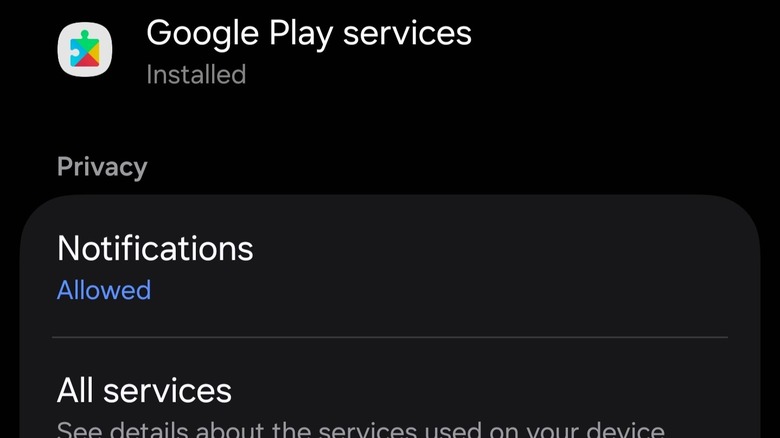
Managing the service this way is a "nuclear option." If your goal is simply to fix a bug, a better approach is to clear the cache or manage system-level permissions individually rather than shutting down the entire framework.
How to Fix It: Restoring Functionality
If you have already disabled the service and noticed your phone is behaving poorly, don't panic. You can restore your device to its former glory relatively easily. Most users who accidentally turn it off will see a notification stating that "an essential service is missing."
To enable Google Play Services on Android once more, return to the Apps section of your settings, find the disabled service, and tap "Enable." Once enabled, you should immediately head to the Google Play Store to check for updates. Since you likely reverted to an older version during the disable process, the service needs to be updated to the latest version to ensure app compatibility.
If you are dealing with a specific error like how to fix google play services has stopped working error, clearing the data is often more effective than disabling. Go to the App Info page for the service, select "Storage," and choose "Clear Cache" and then "Manage Space" to "Clear All Data." This resets the local framework without breaking the link to your apps. If you need to restore google play services after accidental disable and the app won't start, downloading the latest APK from a reputable source like APKMirror can sometimes bypass a stuck system menu.
FAQ
What happens if I disable Google Play Services?
When you disable this service, most of your apps will lose functionality. You will stop receiving push notifications, maps will fail to load in third-party apps, and you will lose access to the Google Play Store. The device may also become sluggish as apps repeatedly fail to connect to required APIs.
Is it safe to disable Google Play Services on Android?
From a stability and security standpoint, it is generally not safe for the average user. It disables Google Play Protect, which scans for malicious apps, and prevents the delivery of critical security patches to the system’s modular components.
Will disabling Google Play Services save battery life?
While it reduces background data usage, it often leads to increased battery drain. This happens because other apps on your phone will continuously try to ping the service, causing the processor to stay active in a cycle of failed attempts.
What apps will stop working if I disable Google Play Services?
Almost all Google apps (Gmail, Maps, Photos, YouTube) will stop working. Additionally, apps like Uber, Airbnb, and most mobile games that use Google for logins or in-app purchases will fail to function correctly.
How to disable Google Play Services without rooting my device?
You can disable it by going to Settings > Apps > Google Play Services and selecting Disable. However, you may first need to deactivate "Find My Device" in the Security settings and uninstall updates for the service before the disable option becomes available.
Before you make any drastic changes to your system settings, I highly recommend checking your system update status and ensuring all your apps are up to date. Often, what looks like a Google Play Services error is actually just an outdated app or a temporary sync glitch. Stay safe, keep your device updated, and only disable system components if you are an advanced user with a specific need for a "de-Googled" experience.