Quick Facts
- Display: 10.1-inch Transparent IPS panel with HD 1280x800 resolution
- Optics: Proprietary triple-layer tempered glass and nano light-guide backplate
- Storage: 64GB internal capacity for up to 700,000 images
- Connectivity: Dual-band Wi-Fi 6 and Bluetooth for low-latency API feeds
- Control: Interactive rotary encoders for tactile brightness and volume adjustment
- Ecosystem: Support for over 50 real-time widgets and 10 million community designs
Achieve the ultimate holographic desk decor setup with the Divoom Times Frame. To achieve the floating hologram look, utilize the Divoom Times Frame’s triple-layer tempered glass and 1280x800 IPS panel which suspends pixel art in mid-air. Enhancing the effect involves adjusting screen brightness to match ambient lighting and positioning the frame against a minimalist background to emphasize its transparency. This guide covers everything from initial Wi-Fi pairing to aesthetic optimization.
The Science of Transparency: How the Hologram Effect Works
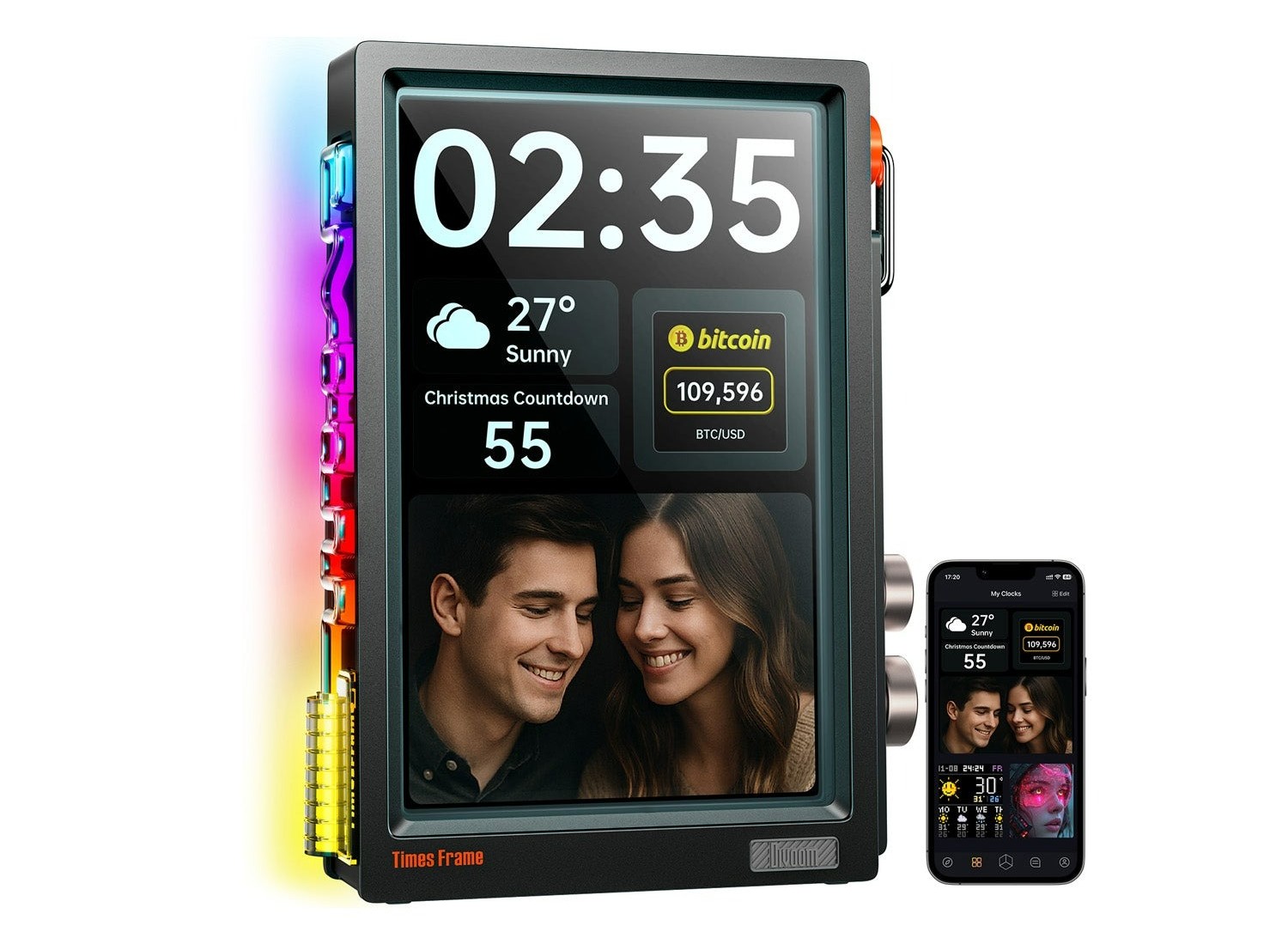
When you first unbox the Divoom Times Frame, the transparency is jarring in the best way possible. Unlike standard digital frames that rely on an opaque LCD sandwich, this device uses a three-layer optical structure that is engineered specifically for light transmission and visual depth perception. This construction includes a high-strength tempered glass outer shell, a transparent LCD layer, and a nano light-guide backplate. The result is a display that looks like a sheet of clear glass until the pixels ignite.
The magic happens because of how the 10.1-inch transparent IPS display manages light. Traditional screens use a backlight that shines through every pixel. In the Divoom Times Frame, the nano light-guide plate directs light with surgical precision, allowing the 1280x800 pixels to illuminate while the rest of the panel remains clear. This creates a striking Cyberpunk aesthetic where your weather data or pixel animations appear to be physically occupying the space behind the glass.
Because of this visual depth perception, the animations do not just sit on the surface. They feel like they have volume. When you display a 3D-rendered pixel heart or a rotating globe, the triple-layer tempered glass provides enough physical thickness to trick the eye into seeing a true hologram. It is a masterclass in modern IoT design, moving away from flat screens toward something more sculptural and integrated into the modern workspace.
Initial Setup: Wi-Fi Pairing and App Connection
Getting your Divoom Times Frame online is the first step toward building that real-time productivity dashboard. The device runs on a Smart Linux OS, which is significantly more robust than the firmware found in cheaper pixel displays. To begin the divoom times frame initial wifi pairing guide, you will need to download the Divoom app on your smartphone and ensure both Bluetooth and Wi-Fi are enabled.
The device is equipped with Wi-Fi 6 connectivity, which is a massive upgrade for IoT products in this category. This ensures that even in a home crowded with smart devices, the frame maintains a stable connection for its API data feeds. During the pairing process, the app will scan for the frame via Bluetooth, and once identified, you will input your Wi-Fi credentials to bridge the device to your local network. If you encounter divoom times frame troubleshooting for connectivity issues, ensure your router is not blocking new MAC addresses and that you are using the provided high-output power adapter, as the screen requires consistent voltage to maintain its wireless radio.
One of the standout features of this model is the 64GB of internal storage. While the frame excels at streaming live data, it can also store approximately 700,000 photos or thousands of local pixel animations. This means even if your internet dips, your floating hologram desk setup remains active and vibrant. Once paired, the app becomes your command center, allowing you to browse the community-driven gallery or upload your own creations directly to the internal memory.
Configuring Your Productivity Dashboard
Once the technical foundation is laid, the real fun begins with the Divoom dashboard widget configuration. This device is not just a pretty face; it is a high-performance data visualizer. By navigating the app, you can choose from over 50 live widgets that display everything from crypto tickers and stock prices to social media follower counts and real-time weather updates.
The interface is managed by two distinct methods: the mobile app for deep customization and the interactive rotary encoders on the device itself for immediate tactile control. These mechanical knobs are a highlight of the hardware. They provide a satisfying click that feels premium, allowing you to scroll through your saved screens or adjust settings without opening your phone. You can set the frame to cycle through widgets automatically at specific intervals or keep a single, critical data point—like a Bitcoin price tracker—fixed in place.
For those focused on building the best widgets for divoom times frame productivity dashboard, I recommend a mix of high-contrast clock faces and real-time API data feeds. The Smart Linux OS handles multiple data streams simultaneously, ensuring that your weather updates and stock tickers refresh with minimal latency. The ability to see your daily schedule or a Pomodoro timer suspended in mid-air adds a layer of futuristic utility to any professional desk setup.
Aesthetic Mastery: Optimizing for the Floating Look
To truly master the art of how to create a floating hologram desk setup, you need to think about the environment surrounding the frame. The transparency effect is most impressive when there is a clear contrast between the illuminated pixels and the space behind the device. Positioning the frame against a dark or minimalist background helps hide the subtle edges of the glass, making the images appear to manifest out of thin air.
One of the most important transparent pixel art display tips involves optimizing transparent pixel art display brightness. Because the screen is clear, excessive brightness can cause light bleed that washes out the transparency. I find that keeping the brightness at roughly 40-60% in a normally lit room produces the most convincing holographic effect. Use the physical knobs to dial in the perfect level; you want the pixels to be vibrant enough to read but dim enough that the background remains visible through the empty spaces.
Achieving blade runner aesthetic with transparent digital frames is also about the content you choose. The Divoom community-driven gallery features over 10 million designs, but not all are optimized for transparency. Look for animations with "black" backgrounds—on a transparent IPS panel, black effectively means "clear." When you play an animation of a neon rain-slicked city street with a black sky, the sky disappears, leaving only the glowing neon lights floating on your desk. This is the secret to that high-end, futuristic look that differentiates the Times Frame from every other display on the market.
FAQ
What is the difference between the Times Gate and the Pixoo-64?
The Times Gate features five small LCD screens designed specifically for a modular dashboard look, whereas the Pixoo-64 is a single large 64x64 pixel panel. The Times Frame is fundamentally different from both, utilizing a 10.1-inch transparent IPS panel that offers much higher resolution (1280x800) and the unique floating hologram effect that the opaque panels of the Gate or Pixoo-64 cannot replicate.
How do you set up the Divoom pixel art frame?
The setup involves connecting the device to a 10V USB-C power source, downloading the Divoom mobile app, and pairing the device via Bluetooth. Once the app recognizes the frame, you connect it to your local Wi-Fi 6 network to enable cloud-based features like the community gallery and real-time data widgets.
Can the Divoom Times Gate sync with real-time data?
Yes, much like the Times Gate, the Divoom Times Frame supports real-time data synchronization. It uses API data feeds to pull live information for stocks, cryptocurrency prices, weather, and social media metrics, displaying them instantly on the transparent screen through the Smart Linux OS.
Does the Divoom pixel frame require a constant power source?
Yes, the Divoom Times Frame requires a constant power connection via its USB-C port. Because of the power demands of the 10.1-inch transparent IPS display and the Wi-Fi 6 radio, it does not include an internal battery. It is designed to be a permanent fixture of a desktop or home automation setup.
Can I create my own animations for the Divoom display?
Absolutely. The Divoom app includes a comprehensive pixel art creation tool where you can draw frame-by-frame animations or convert existing images into pixel format. Given the HD resolution of the Times Frame, you can create much more detailed and intricate designs than on standard low-resolution pixel displays.