Quick Facts
- Primary Setup: Linking accounts via the Alexa App (Ring Skill) is the mandatory first step for integration.
- Top Shortcut: Perform a System Reboot by holding the Select and Play/Pause buttons simultaneously for 5 seconds.
- Monitoring: View your Ring cameras using voice commands like Alexa, show [Camera Name] for full screen or picture-in-picture modes.
- Compatibility: Accessing the Smart Home Dashboard and picture-in-picture features requires a 2nd Gen Fire Stick or newer.
- Hardware Reset: To reset the Alexa Voice Remote itself, press and hold Back, Left, and Menu for 12 seconds.
- Resolution Cycle: If your screen is flickering, hold Up and Rewind for 5 seconds to cycle through different display resolutions.
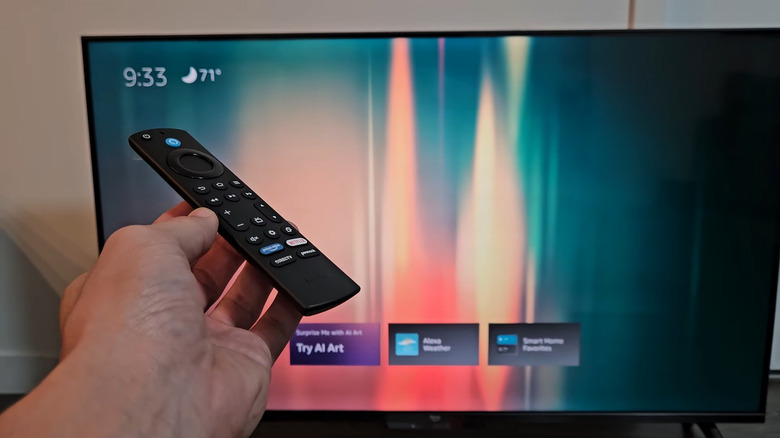
Enhance your smart home experience by learning how to connect Ring to Fire TV Stick and mastering essential Fire TV shortcuts for your remote. To connect a Ring doorbell to a Fire TV Stick, ensure both devices are linked in the Alexa app by enabling the Ring skill. Once paired, you can view live feeds by saying, Alexa, show my doorbell name. The video can appear as a picture-in-picture overlay, allowing you to monitor your home without stopping your current program. Managing these devices efficiently relies on knowing the right Fire TV shortcuts to navigate menus and troubleshoot connection issues instantly.
Setting Up the Ring and Fire TV Connection
The beauty of the Amazon ecosystem lies in how well its components talk to each other, but achieving that seamless integration requires a bit of groundwork in the Alexa mobile app. Before you can see who is at your front door while binge-watching your favorite series, you must perform the initial Alexa App Configuration. This process essentially bridges the gap between your Ring account and your Amazon streaming hardware.
First, ensure that your Fire Stick and your Ring device are registered to the same Amazon account. Open the Alexa app on your smartphone, navigate to the More menu, and select Skills & Games. Search for the Ring skill and enable it. You will be prompted to sign in to your Ring account to link the two services. Once the link is established, Alexa will attempt to discover your devices. This is the critical moment where you connect ring doorbell to fire stick. If the discovery doesn't happen automatically, you can simply ask your remote, Alexa, discover my devices.
It is important to note certain hardware limitations. While almost all modern Ring cameras are compatible, the very first generation of the Fire TV Stick does not support the more advanced overlay features. Additionally, the Smart Home Dashboard, which provides a centralized view of your connected home, is primarily available to users in the US and Canada. If you are using an older device, you might find that you can view the video feed, but you won't be able to use the more sophisticated how to link ring doorbell to fire stick with alexa methods like the picture-in-picture overlay.
Once the devices are synced, you can start using alexa voice commands for ring doorbell on fire stick to test the connection. Try saying, Alexa, show my cameras, to see if the system correctly identifies your hardware. This initial setup is the foundation upon which the rest of your smart home experience is built.
Mastering Ring Camera Live View and Picture-in-Picture
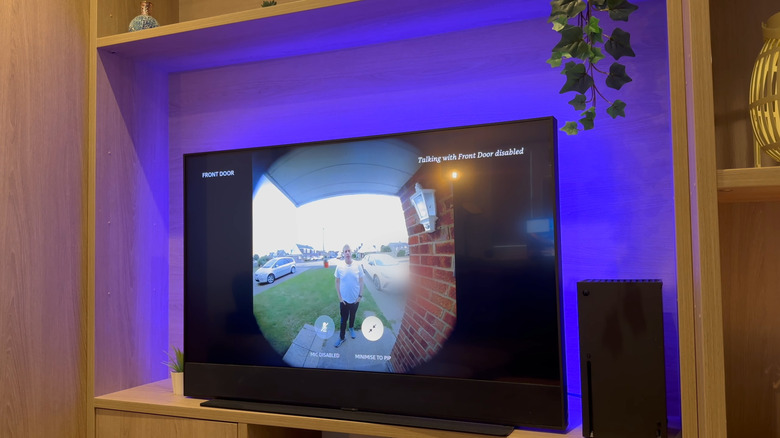
Once you have successfully completed the setup, the real magic happens during daily use. The most common way to interact with your camera is through Live View. By using the Alexa Voice Remote, you can summon a live feed of your porch or backyard at any moment. The standard syntax is simple: Alexa, show [Camera Name]. However, the real "pro" move is utilizing the fire tv picture in picture ring camera feature.
Picture-in-Picture (PiP) allows a small window of your camera feed to appear in the top-right corner of your TV screen while your movie or show continues to play in the background. This is incredibly useful for when you are expecting a delivery but don't want to miss a moment of a live sports game. To trigger this, you can use specific alexa voice commands for ring doorbell on fire stick such as, Alexa, show my front door in picture-in-picture. If someone rings your doorbell, the Fire TV often prompts you with a notification; simply pressing the Select button on your remote will open the PiP window automatically.
While the feed is active, you aren't just a passive observer. You can engage in Two-Way Talk directly through your television. By pressing and holding the microphone button on your Alexa Voice Remote, you can speak to the person at your door. Release the button to hear their response through your TV speakers or soundbar. If the PiP window is too small, you can use the command, Alexa, switch to full screen, to expand the view. This level of control is what makes the integration of a Ring camera and Fire TV so powerful for modern homeowners.
Learning how to view ring camera in picture in picture on fire tv also involves knowing how to dismiss the window once you are done. You can say, Alexa, hide my doorbell, or simply press the Back button on your remote to return to your full-screen entertainment. For those who prefer a more visual approach, using fire tv smart home dashboard for ring cameras allows you to select which camera you want to view from a dedicated grid, making it easy to monitor multiple areas of your property.
Essential Fire TV Remote Shortcuts for Navigation
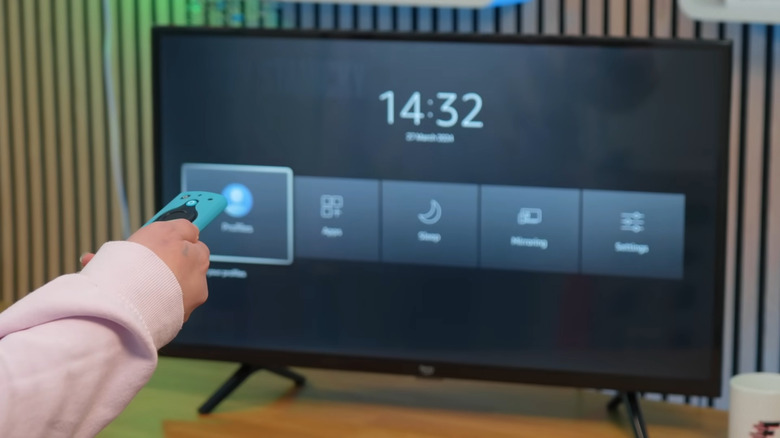
Efficiency is the hallmark of a well-integrated smart home. While voice commands are convenient, sometimes the physical fire stick remote button combinations are faster for quick adjustments. One of the most important Fire TV shortcuts to memorize is holding the Home button for approximately three seconds. This action brings up the Quick Settings menu, also known as the quick access menu.
From this menu, you can quickly jump to your Sleep timer, Mirroring options, or the Smart Home Dashboard. The dashboard is particularly useful because it provides a visual layout of all your Ring cameras, lights, and plugs. Navigating this menu with the remote is often more precise than trying to get Alexa to understand a complex command when the room is noisy.
Another hidden gem in the fire tv stick remote shortcuts for quick settings repertoire is the resolution toggle. If you have moved your Fire Stick to a new television and the screen looks distorted or is blank, you can force the device to cycle through available resolutions. Press and hold the Up and Rewind buttons at the same time for five seconds. The device will then cycle through various resolutions (1080p, 720p, etc.), pausing on each for a few seconds. When you see a clear picture, press the Select button to lock it in. This avoids the frustration of navigating a menu you cannot see.
These tactile shortcuts complement the voice-driven nature of the device, ensuring that you always have a way to control your environment, even if the internet is sluggish or the remote's microphone is acting up. Mastering the Remote Button Sequence for these common tasks will make your daily interaction with the Fire TV feel significantly more fluid.
Advanced Troubleshooting and System Recovery Shortcuts
Even the most sophisticated systems occasionally encounter a glitch. Perhaps your Ring feed is lagging, or the Fire TV interface has become unresponsive. Instead of getting up to unplug the power cord from the back of the TV, you can use a specific fire stick remote button combinations to restart device. By pressing and holding the Select (center) and Play/Pause buttons together for five seconds, you trigger a System Reboot. This soft reset clears the cache and re-establishes the network handshake, which often fixes minor syncing issues with your Ring cameras.
For more severe issues, such as a complete system hang or the need to sell the device, a factory reset might be necessary. This is a high-level command that should be used with caution. By holding the Back button and the Right side of the navigation circle for ten seconds, you initiate the reset process.
Warning: Initiating a factory reset via the Back + Right button combination will erase all user data, downloaded apps, and account credentials. After holding the buttons for 10 seconds, a warning timer will appear on the screen. You have a 20-second window to press any button to cancel the process if you started it by mistake.
If the issue isn't the Fire Stick but the remote itself, you can perform a hardware reset on the Alexa Voice Remote. This is a complex sequence: press and hold the Left, Menu, and Back buttons simultaneously for 12 seconds. Release them, wait 5 seconds, and then remove the batteries. Plug your Fire TV back in, wait 60 seconds, reinsert the batteries, and press the Home button to re-pair. This is often the final solution for remotes that refuse to trigger the Fire TV shortcuts you’ve learned.
Remote Shortcut Reference Table
To help you remember these critical sequences, refer to the table below for a quick summary of the most effective button combinations.
| Button Combination | Action / Result | Duration |
|---|---|---|
| Select + Play/Pause | System Reboot | 5 Seconds |
| Back + Right Side of Circle | Factory Reset | 10 Seconds |
| Up + Rewind | Cycle Display Resolution | 5 Seconds |
| Home Button | Quick Access Menu | 3 Seconds |
| Back + Left + Menu | Reset Remote Hardware | 12 Seconds |
Using these sequences effectively ensures that you spend less time troubleshooting and more time enjoying the seamless smart home experience that Jessica Wang and the experts in IoT integration always advocate for. Whether it is a quick Video Feed check or a full system refresh, these tools put the power back in your hands.
FAQ
How do I access Fire TV remote shortcuts?
Most shortcuts are accessed by pressing and holding specific button combinations on your Alexa Voice Remote for a set number of seconds. The most common shortcut is holding the Home button for three seconds to open the Quick Settings menu, which provides immediate access to your smart home dashboard and sleep timer.
Is there a shortcut to restart my Fire TV device?
Yes, you can perform a system reboot without unplugging the device by holding the Select and Play/Pause buttons simultaneously for five seconds. This is a highly effective way to resolve software freezes or issues where your Ring camera feed fails to load.
How do I use the quick access menu on Fire TV?
Simply press and hold the Home button on your remote for three seconds. An overlay will appear on the right side of the screen, allowing you to toggle between apps, settings, sleep mode, and the smart home interface. This menu is designed to give you control without forcing you to navigate back to the main home screen.
What are the best hidden shortcuts for Fire TV?
Beyond the standard menu navigation, the best hidden shortcuts include holding Up and Rewind for five seconds to fix resolution issues and holding Back and the Right side of the navigation circle for ten seconds to perform a factory reset. These hardware-level commands are essential for troubleshooting when the standard UI is not responding.
Can I map custom shortcuts to my Fire TV remote?
Native Fire TV software does not allow for extensive button remapping of the standard Alexa Voice Remote. However, certain Pro versions of the remote feature customizable "1" and "2" buttons that can be programmed to launch specific apps or execute Alexa routines, such as turning on your smart lights or showing your Ring camera with a single press.