Quick Facts
- Standard Command: "Siri, turn on the flashlight."
- Wizards' Choice: Use 'Lumos' and 'Nox' as custom triggers.
- Locked State: Siri works on lock screen; Vocal Shortcuts require unlock.
- Hardware Shortcut: Back Tap works on iPhone 8 and later.
- Pro Feature: Action Button support for iPhone 15 Pro and newer.
- Region Note: Some regions use the term 'Torch' instead of 'Flashlight'.
Use iPhone flashlight commands to light up any room without touching your screen. Whether you want to use Siri, custom Vocal Shortcuts like Lumos, or the Back Tap gesture, this guide covers every hands-free method. To activate the iPhone flashlight hands-free, use Siri by saying Siri, turn on the flashlight. This command works even when the device is locked, providing an immediate light source without requiring manual input. You can also use iOS 18 Vocal Shortcuts for custom phrases like Lumos or the Back Tap gesture for physical hands-free control to activate iphone torch without touching screen.
Using Siri for Instant Hands-Free Access
As someone who frequently tests the latest hardware in demanding environments—from dark server rooms to late-night hikes—I can tell you that the most reliable way to activate your light is through the default voice assistant. Siri has been the gold standard for hands-free operation since it first gained the ability to toggle hardware settings. To use this feature, you simply need to ensure that Listen for Hey Siri or just Siri is enabled in your settings.
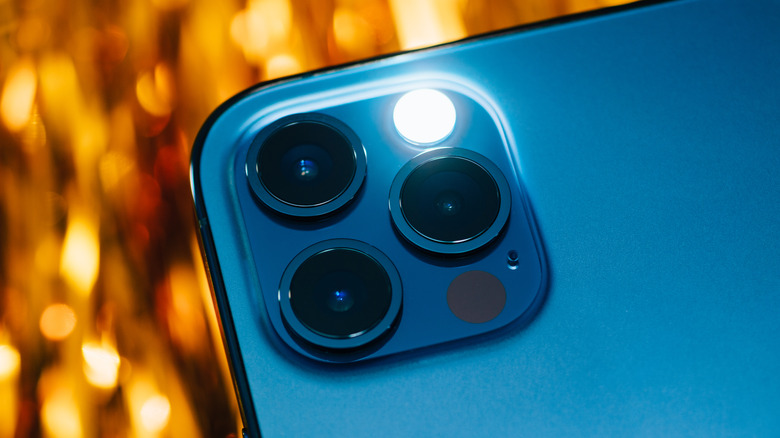
The primary benefit of using iPhone Siri flashlight commands is that they are deeply integrated into the operating system's kernel. This means that unlike third-party apps or newer experimental features, the command works almost instantly. When you say, Siri, turn on the flashlight, the LED camera flash on the back of your device will illuminate immediately. You will also receive a brief verbal confirmation or a haptic buzz, letting you know the command was understood.
Crucially, this is the most effective method for voice commands for iphone flashlight when locked. Most security-conscious users keep their devices locked at all times, and navigating a passcode or Face ID prompt just to see where you dropped your keys is a major friction point. By using the standard assistant, you bypass the need for authentication for this specific hardware toggle. If you are in a region like the UK or Australia, the system is smart enough to recognize activate iphone torch without touching screen as a valid request, as it adjusts to local terminology.
When you no longer need the light, the process is just as simple. You can tell the assistant to extinguish the light by saying, Siri, turn off the flashlight. It is a seamless experience that highlights how to use siri to turn on flashlight hands free without ever needing to look at the display.
Setting Up Lumos and Custom Vocal Shortcuts
With the release of iOS 18, Apple introduced a game-changing accessibility feature called Vocal Shortcuts. While Siri is great, it requires the specific trigger phrase which can sometimes feel cumbersome. Vocal Shortcuts allow you to define a specific word or phrase that triggers an action without needing the "Hey Siri" prefix. For many tech enthusiasts and fans of pop culture, this has led to a surge in people wanting to set up lumos vocal shortcut iphone.
To begin this setup, navigate to Settings > Accessibility > Vocal Shortcuts. From here, you will select Set Up Vocal Shortcuts and search for the flashlight action. The system will then ask you to record your custom trigger word three times. Once the device learns your voice, saying that specific word will toggle the light. In addition to standard phrases, Siri and Vocal Shortcuts recognize the Harry Potter-inspired commands Lumos to turn the flashlight on and Nox to turn it off.
This iOS Vocal Shortcuts flashlight setup is particularly useful for those who want a more personalized experience. However, there is a technical caveat that I always point out to our readers: unlike the standard assistant, these custom shortcuts generally require the device to be awake or unlocked to function correctly due to the way the voice recognition technology processes the local audio. If your phone is buried deep in a backpack and the screen is completely inactive, the local trigger might not catch your voice as reliably as the dedicated Siri co-processor would.
Despite that limitation, the utility of a custom trigger is immense. It allows for a faster, more discrete interaction with your device. You can even combine this with the Shortcuts app integration to create more complex routines, such as turning on the light and sending a "I'm home" message simultaneously with a single word.
Physical Hands-Free: Back Tap and Action Button
If you find yourself in a situation where voice commands aren't ideal—perhaps in a loud environment or a place where you need to be quiet—Apple offers physical gestures that provide a hands-free feel. The first and most versatile is the Back Tap feature. Introduced several years ago, this turns the entire back of your iPhone into a massive button using the internal accelerometer.
To enable this, go to Settings > Accessibility > Touch > Back Tap. You can choose between a Double Tap or a Triple Tap. I personally recommend the triple tap to prevent accidental triggers while setting the phone down on a table. By assigning the flashlight to this gesture, you can activate flashlight with iPhone Back Tap simply by knocking on the rear of the chassis. It is a fantastic quality-of-life tool for anyone who needs to activate iphone torch without touching screen or hunting for the control center icon.
For users who have upgraded to the iPhone 15 Pro, iPhone 16, or newer models, the Action Button configuration offers an even more tactile solution. While technically a physical button, the Action Button can be mapped to the light in Settings > Action Button. Because it is a dedicated hardware switch, it works with incredible reliability. This is the pro-user's choice for immediate, low light utility. When combined with the iphone flashlight back tap settings guide provided above, you can have multiple redundant ways to light your path without ever engaging with the touch interface.
Troubleshooting: Why Flashlight Commands Fail
Even the best technology has its quirks. If you find that your troubleshooting iphone siri flashlight commands not working efforts are stalling, there are a few common hardware and software culprits to check. The most frequent issue with the Back Tap gesture is the thickness of your phone case. Rugged, heavy-duty cases can absorb the impact of your taps, preventing the accelerometer from registering the movement. If you find it unreliable, try increasing the force of your tap or switching to the triple tap gesture which has a distinct detection pattern.
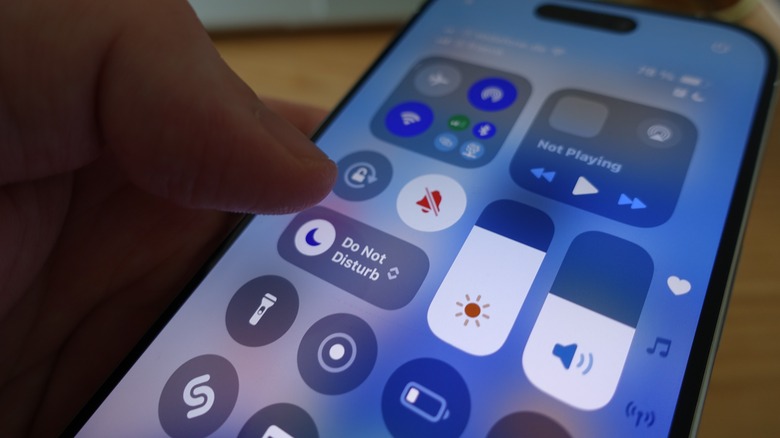
Another common point of failure involves the environment. In extremely loud settings, the Voice recognition technology might struggle to isolate your trigger word from the background noise. If Siri isn't responding, check your Settings > Siri & Search to ensure that Allow Siri When Locked is toggled on. Without this, your hands-free commands will fail the moment the screen goes dark.
Furthermore, keep in mind that the LED camera flash consumes a significant amount of battery. If your iPhone is in Low Power Mode or the battery is critically low (usually below 5%), the system may occasionally disable high-drain hardware features to preserve core functionality. If your light refuses to turn on despite correct commands, check your battery percentage first. For users who prefer a more guided experience, the Show me what to say feature within the Voice Control settings can help you identify exactly which phrases the system is currently primed to hear.
Finally, remember that software updates can sometimes reset accessibility preferences. If you’ve recently updated to a new version of iOS and your custom shortcuts have stopped working, a quick trip back to the Accessibility menu to re-verify your settings usually solves the problem. Device automation is a powerful tool, but it requires occasional maintenance to keep it running smoothly in all conditions.
FAQ
How do I turn on my iPhone flashlight with voice commands?
You can use the built-in assistant by saying Siri, turn on the flashlight. If you have iOS 18 or later, you can also set up a custom Vocal Shortcut with a unique trigger word of your choice in the accessibility settings.
Can I use Harry Potter spells to control my iPhone flashlight?
Yes, Siri natively recognizes Lumos to turn the light on and Nox to turn it off. You can also set these up as custom Vocal Shortcuts to trigger the light without needing to say the "Siri" wake word first.
How do I activate the flashlight using the Back Tap feature?
Go to Settings > Accessibility > Touch > Back Tap. Select either Double Tap or Triple Tap and choose Flashlight from the list of available actions. Once set, tapping the back of your phone will toggle the light.
Why is Siri not responding to flashlight commands?
Common reasons include the Allow Siri When Locked setting being disabled, poor internet connection for processing (if not on a newer device with on-device Siri), or microphone obstruction. Ensure your software is up to date and Siri is listening for your voice in the settings menu.
How do I turn on the flashlight without using the screen?
The most effective ways are using the Siri voice command, the Back Tap gesture on the rear of the phone, or the physical Action Button if you have an iPhone 15 Pro or a newer model. These methods allow for operation without ever touching the display.