Quick Facts
- Method 1: Adjust mobile notifications by navigating to Device Settings > Alert Settings > App Alert Tones within the Ring app.
- Method 2: Update physical speaker sounds for Ring Chime or Chime Pro by selecting the device and choosing Audio Settings > Chime Tones.
- Sound Library: Users can choose from at least 20 different alert tones, ranging from traditional bells to seasonal holiday themes.
- Smart Alerts: Features like person detection alerts and package alerts require an active Ring Protect subscription to function.
- Device Compatibility: While iOS is limited to preset tones, some Android users can use custom MP3 files via system notification settings.
- Ecosystem Integration: Amazon Echo integration allows your Alexa devices to act as secondary chimes for doorbell presses and motion.
To change your Ring doorbell sounds and customize your notification experience, open the Ring app and select your specific doorbell or camera. Navigate to Device Settings and tap on Alert Tones to choose from a library of digital sounds for both Ring Alerts and Motion Alerts. If you are using a physical Ring Chime, you can adjust the sound by selecting the Chime device from your app dashboard interface and accessing the Chime Tones menu under Audio Settings.
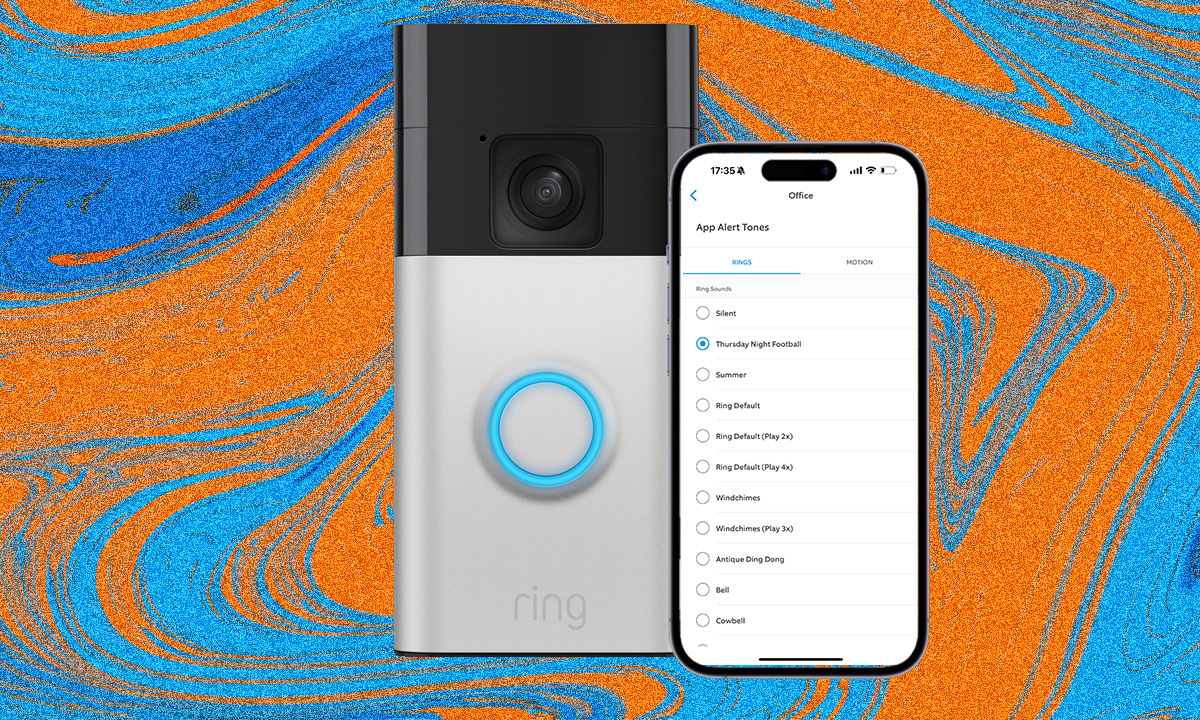
Changing Your Ring Doorbell Alert Sound on Phone
One of the most common questions I get as a smart home editor is how to make a mobile device sound less like a generic "ping" and more like a proper home alert. The Ring app provides the functionality to assign unique notification sounds for Ring Alerts and Motion Alerts, which is essential for distinguishing between someone actually at your door and a cat walking across your driveway.
To begin personalizing your mobile notifications, follow these steps:
- Launch the Ring app and tap the three dots icon in the top right corner of your doorbell's tile on the dashboard.
- Select Device Settings from the menu that appears.
- Tap on Alert Settings and then select App Alert Tones.
- You will see two categories: Ring Alerts (when someone pushes the button) and Motion Alerts (when movement is detected). Tap each one to browse the available sounds.
- Once you find a sound you like, simply hit the back arrow or Save to apply it.
For those who rely on custom ring doorbell notifications to keep their household running smoothly, I recommend choosing a longer, more melodic tone for actual doorbell presses and a shorter, subtler tone for motion. If you often find yourself missing alerts because your phone is silent, check your phone's system settings to enable Priority Alerts. This allows the Ring app to bypass Focus or Do Not Disturb modes.
If you are an Android user wondering how to change ring doorbell alert sound on phone using your own files, you have a bit more flexibility. By going into your phone's Apps settings, finding Ring, and looking at Notifications, you can often override the default app sounds with local audio files. This is a great way to add a truly personal touch to your smart home ecosystem. However, if you find that ring doorbell app alert tones not playing on android devices, ensure that the app has permission to play sounds and that your notification snoozing feature isn't accidentally active.
Customizing Ring Chime and Chime Pro Tones
While phone notifications are great, the heart of the home audio experience usually lies with a physical Ring Chime or Chime Pro. These devices are dedicated speakers that plug into your wall outlets, ensuring you hear the doorbell even if your phone is in another room or charging.
Managing the audio for these devices is slightly different than managing your phone alerts. Since the Chime is its own hardware entity, you need to access it directly from the app dashboard interface:
- Select your Chime or Chime Pro from the main Ring app screen.
- Tap on Audio Settings.
- Select Chime Tones.
- Here you can scroll through a wide variety of sounds. When you tap a tone, the physical Chime device in your home will play a sample, allowing you to hear exactly how it sounds in your space.
- Use the Audio volume slider at the bottom of the screen to adjust the intensity. This is particularly helpful for Chime Pro volume and tone settings if the device is located in a noisy area like a kitchen or workshop.
A key benefit of the Chime Pro is device linking. You can link multiple Ring cameras or doorbells to a single Chime. For example, if your backyard camera detects motion, you can have the Chime play a "Dogs Barking" sound, while a front door press triggers a classic Westminster chime. This level of customization creates a more intuitive and seamless smart home experience.
Unlocking Seasonal Holiday Themes and Special Alerts
One of the most delightful parts of the Ring ecosystem is the ability to customize ring doorbell sounds for halloween and christmas. Ring regularly updates its sound library with festive options. During October, you can find spooky organ music or a creaking door; in December, you can switch to jingle bells or festive carols. These seasonal holiday themes are usually found in the same Chime Tones or App Alert Tones menus mentioned earlier.
Beyond the fun stuff, there are high-utility sounds that come with a Ring Protect subscription. If you have the right hardware and a plan, you can set up specific sounds for person detection alerts and how to set up ring package alert sounds.
| Feature | Standard (Free) | Ring Protect Subscription |
|---|---|---|
| Standard Doorbell Tones | Yes | Yes |
| Motion Detection Tones | Yes | Yes |
| Person Detection Alerts | No | Yes |
| Package Alerts | No | Yes |
| Quick Replies Customization | Limited | Full |
By using different tones for these events, you can know exactly what is happening without ever looking at your screen. A specific "Package Alert" chime tells you the delivery has arrived, while a "Person Alert" warns you of a visitor. You can also utilize the Quick Replies feature to play a pre-recorded message through the doorbell's outside speaker if you can't get to the door.
Integrating Amazon Alexa as a Secondary Chime
If you already have Echo Dots or Echo Shows around your house, you don't necessarily need a separate Ring Chime. Through Amazon Echo integration, your smart speakers can announce whenever someone is at the door.
To set this up, you need to enable the Ring skill in the Alexa app. Once your accounts are linked:
- Open the Alexa app and go to Devices.
- Find your Ring Doorbell.
- Toggle on Doorbell Press Announcements.
- You can even select which Echo devices should announce the visitor.
This expands your smart home ecosystem by using existing hardware to boost your home’s audibility. You can even change the announcement sound within the Alexa app to match your preferences, providing another layer of ring doorbell sounds throughout your living space.
Troubleshooting: Adjusting Volume and Speaker Settings
Sometimes, the issue isn't picking the right sound, but hearing it clearly. I’ve seen many users struggle with changing ring doorbell outside speaker volume and sound. To adjust the volume of the doorbell itself (the sound the visitor hears when they press the button or when you use two-way talk), go to Device Settings > Audio Settings and find the Speaker Volume slider.
There have also been technical hiccups in recent years, such as the iOS 16 audio truncation bug where alerts would cut off early. If you are experiencing this, the best fix is to ensure your phone is updated to at least iOS 17, which resolved many of these firmware and software conflicts.
If you find that ring doorbell app alert tones not playing on android, it is often due to the "Battery Optimization" setting. Ensure the Ring app is set to "Unrestricted" so that it can push notifications and play sounds instantly. Regular firmware updates for your Ring devices are also crucial to maintaining wireless connectivity and ensuring that new seasonal sounds appear in your menu as they are released.
FAQ
How do I change the sound on my Ring doorbell?
To change the sound that your Ring doorbell makes when pressed, open the Ring app, select your doorbell, and go to Device Settings > Alert Settings > App Alert Tones. If you want to change the sound of a physical Ring Chime, select that device from the dashboard and navigate to Audio Settings > Chime Tones.
Can you customize Ring doorbell chime sounds?
Yes, you can customize the sounds for both the Ring app on your phone and any Ring Chime or Chime Pro hardware. There are over 20 different tones available, including classic melodies and seasonal themes for holidays like Halloween and Christmas.
How do I adjust the volume on a Ring doorbell?
To adjust the volume of the doorbell's external speaker, go to Device Settings > Audio Settings and move the Speaker Volume slider. To adjust the volume of your internal Chime, select the Chime device from the app, go to Audio Settings > Chime Tones, and use the Audio volume slider.
How do I change the Ring doorbell sound on my phone?
Open the Ring app and select your doorbell. Tap Device Settings, then Alert Settings, and finally App Alert Tones. You can then choose different sounds for Ring Alerts (doorbell presses) and Motion Alerts (detected movement).
Are there free seasonal sounds for Ring doorbells?
Yes, Ring typically releases free seasonal sounds throughout the year for all users. You can find these festive tones in the Chime Tones and App Alert Tones menus during holiday periods such as Halloween, Thanksgiving, and Christmas.