Quick Facts
- Quick Fix: Toggle Airplane Mode on and off to refresh the cellular signal and force a reconnect to the nearest tower.
- Wi-Fi Tip: Switch from the 2.4GHz frequency band to the 5GHz frequency band for higher speeds and less signal interference.
- Data Fix: Disable Data Saver mode and any active VPNs, as these services often limit bandwidth to preserve data or reroute traffic through slower servers.
- Storage Rule: Maintain at least 1GB of free internal storage to prevent system lag that can mimic slow Android internet performance.
- Advanced Fix: Configure a Private DNS like dns.google in your settings to bypass slow ISP lookups and improve latency and ping rate.
- Global Benchmark: As of early 2025, the global median mobile download speed reached 61.52 Mbps, a significant benchmark for measuring your own device performance.
Identifying the cause of slow Android internet is the first step toward a fix. Whether you need to speed up Android mobile data or find Wi-Fi optimization tips, this guide covers everything from simple toggles to advanced network settings. To quickly resolve slow internet on an Android device, toggle airplane mode on and off to refresh the network connection and force the phone to search for the strongest signal. Additionally, disable any active VPNs and turn off Data Saver mode in your system settings, as these features can significantly limit bandwidth and increase latency during browsing.

Phase 1: The 10-Minute Baseline Check
Before diving into complex settings, I always recommend establishing a baseline. As an editor who handles hundreds of devices, I've found that what feels like a network issue is often just a bogged-down operating system. Considering Android maintains a global market share of approximately 76 percent, with over 4 billion active users, the diversity of hardware means that performance can vary wildly.
Start by running a speed test using an app like Ookla or Fast.com. If your results are significantly below the median mobile download speed of 61.52 Mbps, you definitely have a connectivity problem. However, if the speeds look good but the phone feels slow, the issue might be your hardware.
One of the most overlooked factors in troubleshooting Android network issues is internal storage. I follow the 10 percent or 1GB rule: if your phone has less than 1GB of free space, the system struggles to handle the temporary cache files required for smooth browsing. This is especially true if you are trying to fix slow internet on old Android phone models where storage controllers are slower. Proper bandwidth management starts with a healthy device that has enough "breathing room" to process incoming data. Also, take a look at your network signal strength in the status bar. If you only have one or two bars, your environment—not your phone—is likely the culprit.
Phase 2: Immediate Software Triage
Once you’ve confirmed the network is the problem, it’s time for some quick software fixes. The most effective "magic button" is the Airplane Mode toggle. By enabling and then disabling it, you force the modem to restart and re-authenticate with the cellular tower or router. This simple act can clear up minor handshake errors and packet loss issues instantly.
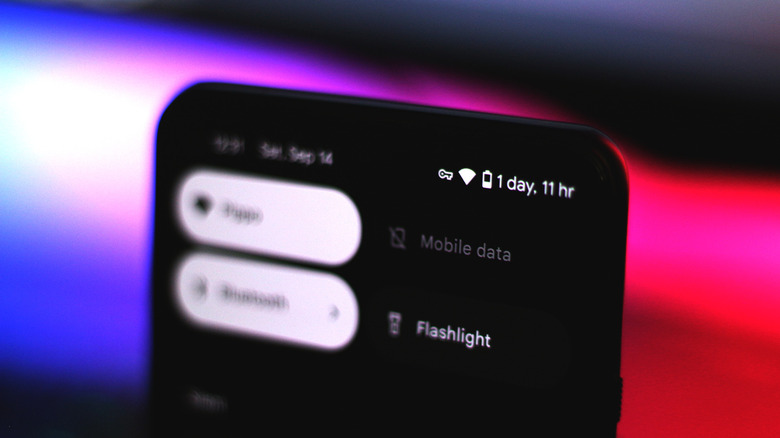
Next, check your status bar for the "key" or "VPN" icon. While I always advocate for privacy, an active VPN is a common reason for slow Android internet because it adds an extra hop for your data to travel. In my testing, even high-end VPNs can cut speeds by 20 to 30 percent depending on the server location.
Another setting to audit is Data Saver mode. Designed to help users stay under their monthly limits, this feature restricts background app synchronization and lowers the quality of streaming video. While helpful for your wallet, it is a major bottleneck if you are trying to speed up Android mobile data for a specific task. You should also check for apps that are "data hogs." Apps like Instagram, TikTok, and YouTube often have high background app activity. You can disable Android background data to increase speed for the app you are currently using by going into the app info settings and toggling off background usage.
Phase 3: Optimizing Your Wi-Fi Connection
When you are at home or in the office, your Wi-Fi environment plays a massive role. Modern routers offer two main frequencies: 2.4GHz and 5GHz. Understanding the Android Wi-Fi frequency band 5GHz vs 2.4GHz trade-off is essential for Android Wi-Fi optimization tips. The 2.4GHz band is great for long distances and traveling through walls, but it is incredibly crowded with signal interference from microwaves, baby monitors, and neighbors' routers. If you are in the same room as the router, always switch to the 5GHz band for significantly higher throughput and lower latency and ping rate.
Router placement is another critical factor. If your router is tucked inside a cabinet or sitting on the floor, you are losing a massive amount of potential speed. Place it in a central, elevated location. For those who use their tablets or phones for competitive gaming, I often suggest using a USB-C to Ethernet adapter. It sounds a bit "pro," but it eliminates signal interference entirely.
Finally, don't forget the browser. If Chrome or Samsung Internet feels sluggish, try clearing the browser cache. Over time, these apps store thousands of tiny files that can become corrupted or simply take too long for the browser to sort through, creating an artificial feeling of slow Android internet.
| Feature | Samsung (One UI) | Google Pixel (Stock) |
|---|---|---|
| Reset Network | Settings > General Management > Reset | Settings > System > Reset options |
| Data Saver | Settings > Connections > Data usage | Settings > Network & internet > Data Saver |
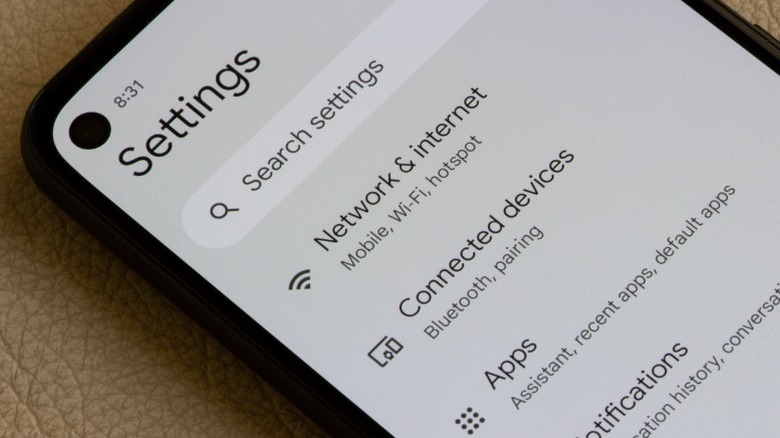
| Private DNS | Settings > Connections > More connection settings | Settings > Network & internet > Private DNS |
| Storage Info | Settings > Battery and device care > Storage | Settings > Storage |
Phase 4: Mobile Data & Carrier Tweaks
If your Wi-Fi is fine but you need to speed up Android mobile data, the problem usually lies between your phone and the carrier tower. First, check your "Preferred Network Type." While 5G is the gold standard, in areas with weak 5G coverage, your phone might constantly switch between 5G and LTE. This "toggling" causes significant battery drain and data stalls. Sometimes, manually selecting LTE can actually result in a more stable and faster experience.
You should also be aware of ISP throttling. Most "unlimited" plans have a soft cap—usually between 20GB and 50GB. Once you hit that cap, the carrier will intentionally slow your connection. If you've noticed your data is slow even with full bars toward the end of your billing cycle, this is likely the reason.
Additionally, I see many readers complain about troubleshoot slow internet on Android after update issues. Sometimes, a system update can mess up your Access Point Name (APN) settings. These are the "directions" your phone uses to connect to your carrier's gateway. If you suspect this, you can usually go to your SIM settings and select "Reset to default" in the APN menu. This forces the phone to pull the latest configuration from the carrier. Knowing how to speed up Android mobile data often comes down to these small, carrier-specific adjustments.
Phase 5: Advanced System Recovery
If the basic steps haven't worked, it’s time to look deeper into the system. One of my favorite "pro" tricks is configuring a Private DNS. By default, your phone uses the DNS server provided by your ISP or mobile carrier, which can be slow or unreliable. By setting your Private DNS to dns.google or 1.1.1.1, you can often improve the speed at which websites start to load. This specifically helps with latency and ping rate rather than raw download speed.
If the internet is still crawling, try booting your phone into Safe Mode. This disables all third-party apps. If the internet speed returns to normal in Safe Mode, you know that a third-party app—likely a poorly coded "battery saver" or an "adware" app—is consuming your bandwidth in the background.
The final software-based solution is to reset Android network settings to fix slow internet. This is more surgical than a factory reset; it only wipes your Wi-Fi passwords, Bluetooth pairings, and cellular configurations. It is the most effective way to clear out persistent glitches that survive a simple reboot. Just remember that you will need to re-enter your home Wi-Fi password afterward. Regular system firmware updates are also vital, as manufacturers frequently release patches for modem stability.
FAQ
Why is my Android internet connection so slow?
Slow Android internet can be caused by various factors including network congestion, poor signal strength, or device-specific issues like a full cache or background apps. Software settings like Data Saver or an active VPN also frequently limit connection speeds.
How do I speed up data speed on my Android phone?
To speed up Android mobile data, start by toggling Airplane Mode to refresh your connection. Then, disable Data Saver mode and any VPNs, and ensure your "Preferred Network Type" is set to 5G or LTE. Restricting background data for non-essential apps can also help.
Why is my phone's Wi-Fi speed slower than other devices?
If your Android phone is slower than other devices on the same network, it may be connected to the 2.4GHz band instead of the 5GHz band. Alternatively, your phone's case might be interfering with the internal antenna, or you may need to clear your browser cache and reset network settings.
How do I reset network settings on an Android device?
To reset Android network settings to fix slow internet, go to Settings, then System or General Management. Look for Reset Options and select Reset Wi-Fi, mobile & Bluetooth (or Reset Network Settings). Confirm the action, and your phone will clear all saved network configurations.
Can a software update fix slow internet on Android?
Yes, system firmware updates often include modem optimizations and bug fixes for connectivity issues. However, if you experience troubleshoot slow internet on Android after update problems, you may need to reset your APN settings or perform a network reset to fix configuration errors.
Why is my mobile data slow even with full bars?
Having full bars indicates a strong signal to the tower, but the connection can still be slow due to network congestion (too many users on one tower) or ISP throttling if you have exceeded your monthly data cap. It can also indicate an issue with your phone's internal processing or DNS configuration.
If you've followed every step in this guide and your connection is still lagging, it might be time to consider hardware limitations. Older antennas simply can't keep up with modern network demands. However, for 90% of users, these software tweaks and environmental adjustments will bring your speeds back to that 2025 median or higher. Stay connected!