Quick Facts
- Default Status: The Microsoft usage data toggle is enabled by default as of early 2026.
- Data Retention: Signed-in activity is retained for up to 18 months in the cloud by default.
- Security Stat: A 2025 survey found nearly three million confidential records per organization were accessible via Copilot.
- Update Feature: Windows 11 v25H2 integrates AI directly into local apps like Notepad via cloud-connected tools.
- Privacy Hack: Use unsigned-in sessions for ephemeral chats that delete upon tab closure.
- Recall Security: The feature is now opt-in and uses Virtualization-based Security (VBS) Enclaves for data protection.
To manage Copilot privacy settings effectively, you must disable the Microsoft usage data toggle in the Personalization menu and manually clear your chat history via the Microsoft Account Privacy dashboard to override the 18-month retention policy.
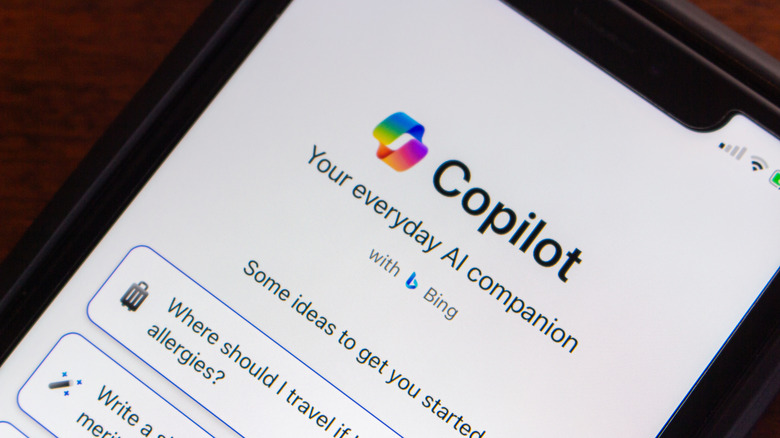
As a PC editor who spends more time in the BIOS and Windows Registry than most people spend on social media, I have watched the integration of AI into our desktops with a mix of technical fascination and architectural dread. We are no longer in the era where a PC is a siloed box of hardware; with the release of Windows 11 v25H2, your operating system is now a cloud-integrated service. While the productivity gains of having a localized LLM are undeniable, the default state of these tools is often designed for Microsoft's convenience, not your data sovereignty.
If you are a professional builder or a privacy-conscious power user, you need to treat Copilot privacy settings like you treat your firewall rules: with precision and a healthy dose of skepticism. The modern Windows environment treats your digital footprint as training material unless you explicitly tell it otherwise. Managing your secure Microsoft Copilot data privacy for home users starts with understanding that your data lives in two places: locally on your NVMe drive and remotely on Microsoft’s servers.
Disabling the Microsoft Usage Data Toggle
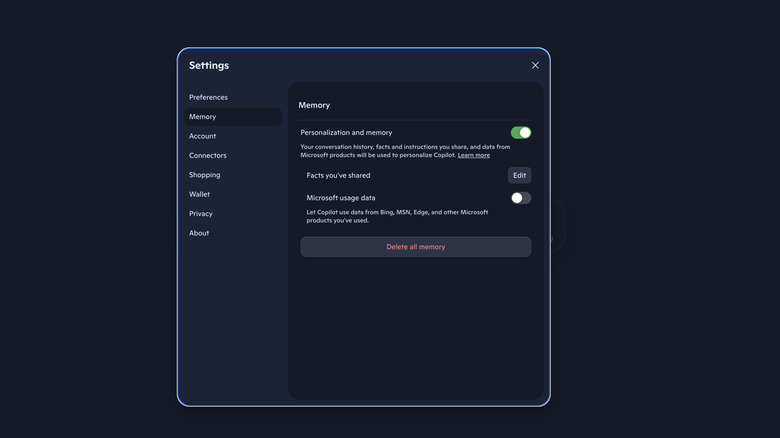
The most critical setting for any user is the Microsoft usage data toggle. This is effectively the master switch for cross-product integration. When enabled, Copilot acts as a bridge between your Edge Browser Integration, your Bing searches, and even your MSN feed. It pulls browser cookies and search history to build a persona of who you are, which helps it provide better answers but at the cost of your privacy.
For those who want to disable Copilot data collection, you cannot simply close the app. You must dive into the service settings to break the link between your activity and the AI’s personalization engine. To do this, follow this UI Scavenger Hunt:
[ ] Open your browser and navigate to the Copilot web portal or open the Copilot app on Windows. [ ] Click on your profile icon in the top right corner. [ ] Select Settings from the dropdown menu. [ ] Navigate to the Personalization tab. [ ] Locate the Microsoft usage data toggle and switch it to the Off position.
By taking these steps to disable Microsoft usage data in Copilot, you are telling the system to stop using your cross-platform activity to tailor your AI experience. The trade-off is a less "tailored" interaction, but for many of us, the gain in privacy is worth the slight loss in convenience. This is the first step to stop Microsoft Edge data sharing with Copilot AI and ensuring your daily browsing does not become part of your permanent AI profile.
Managing AI Memory vs. Chat History
One area where many users get confused is the difference between Copilot memory and chat history. These are two distinct data pools that Microsoft maintains. Chat history is a chronological log of your conversations, similar to a text message thread. AI Memory Personalization, however, is a deeper layer where the AI "learns" specific facts about you—like your preferred coding language or your project deadlines—to carry them across different sessions.
If you want to clear Copilot chat memory, you are dealing with the AI's long-term recall, not just the transcript of yesterday's session. To manage Microsoft 365 Copilot personalization settings and purge this stored knowledge, you need to go back into the Personalization menu. Under the Saved memories section, you will see an option to Delete all memories. This is the "nuclear option" for those who want to reset the AI’s understanding of their personal habits.
For those concerned about machine learning training, Microsoft claims that commercial data is not used to train their foundational models, but for home users, the rules are more fluid. By clearing your memory and history regularly, you reduce the size of the digital footprint that could potentially be used for future model refinements or personalization algorithms.
Account-Level Privacy: The 18-Month Rule
Even if you clear your local cache, Microsoft's cloud retention policy is a significant factor. By default, activity data associated with your account can be stored for up to 18 months. This is part of the broader Microsoft Account Privacy framework. To truly manage your data sovereignty, you have to look beyond the Copilot app and go to the core of your Microsoft account.
To turn off Copilot activity history in Microsoft account, you must visit the Privacy Dashboard on the Microsoft website. This dashboard is the central hub for all data Microsoft collects about you. Under the Activity History section, you can see exactly what has been logged.
| Data Type | Retention Period | Method to Clear |
|---|---|---|
| Chat History | Up to 18 Months | Privacy Dashboard > Clear History |
| Personalized Memory | Until Deleted | Copilot Settings > Delete All Memories |
| Usage Metadata | Indefinite (Anonymized) | Disable Usage Data Toggle |
| Local Recall Data | 25GB+ (User Configurable) | Windows Settings > Privacy > Recall |
The process for steps to clear Copilot chat history on Windows 11 involves navigating to the "Apps and Services" section of the dashboard and specifically selecting Copilot. From here, you can select Delete all activity history. This is the only way to ensure that your records are removed from Microsoft's servers before the 18-month window expires. It is an essential practice for anyone managing a fleet of PCs or simply wanting to keep a clean digital slate.
Copilot in Windows 11 v25H2 and Local Apps
The latest 25H2 update has fundamentally changed how AI interacts with your local hardware. We have seen AI features move into Notepad, Paint, and even the Taskbar. The most controversial of these was the Recall feature. Following significant pushback from the security community in late 2024, Microsoft transitioned Recall to an opt-in experience.
From a hardware perspective, this feature now requires biometric authentication via Windows Hello. Furthermore, the data is stored within a secure Virtualization-based Security (VBS) Enclave. This means that even if someone gains administrative access to your PC, the AI-generated snapshots are encrypted and isolated from the rest of the OS. For PC builders, this highlights the importance of having a robust TPM 2.0 and HVCI-compatible hardware.
However, if you find these features intrusive, you can still exercise control. You can learn how to remove Copilot from Windows 11 taskbar by right-clicking the Taskbar, selecting Taskbar Settings, and toggling the Copilot switch to Off. While this hides the UI, it doesn't necessarily stop the background data collection. To truly opt out of Microsoft AI data collection updates, you must combine this UI change with the account-level privacy deletions mentioned earlier.
For enterprise users or those running Windows Pro, you can use the Group Policy Editor (GPO) to enforce information governance. By navigating to Computer Configuration > Administrative Templates > Windows Components > Windows Copilot, you can set the "Turn off Windows Copilot" policy to Enabled. This provides a level of control that goes beyond what is available in the standard settings menu.
FAQ
Does Copilot use my data to train its AI models?
For standard consumer accounts (Microsoft accounts like @outlook.com), Microsoft may use your interactions to improve its services, though they provide opt-out controls for specific data usage. For Microsoft 365 Enterprise and Business customers, Microsoft explicitly states that customer data is not used to train the underlying Large Language Models (LLMs) without consent. Always check your specific subscription agreement to understand the machine learning training policies that apply to you.
How can I delete my Copilot chat history?
You can delete individual chat threads by clicking the Trash or Delete icon next to a specific conversation in the Copilot sidebar. To delete your entire history at once, you must go to your Microsoft account Privacy Dashboard on the web, navigate to the activity history section, and select the option to clear your data for apps and services. This will remove the logged data from Microsoft’s cloud servers.
How do I turn off data collection in Copilot?
To stop active data collection for personalization, open the Copilot settings menu and toggle off the Microsoft usage data option. This prevents the AI from pulling information from your Bing search history, Edge browsing, and other Microsoft services. For a complete cessation of data collection, you would need to sign out of your Microsoft account while using Copilot, which results in an ephemeral session that is not saved.
Where are the privacy controls for Copilot in Windows?
In Windows 11, the primary privacy controls are split between two locations. General app behavior can be managed by going to Settings > Privacy & security > Generative AI. For deep data management, you must use the settings within the Copilot app itself (Profile > Settings) or the web-based Microsoft Privacy Dashboard. If you are looking to manage the Recall feature, that is located under Settings > Privacy & security > Recall.
How do I manage data privacy for Copilot in Microsoft 365?
Microsoft 365 Copilot (formerly Office 365) follows strict enterprise data protection (EDP) standards. Admins can manage these settings through the Microsoft 365 Admin Center under Settings > Org settings > Copilot. For individual users, your data privacy is governed by your organization's internal information governance policies, which typically prevent your data from leaving your company's secure tenant environment.
Summary Checklist for Your Privacy Audit
As we move further into 2026, the complexity of AI integration will only grow. To keep your system lean and your data private, I recommend performing a privacy audit after every major Windows update. Here is your final checklist:
[ ] Verify the Microsoft usage data toggle is still disabled in Copilot settings. [ ] Check the Windows 11 Taskbar settings to ensure unwanted AI shortcuts are hidden. [ ] Visit the Microsoft Privacy Dashboard every few months to clear your activity history. [ ] Use the "Delete all memories" function if you feel the AI has learned too much about your personal habits. [ ] If using Windows Pro, consider using GPO to disable cloud-connected AI features if they are not required for your workflow.
Data privacy in the age of AI isn't about total isolation; it's about consent management. By taking a proactive approach to your Copilot privacy settings, you can enjoy the benefits of modern computing without handing over the keys to your entire digital life. Keep your drivers updated, your firmware secure, and your privacy settings under your own control.