Quick Facts
- Industry Standard: Color-coding for ports like blue for USB 3.0 is an industry convention rather than a mandatory requirement, meaning manufacturers often choose colors for branding or aesthetics.
- Speed Disparity: The USB 3.0 SuperSpeed standard offers data transfer rates of up to 5 Gbps, making it roughly ten times faster than the 480 Mbps maximum of USB 2.0.
- Visual Identifiers: Physical icons like the SS (SuperSpeed) logo or numbered circular logos for USB4 are the most accurate external indicators of a port's capability.
- Internal Verification: Windows Device Manager and macOS System Report provide the most reliable way to identify USB speed by showing the actual bus data rating.
- Cable Quality: Research suggests that more than 40% of third-party USB-C cables fail to meet their full technical specifications for data and power.
- Compatibility Logic: A high-speed port will always downshift to the speed of the slowest connected component, whether it is the cable or the device itself.
Have you ever looked at a colorless USB port and wondered about its actual speed? While blue often means USB 3.0, it is not a requirement. To identify USB speed reliably, you must look for physical symbols or verify hardware specifications within your OS to ensure you are getting the full performance of your peripherals.
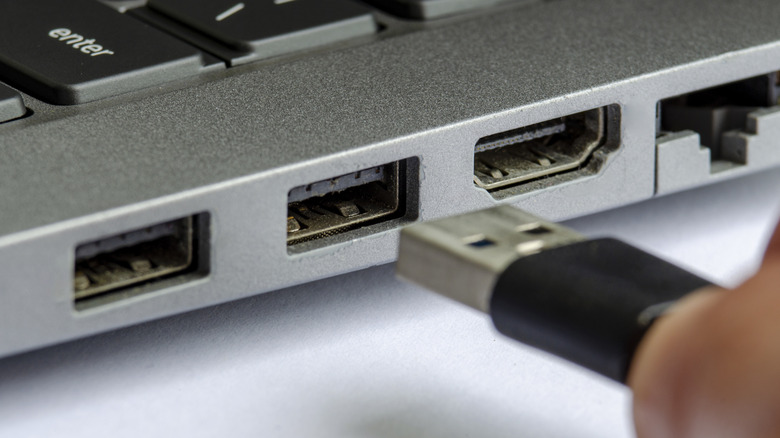
Why Color-Coding is Unreliable
For years, PC builders and casual users alike relied on a simple visual shorthand: if the plastic tab inside the USB-A port was blue, it was fast; if it was black, it was slow. However, as a hardware editor, I have seen this convention fall apart more times than I can count. Because color-coding is an industry convention rather than a mandate in the official Universal Serial Bus specification, manufacturers have started taking creative liberties to match their brand identities.
Take Razer, for example. They famously use bright green internals for their ports to match their brand colors, regardless of whether the port is Gen 1 or Gen 2. Huawei often uses purple tabs for proprietary fast-charging ports. Perhaps most frustratingly, many modern premium laptops from Dell or Apple use "stealth" ports—all-black or color-matched to the chassis—even when they support the latest USB 3.2 or Thunderbolt standards.
This lack of consistency makes USB 3.0 vs 2.0 port identification difficult for those just looking at the color. You might think you are plugged into a high-speed port because it is blue, but it could be a budget manufacturer using blue plastic for a USB 2.0 port to deceive consumers. Conversely, an all-black port on a workstation might actually be a 10Gbps monster. Knowing how to identify USB port speed without colors is now a mandatory skill for anyone managing modern hardware.
Visual Decoding: Port Symbol Meanings
If color cannot be trusted, where should you look? The answer lies in the tiny, often hard-to-see icons engraved or printed next to the physical port. These symbols are part of the official labeling conventions managed by the USB Implementers Forum (USB-IF).
The classic USB "trident" logo usually indicates a standard USB 2.0 HighSpeed connection. If you see that trident paired with the letters SS, you have found a SuperSpeed port. This is the hallmark of USB 3.0 and beyond. As speeds have increased, these labels have become more specific. You might see SS 5, SS 10, or SS 20, which represent the gigabits per second (Gbps) the port can handle.
| USB Version | Physical Logo | Max Theoretical Speed | Common Name |
|---|---|---|---|
| USB 2.0 | Trident only | 480 Mbps | High-Speed |
| USB 3.0 / 3.1 Gen 1 | SS | 5 Gbps | SuperSpeed |
| USB 3.1 Gen 2 | SS 10 | 10 Gbps | SuperSpeed+ |
| USB 3.2 Gen 2x2 | SS 20 | 20 Gbps | SuperSpeed 20Gbps |
| USB4 | 20 or 40 in a circle | 20 / 40 Gbps | USB4 |
When identifying USB SS symbols on laptop ports, keep an eye out for additional modifiers. A battery icon next to the USB logo indicates a Sleep-and-Charge port, which provides more power even when the laptop is off. A small "D" shape or a lightning bolt usually signifies Thunderbolt 4 compatibility or DisplayPort Alt Mode, meaning the port can output video signals to a monitor.
Navigating USB 3.2 Gen 2x2 vs USB4 port identification is particularly important for professionals using external NVMe drives. If your drive supports 20Gbps but you plug it into a port labeled only with the standard SS logo, your transfer speeds will be cut by 75%.
Pro Tip: If the icons are too small to read, use your smartphone camera to zoom in. The macro lens on most modern phones can clarify whether that tiny smudge is an "SS 10" or just a standard trident.
Software Verification: Finding USB Hardware Specifications
Sometimes physical labels are missing entirely, especially on custom PC cases or minimalist laptops. In these instances, you need to dive into the operating system to find the truth about your bus bandwidth. This is the most accurate way to identify if USB port is HighSpeed or SuperSpeed because it shows exactly what the controller is capable of.
Windows Verification
To verify USB 3.0 speed in Windows Device Manager, follow these steps:
- Right-click the Start button and select Device Manager.
- Scroll down to the bottom and expand Universal Serial Bus controllers.
- Look for terms like eXtensible Host Controller or xHCI Controller. These terms confirm that your system supports USB 3.0 or higher.
- To check a specific connection, right-click on USB Root Hub (USB 3.0), select Properties, and go to the Details or Advanced tab. Some drivers will explicitly list the data rating here as SuperSpeed or High-Speed.
macOS Verification
For Mac users, identifying the hardware capability is even more straightforward:
- Click the Apple Menu and select About This Mac.
- Click System Report... (or More Info and then System Report on newer versions).
- In the sidebar, under Hardware, select USB.
- The USB Device Tree will show all your ports. Clicking on a specific bus will reveal the Speed category, such as Up to 480 Mb/s or Up to 10 Gb/s.
Using these system checks is the only way to find USB hardware specifications that are 100% accurate, as it bypasses any misleading physical branding.
Advanced Diagnostics for Power Users
If you want to go deeper than the basic system reports, I recommend using a utility called USB Device Tree Viewer. This is a technical tool that provides a real-time look at how every device is communicating with your motherboard. It is particularly useful for identifying a transfer bottleneck that might not be obvious at first glance.
When you run this tool, it shows each port's enumeration status. If a port is running at SuperSpeed, you will often see an 'S' icon or a specific descriptor indicating the current bus speed versus the maximum possible speed. This is crucial because it helps you determine if a device is performing poorly due to the port itself or because of an internal software limitation.
Another place to check for power users is the BIOS or UEFI. Sometimes, high-speed ports are throttled because of settings like USB Legacy Emulation or power-saving modes. If you find your speeds are consistently lower than the hardware manual suggests, a quick trip into the BIOS during boot-up might reveal that your 10Gbps ports are set to a lower compatibility mode.
The Weakest Link: Why Your Speed is Still Slow
You can correctly identify USB speed at the port level and still experience agonizingly slow transfers. This is what I call the "Chain of Speed" principle. Your data transfer is only as fast as the slowest link in the chain: the port, the cable, and the device.
If you connect a high-end external SSD to a 40Gbps USB4 port using a cheap cable you found in a drawer, you will likely be limited to 480Mbps. As mentioned earlier, a significant portion of third-party cables fail to meet advertised standards. These cables often lack the extra wiring required for SuperSpeed data lanes, functioning only as charging cables with USB 2.0 data capabilities.
Furthermore, backward compatibility is both a blessing and a curse. While your USB 3.2 drive will work in a USB 2.0 port, it will be capped at the older standard's speed. Always ensure that every component in your setup—from the motherboard header to the internal drive controller—is matched for the throughput you expect.
Expert Insight: Don't forget that USB hubs are frequent culprits for speed drops. Unless a hub is "active" (powered) and specifically rated for high-speed data, it will split the bandwidth of a single port among every device connected to it, leading to a massive data throughput bottleneck.
FAQ
How can I tell if my USB is 2.0 or 3.0?
Check the physical port for the SS symbol, which stands for SuperSpeed and indicates USB 3.0 or higher. If the port only has a standard USB trident icon without the letters SS, it is likely a USB 2.0 port. You can also verify this in your computer's device manager by looking for an xHCI controller.
Does the color of a USB port indicate its speed?
While blue is the traditional convention for USB 3.0, it is not a mandatory rule. Many manufacturers use custom colors like green, purple, or red for branding or proprietary features. Some high-end laptops use all-black ports regardless of speed, making physical icons and system checks more reliable than color.
How do I check USB speed on Windows 10?
You can check this by opening the Device Manager and expanding the Universal Serial Bus controllers section. Look for a USB 3.0 or 3.1 Root Hub. For a more detailed view of the current connection speed of a specific device, you can use the Settings menu under Devices or a third-party tool like USB Device Tree Viewer.
What do the symbols next to USB ports mean?
A trident logo represents standard USB 2.0. The SS logo indicates SuperSpeed (USB 3.x). A number next to the SS (like 10 or 20) represents the speed in Gbps. A lightning bolt usually signifies a Thunderbolt port, while a battery icon indicates the port can charge devices while the computer is asleep.
Why is my USB 3.0 port running at slow speeds?
The most common reason is using a cable that only supports USB 2.0 speeds. Other factors include connecting through an unpowered USB hub, using a device that is internally limited to slower speeds, or outdated chipset drivers that prevent the xHCI controller from functioning at full capacity.