Quick Facts
- Mimic E-Ink: Enable Grayscale and Reduce White Point in Accessibility settings to create a paper-like, eye-friendly iPad display settings profile.
- Distraction-Free: Use Guided Access or a custom Reading Focus mode to block notifications and lock yourself into your book.
- Hardware Hack: Apply a matte screen protector to eliminate reflections and replicate the tactile feel of an e-reader.
- Automation: Set up the Shortcuts app to automatically trigger reading mode when you open the Kindle or Libby app.
- Health Check: Follow the 20-20-20 rule to reduce digital eye strain during long reading sessions.
- User Statistics: Approximately 76% of iPad users utilize their device for reading e-books, proving it is a viable alternative to dedicated hardware.
Transforming your iPad into a highly functional iPad Kindle replacement is entirely possible by enabling Grayscale mode, reducing the White Point, and using a matte screen protector to eliminate glare. By combining hardware and software tweaks, you can achieve a distraction-free reading mode that mimics the e-ink experience while keeping the iPad's versatility for other tasks.
The Case for the iPad as Your Primary E-Reader
As a mobile devices editor, I am often asked if it is worth carrying both an iPad and a Kindle. While the Kindle is the gold standard for long-form reading in direct sunlight, the iPad offers a level of versatility that a dedicated e-reader simply cannot match. Whether it is reading full-color graphic novels, accessing research papers via PDF, or switching seamlessly between the Kindle app and Libby for library loans, the iPad is a powerhouse.
However, the "out of the box" iPad experience is optimized for vibrant video and snappy multitasking, which are the enemies of a good reading session. To turn your tablet into an iPad Kindle replacement, we need to address two primary hurdles: screen glare and digital distractions. Research indicates that reading on backlit LCD screens can trigger higher visual fatigue as measured by blinks per second compared to E-ink displays. Our goal is to mitigate this fatigue through smart configuration.
Hardware Mods: Fixing the Glare and Weight
The journey to a perfect reading experience starts with the physical device. If you haven't purchased a tablet yet, the iPad Mini is the undisputed champion for this role. Its form factor closely mirrors a traditional mass-market paperback, making it comfortable for one-handed reading in bed or on a commute.
The Essential Matte Screen Protector
The biggest physical difference between an iPad and a Kindle is the screen texture. The iPad's glass is highly reflective and a magnet for fingerprints. To fix this, you should invest in a high-quality matte screen protector. These anti-glare film solutions disperse light, allowing you to read near windows or under bright lamps without seeing your own reflection. Beyond the visual benefits, a matte screen protector adds a slight grain to the screen, providing a paper-like resistance to your swipes that feels significantly more organic than sliding your finger across glass. This is arguably the best ipad screen protector for reading kindle books because it bridges the gap between digital and analog.
Ergonomics and Remote Control
If you prefer reading on a larger iPad Pro or Air, weight becomes an issue. Prolonged holding can lead to wrist fatigue. I recommend using a tablet stand or a pillow mount to maintain an ergonomic viewing angle. For the ultimate "lazy" reading setup, you can even pair a Bluetooth remote page turner. This allows you to keep your hands tucked under a blanket while clicking through chapters, a luxury even Kindle owners often envy.
| Feature | iPad (Mini/Air) | Kindle (Paperwhite/Oasis) |
|---|---|---|
| Display Technology | Backlit LCD/OLED | Front-lit E-Ink |
| Color Support | Full P3 Color Gamut | Grayscale Only (Most models) |
| App Variety | Kindle, Libby, Marvel, News | Amazon Ecosystem |
| Weight | 293g (Mini) to 460g+ | 158g to 205g |
| Refresh Rate | 60Hz - 120Hz | Approx. 1Hz |
Software Tuning: Creating the E-Ink Aesthetic
Once the hardware is prepped, we need to dive into the iPadOS settings to create a display optimization for eye health. The goal is to strip away the "computer" look and embrace e-ink aesthetics.
Step 1: Grayscale and Color Filters
The vibrant colors of an iPad are great for movies but distracting for text. By moving to a black-and-white interface, you signal to your brain that it is time to focus.
Settings Path: Go to Settings > Accessibility > Display & Text Size > Color Filters. Toggle Color Filters ON and select Grayscale.
Step 2: Reduce White Point
Even at the lowest brightness setting, an iPad screen can feel "searing" in a dark room. The Reduce White Point setting allows you to dim the intensity of bright colors beyond the standard slider. This is the secret sauce to reduce ipad white point for eye-friendly reading.
Settings Path: Go to Settings > Accessibility > Display & Text Size > Reduce White Point. Set the slider to 50% or higher depending on your environment.
Step 3: Kindle App Internal Settings
Don't forget to optimize the app itself. Within the Kindle app, tap the 'Aa' icon. I highly recommend selecting a sepia background for daytime reading and a black background for night. You can also adjust the font to "Amazon Ember" or "Bookerly," which are specifically designed for long-form legibility. These kindle app settings for ipad to improve legibility ensure that the text remains crisp and the contrast is high enough to read without squinting.
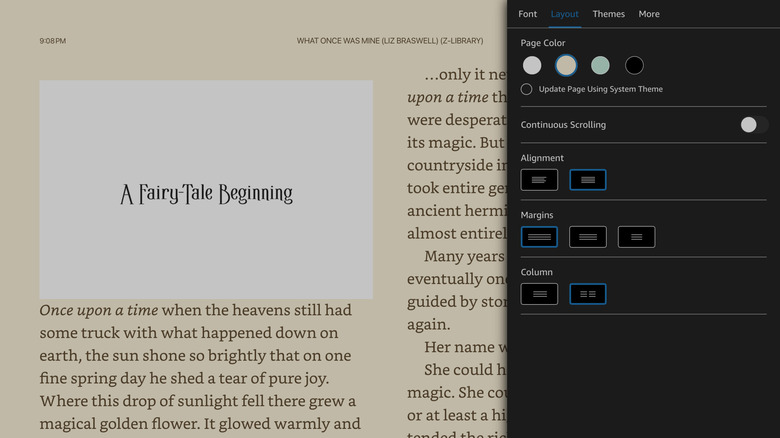
Step 4: Blue Light Management
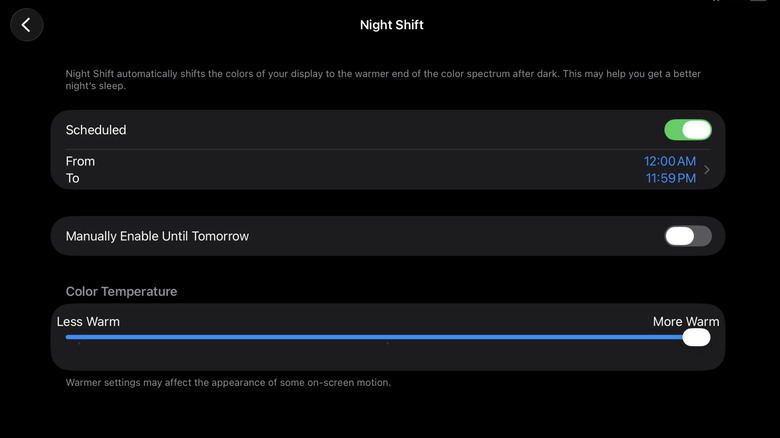
Exposure to blue light in the evening can disrupt your sleep cycle. While Grayscale helps, you should also ensure Night Shift is active. This shifts the display to a warmer part of the spectrum.
Distraction-Free Reading: Locking the OS
The reason most people prefer a Kindle is that it only does one thing. On an iPad, a stray Instagram notification can derail your reading session in seconds. To fix this, we need to create an ipad distraction-free reading mode.
Setting Up a Reading Focus Mode
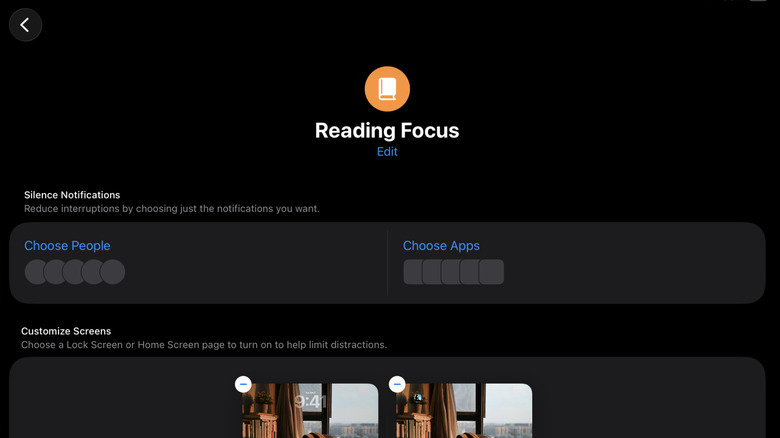
iOS Focus modes are powerful tools for digital minimalism. You can create a dedicated "Reading" Focus that silences all notifications except for perhaps emergency contacts.
- Go to Settings > Focus > Add (+ button) > Reading.
- Customize your Home Screen to only show the Kindle or Libby app icons.
- Use focus filters to turn on Low Power Mode automatically when you start reading to preserve battery.
Guided Access: The Nuclear Option
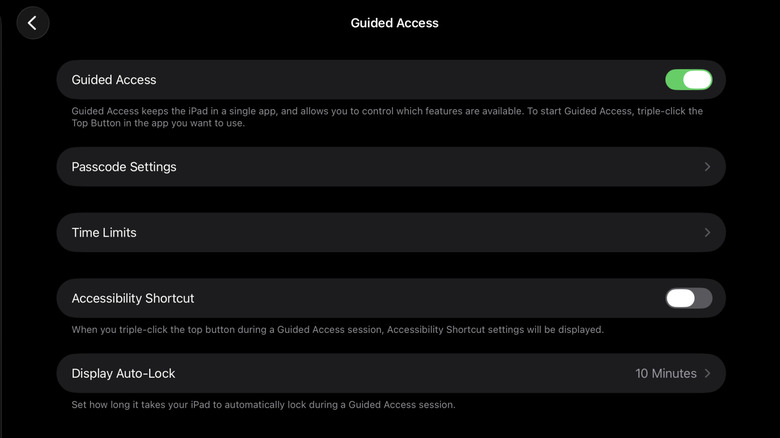
If you find yourself reflexively closing your book to check Safari, Guided Access is your best friend. This feature locks the iPad into a single app. You cannot leave the app until you triple-click the power button and enter a passcode. This is how you use ipad guided access for distraction-free reading to ensure you actually finish that chapter.
Settings Path: Settings > Accessibility > Guided Access. Turn it on, and then triple-click the side button while inside the Kindle app to lock it.
Pro Automation: One-Tap Transformation
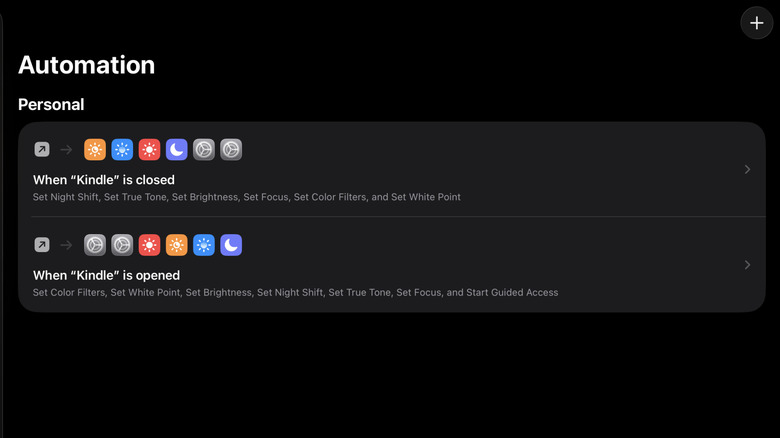
Manually changing five different settings every time you want to read is a friction point that will stop you from using your iPad as an e-reader. Instead, we use the Shortcuts app to create a seamless transition. You can setup ipad shortcuts for automatic reading mode so the device handles the heavy lifting for you.
The "Open App" Automation
This automation will trigger the "e-ink" look the moment you tap your book app.
- Open the Shortcuts app and tap the Automation tab.
- Tap the + and select Create Personal Automation.
- Scroll down to App and choose "Kindle" and "Libby." Ensure "Is Opened" is selected.
- Add the following actions:
- Set Color Filters to On.
- Set White Point to On (70%).
- Set Night Shift to On.
- Set Focus to Reading.
- Disable "Ask Before Running" so it happens instantly.
The "Exit App" Automation
Create a second automation for when the app "Is Closed" to turn all those settings back off. This ensures your iPad returns to its vibrant, colorful self the moment you are done reading. This level of optimize iPad for reading ensures the device adapts to your lifestyle, not the other way around.
Ergonomics and Digital Wellness
Even with the best iPad Kindle replacement setup, the way you read matters. Backlit screens require more active care for your eyes than reflective paper.
The most important habit to adopt is the 20-20-20 rule: every 20 minutes, look at something 20 feet away for at least 20 seconds. This allows the ciliary muscles in your eyes to relax, preventing the digital eye strain that often plagues tablet users.
Furthermore, pay attention to your ambient light. Reading a bright screen in a pitch-black room is a recipe for a headache. Use a dim lamp to provide some environmental light, and let your iPad's ambient light sensor do its job, but don't be afraid to override it with your custom "Reduce White Point" shortcut. Maintaining an optimal viewing distance—roughly 20 to 28 inches from your face—and an angle that is 15 to 20 degrees below eye level will help protect your neck and eyes during those three-hour reading marathons.
FAQ
Is an iPad a good replacement for a Kindle?
Yes, for many users it is an excellent replacement. While the Kindle excels in battery life and outdoor readability, the iPad offers a significantly better experience for users who read across multiple platforms (Kindle, Libby, Google Books) or who enjoy media-rich content like magazines and comics. With the right settings, the eye-strain gap is greatly narrowed.
Which is better for eye strain, iPad or Kindle?
Native E-ink displays on the Kindle are generally better for eye strain because they reflect ambient light rather than emitting it directly toward your eyes. However, by using the Grayscale and Reduce White Point settings discussed in this guide, you can significantly reduce the visual fatigue associated with the iPad's backlit screen.
Is an iPad too heavy to use as an e-reader?
The standard iPad or iPad Pro can feel heavy during long sessions. However, the iPad Mini is specifically praised for its lightweight design, weighing only about 100 grams more than a Kindle Paperwhite. Using a stand or a specialized grip can help alleviate weight issues on larger models.
Can I read Kindle books on iPad offline?
Yes. Just like a Kindle device, the Kindle app for iPad allows you to download books for offline reading. This is ideal for flights or commutes where you may not have a steady internet connection. Simply tap the cover of the book in your library while connected to Wi-Fi to save it to your local storage.
What are the main differences between reading on iPad and Kindle?
The primary differences lie in the display technology and the ecosystem. Kindle uses E-ink, which is static and easy on the eyes but has a slow refresh rate and usually lacks color. The iPad uses a high-refresh-rate LCD or OLED screen that is better for navigation and color content but requires more careful management of brightness and blue light to ensure a comfortable reading experience.