Quick Facts
- Primary Method: Navigate to iPhone Settings > General > CarPlay > Customize.
- iOS Version: Full access to Clear Mode and advanced scaling requires iOS 26.4.
- Hardware: Optimized for iPhone 11 and newer to support Liquid Glass visual effects.
- Space Benefit: Increases icon grid density and maximizes infotainment screen real estate.
- Privacy: Prevents passengers from viewing sensitive upcoming appointments on the dash.
- Core Limitation: Essential apps like Phone, Messages, and Maps cannot be removed.
To remove the Calendar from your CarPlay layout settings, go to Settings > General > CarPlay on your iPhone, select your vehicle, tap Customize, and click the red minus icon next to the Calendar app. This declutters your infotainment screen real estate and enhances privacy-conscious driving.
Step-by-Step: Removing the Calendar via iPhone Settings
For most drivers, the CarPlay home screen is the command center for their daily commute. However, as we integrate more specialized apps into our driving experience, the default layout can quickly become cramped. Apple CarPlay displays a default of eight app icons per home screen page, and many users find that the Calendar app takes up valuable space that could be better utilized by music streaming or smart home controls.
To begin your iPhone CarPlay app customization for more space, you must first ensure your vehicle is parked. Apple’s safety protocols are strict, and while you can edit these settings on your phone at any time, the changes will only reflect on the vehicle head unit once the connection is stabilized.
- Open the Settings app on your iPhone.
- Scroll down and tap on General.
- Select CarPlay from the list of options.
- You will see a list of cars you have previously connected to; select your current vehicle.
- Tap on Customize. This opens the app arrangement interface where you can manage your CarPlay layout settings.
- Locate the Calendar app in the "Include" list. Tap the red minus icon next to it and then select Remove.
It is important to note that removing the app from this menu does not delete it from your iPhone. It simply hides it from the vehicle interface. This is a key part of iPhone CarPlay app customization because it allows you to streamline your view without losing any underlying data or functionality on your mobile device. Once you have finished, the apps will automatically shift to fill the gap, providing a more organized look the next time you connect your phone.
Decluttering the Dashboard: Hiding Calendar Suggestions
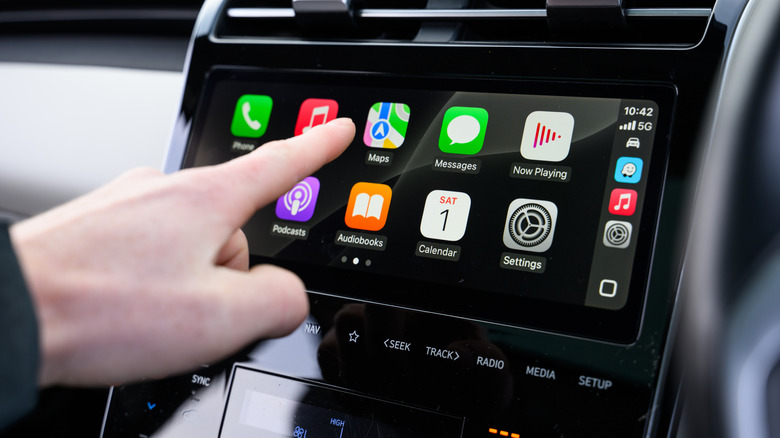
Even after you remove the icon from the main grid, the Calendar can still haunt your CarPlay dashboard through Siri Suggestions. The dashboard is the split-screen view that shows your navigation, currently playing media, and "smart" suggestions. While helpful for some, seeing your next doctor's appointment or a private meeting title displayed prominently can be an issue for those who value privacy-conscious driving.
To achieve a carplay layout settings for less cluttered dashboard experience, you need to dive into the vehicle's internal settings rather than your iPhone's general menu. While your phone is connected to the car, look at the vehicle's infotainment screen and tap the Settings app (the gear icon) specifically within the CarPlay interface.
Within this menu, navigate to the Siri & Suggestions section. Here, you can toggle off the switch for Suggestions in Dashboard. Disabling this feature ensures that upcoming calendar events on the CarPlay Dashboard are removed, which is a highly requested fix for users who want to hide sensitive calendar information on carplay screen from coworkers or family members riding in the passenger seat. By removing these listings, you effectively reclaim visual space for more relevant real-time data visualization, such as active navigation prompts or playback controls.
Advanced Space Optimization: iOS 26 Smart Display Zoom
With the release of iOS 26, Apple introduced significant changes to the way we interact with our vehicle displays. The most notable addition for power users is the Smart Display Zoom feature. This tool moves beyond simple app reordering and enters the realm of true user interface ergonomics by allowing you to scale the entire UI based on your specific screen size.
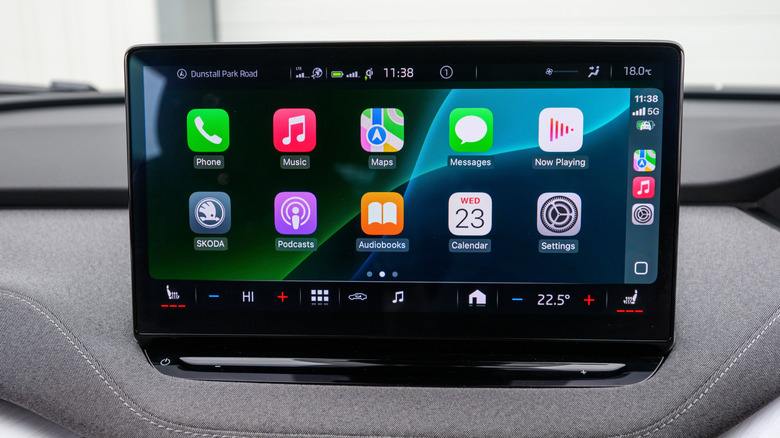
The ios 26 smart display zoom setup guide involves going to your iPhone settings and selecting the Display & Brightness options within the CarPlay customization sub-menu. By enabling Smart Display Zoom, the system reduces the padding between icons and shrinks the icon size slightly. On many mid-to-large vehicle head units, this can increase the icon grid from two rows to three, allowing you to see up to 15 apps on a single page instead of the standard eight.
Furthermore, iOS 26 introduces Liquid Glass visual mode and Clear Mode. When you enable carplay clear mode for better visibility, the system applies a semi-transparent effect to the app backgrounds and the dock. This reduces the heavy, blocked-out feeling of the UI, making the screen feel much larger than it actually is.
CarPlay Layout Comparison: Default vs. iOS 26 Optimization
| Feature | Default Layout | Smart Display Zoom (iOS 26) |
|---|---|---|
| Icon Grid | 2x4 (8 icons) | Up to 3x5 (15 icons) |
| Row Density | Standard padding | Compact Liquid Glass spacing |
| Dashboard View | Static 2-panel | Dynamic 3-column stack |
| Visual Style | Solid backgrounds | Transparent Clear Mode |
Another breakthrough in the latest update is CarPlay widget stack management. Previously, the dashboard widgets were static. Now, users can stack multiple widgets—like weather, EV charging status, and media—in a single slot and swipe through them. This allows for three widgets to sit side-by-side on the main screen, significantly improving how you handle in-car digital experience and real-time data visualization without cluttering the view with redundant app icons.
Troubleshooting: Why Settings Won't Appear
If you find that you cannot see the Customize menu or your changes aren't saving, there are usually three common culprits: connection status, firmware version, or system restrictions.
First, your iPhone must have established a handshake with the vehicle head unit at least once before the customization options appear in your iOS General Settings. If you have recently reset your iPhone or are using a new car, try connecting via USB first, even if you intend to use wireless CarPlay connectivity later. This initial tethered connection often "unlocks" the vehicle-specific customization profile on your phone.
Second, if you are using a third-party wireless CarPlay adapter, you may need to check for firmware updates. Many of these adapters require you to access a local IP address (frequently 192.168.1.101) through your phone's browser while connected to the adapter's Wi-Fi. Updating the firmware can resolve issues where the CarPlay customization menu on an iPhone fails to sync app layouts correctly.
Lastly, check for Screen Time restrictions. If you have "Content & Privacy Restrictions" enabled on your iPhone (found in Settings > Screen Time), CarPlay might be restricted. Ensure that CarPlay is allowed under the "Allowed Apps" section, otherwise, the phone will block any attempt to modify the dashboard UI decluttering settings or app arrangements.
FAQ
How do I change the layout of my CarPlay screen?
You can change the layout by navigating to Settings > General > CarPlay on your iPhone and selecting your vehicle. From there, tap Customize to enter the arrangement screen where you can move apps up or down to change their order on the car's display.
Can you customize the home screen icons on CarPlay?
Yes, you can customize which icons appear and in what order. While you cannot change the actual icon artwork (the "Liquid Glass" look is system-wide), you can choose which third-party apps are visible and where they sit on the grid.
How to hide or remove apps from CarPlay settings?
To hide an app, go to the CarPlay Customize menu on your iPhone. Tap the red minus icon next to any app in the "Include" list to move it to the "More Apps" section. This hides it from your car's screen without deleting it from your phone.
Can I rearrange the apps on my CarPlay dashboard?
Yes, the order in which apps appear in the Customize list on your iPhone determines their order on the CarPlay screen. The top four apps in your list will typically appear in the side dock or the first row of your home screen for easy access.
How do I reset the CarPlay home screen layout?
If you want to go back to the factory default settings, go to Settings > General > CarPlay > [Your Vehicle] > Customize and tap the Reset button in the top right corner. This will restore the original icon order and bring back any apps you previously removed, like the Calendar.