Quick Facts
- Best Placement: Elevated, central, and clear of metal or mirrors.
- Optimal 2.4GHz Channels: Only use channels 1, 6, or 11 to minimize overlap.
- Standard DNS: Use Cloudflare (1.1.1.1) or Google (8.8.8.8) for lower network latency.
- Reboot Frequency: Perform a restart at least once per month to maintain throughput.
- Signal Target: Aim for a Signal-to-Noise Ratio (SNR) resulting in -50 dBm to -60 dBm RSSI for peak stability.
- Firmware: Always run the latest manufacturer version to ensure WPA3 Encryption and security patches.
To optimize router settings for maximum performance, you should update the firmware to the latest version, place the router in a central elevated location, and manually select the least congested Wi-Fi channel using an analyzer app to avoid interference. This foundational approach ensures that your hardware is operating at peak efficiency before you begin fine-tuning advanced software features.

As we navigate through 2026, our homes have become more connected than ever. From high-definition security cameras to smart appliances that communicate via Matter and Thread, the demand on your home network is relentless. Most users assume that if they pay for a gigabit connection, they will automatically see those speeds on every device. However, your router is a sophisticated traffic controller, and without the right configuration, it can become the primary bottleneck in your smart home ecosystem.
Physical Optimization: Beyond the Closet
One of the most common mistakes I see in home automation setups is a poorly placed router. Signal attenuation—the weakening of the signal as it passes through objects—is the silent killer of high-speed internet. Materials like mirrors, large water features (think aquariums), and dense metal structures reflect or absorb radio frequency signals, creating frustrating dead zones.
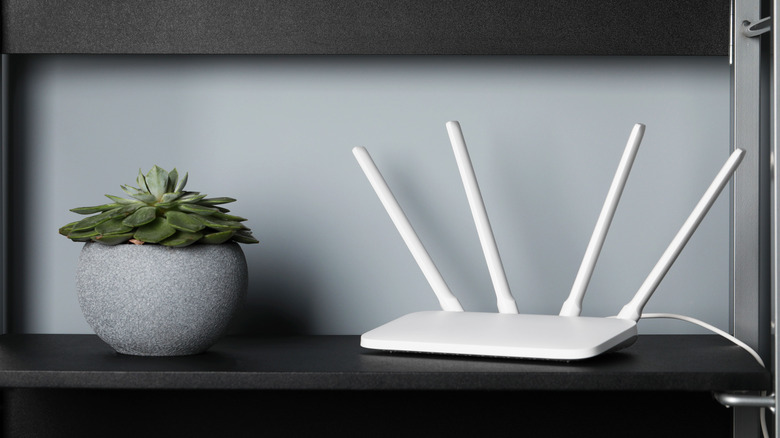
Linksys and other major manufacturers emphasize that placing a Wi-Fi router in an open, visible area can increase its signal strength by up to two times compared to hiding the device inside a closet or behind a television. For multi-story homes, the strategic router placement to eliminate wifi dead zones involves placing the unit on the middle floor and orienting the antennas at varying angles to cover both horizontal and vertical planes.
Radio Frequency Interference (RFI) from microwave ovens and older cordless phones also degrades the Signal-to-Noise Ratio (SNR). By elevating your router onto a shelf or mounting it on a wall, you minimize the number of obstacles the signal must penetrate, ensuring a cleaner path to your smartphones, laptops, and IoT hubs.
The Fresh Start: Factory Reset and Firmware Updates
Sometimes, minor tweaks aren't enough. If you’ve inherited a router with years of messy configurations or if your device is prone to random crashes, a factory reset might be your best move. This clears out temporary software bugs and removes any outdated settings that might be slowing you down.
Before You Start: A factory reset will erase your SSID Management settings, Wi-Fi password, and custom DNS configurations. Ensure you have your ISP login credentials and your router’s default administrative login information (usually found on a sticker on the device) before proceeding.
To perform the reset, locate the recessed button on the back of the unit and hold it for roughly 30 seconds until the status lights flash. Once the device reboots, your first priority should be a router firmware update guide for maximum security and speed. Manufacturers frequently release patches that not only fix vulnerabilities but also refine the algorithms used for data packet handling.
Maintaining this habit is crucial; expert data suggests that home routers should be rebooted at least once per month to remove accumulated data files and maintain network throughput at factory speeds. How to factory reset router for better performance is often the simplest way to clear out "zombie" processes that consume CPU cycles in your router’s hardware.
Spectrum Management: Bands and Manual Channel Selection
Modern routers are multi-band powerhouses, but they often default to "Auto" settings that aren't optimized for your specific neighborhood's airwaves. In 2026, optimizing 6ghz band for wifi 6e compatible devices is the gold standard for high-bandwidth tasks like 8K streaming or VR gaming.
| Feature | 2.4 GHz | 5 GHz | 6 GHz |
|---|---|---|---|
| Range | High (penetrates walls) | Medium | Low (line of sight) |
| Speed | Low | High | Ultra-High |
| Interference | High (Common) | Low | Near Zero |
| Best Use | IoT Devices, Smart Bulbs | Streaming, Browsing | Gaming, VR, Wi-Fi 7 Clients |
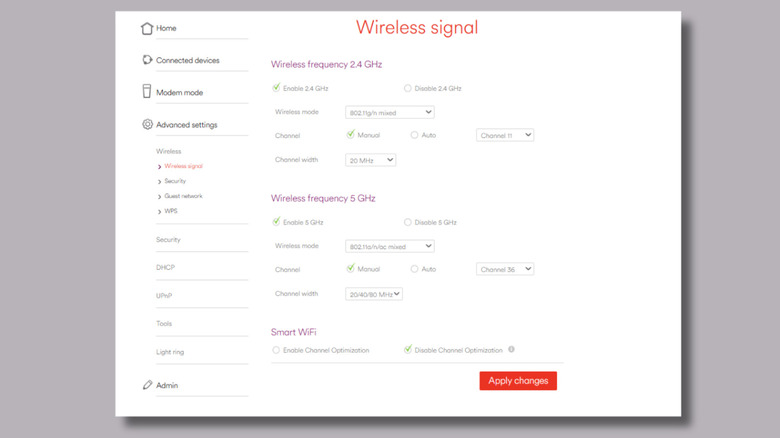
The manual wifi channel selection to avoid neighbor interference is a critical step in wifi channel configuration. Most 2.4GHz networks suffer from congestion because there are only three non-overlapping channels: 1, 6, and 11. Use a Wi-Fi analyzer app to see which channel your neighbors are using and switch your router to the least crowded one. For the 5GHz and 6GHz bands, wireless band optimization involves using wider channel widths (like 80MHz or 160MHz) to increase speed, provided your environment isn't overly crowded with other signals.
Advanced Tuning: QoS and Network Efficiency
Once the physical and spectral basics are covered, it is time to look at the Administrative Interface for advanced tuning. Configuring wifi settings for multi-device household stability often requires enabling Quality of Service (QoS). QoS allows you to prioritize specific types of traffic. For instance, you can tell your router to prioritize gaming packets and Zoom calls over large background downloads or smart fridge updates.
Another essential feature is MU-MIMO technology (Multiple-Input, Multiple-Output), which allows your router to communicate with multiple devices simultaneously rather than in a "round-robin" sequence. When paired with Beamforming—a technology that focuses the signal toward a specific device rather than broadcasting in every direction—you’ll notice a significant drop in network latency.
Don't overlook your DNS (Domain Name System) settings. Your ISP's default DNS is often slow and can lead to lag when you first try to load a webpage. Switching to a provider like Cloudflare (1.1.1.1) or Google (8.8.8.8) can shave milliseconds off your request times, making the entire internet feel snappier.
Hardware Ecosystem: Eliminating the Bottleneck
Optimization can only go so far if your hardware is a generation behind. If you are still using a Wi-Fi 5 router in a home full of Wi-Fi 6E and Wi-Fi 7 smartphones, you are leaving speed on the table. The benefits of upgrading to mesh wifi systems in 2026 cannot be overstated for larger homes. A mesh system uses multiple nodes to create a unified network, employing a dedicated Backhaul Connection (often on the 6GHz band) to ensure that the satellite units don't lose speed as they relay data.
Always ensure your client devices match your router's capabilities. If you have a high-end gaming PC, connect it via a Cat6a Ethernet cable whenever possible. While wireless is convenient, a wired connection provides the lowest possible latency and frees up the airwaves for your purely wireless IoT devices.
FAQ
How can I make my internet faster through router settings?
You can increase speed by updating your firmware, switching to a less congested Wi-Fi channel (1, 6, or 11 for 2.4GHz), and enabling the 5GHz or 6GHz bands for high-speed devices. Additionally, changing your DNS provider to Cloudflare (1.1.1.1) can reduce the time it takes for websites to start loading.
What are the best Wi-Fi settings for a stable connection?
For stability, enable Band Steering to allow the router to move devices between bands automatically. Ensure that MU-MIMO technology and Beamforming are turned on to help the router manage multiple devices. If you live in an apartment, manual wifi channel configuration is essential to avoid interference from neighboring networks.
Should I use the 2.4GHz or 5GHz band?
It depends on the device's location. Use the 2.4GHz band for smart home devices like light bulbs and sensors that are far from the router, as this frequency penetrates walls better. Use the 5GHz or 6GHz bands for devices that require high speed and low latency, such as gaming consoles and streaming boxes, provided they are in the same or an adjacent room.
What is QoS and should I turn it on?
Quality of Service (QoS) is a feature that lets you prioritize certain types of internet traffic. You should turn it on if you frequently experience lag during video calls or gaming while other people in your house are downloading files or streaming movies. It ensures your most important tasks get the bandwidth they need first.
How often should I update my router firmware?
You should check for firmware updates at least once every three months, though many modern routers can be set to update automatically. Frequent updates are vital for security and often include performance optimizations that help the router handle new types of network traffic more efficiently.
When should I reset my router to factory settings?
You should perform a factory reset if you are experiencing persistent performance issues that rebooting doesn't fix, if you've forgotten your administrative password, or if you've made several complex configuration changes that have made the network unstable. It’s also a good practice when moving the router to a new home or changing your ISP.