Quick Facts
- Release Date: April 6, 1992 (Codename Janus)
- Emulated Hardware: IBM PC AT, 8MHz CPU, 2MB RAM
- Interface: Classic 16-bit Graphical User Interface
- Compatibility: Runs in modern browsers (Chrome, Firefox, Safari) via JavaScript
- No Install Required: Access through PCjs Machines or Internet Archive
- Core Answer: You can run Windows 3.1 in your browser using the PCjs Machines emulator, which replicates an IBM PC AT environment with 2MB of RAM. This JavaScript-powered virtualization technology loads original system diskettes directly into a web page, allowing you to boot into the legacy 16-bit operating system without installing any software or specialized hardware.
Experience a trip down memory lane. You can run a Windows 3.1 emulator directly in your browser using virtualization technology that recreates the 1992 experience without any installation. Whether you are a veteran PC builder who remembers the struggle of IRQ conflicts or a curious professional looking to see where modern computing began, this guide explains how to run Windows 3.1 in browser environments with just a few clicks.
Recreating the 1992 Desktop: Hardware Specs
Before we dive into the software, we need to talk about the iron. Back in 1992, the PC landscape was defined by the transition from text-based DOS to the graphical promise of Windows. To make a Windows 3.1 emulator work inside a modern web browser like Chrome or Firefox, developers use sophisticated virtualization technology. This isn't just a video player; it is a full simulation of the original silicon.
The most accurate tools, such as those found on PCjs.org, allow users to experience Windows 3.1 by simulating an original IBM PC AT configuration with 8 megahertz of processing power and 2 megabytes of RAM. To put that in perspective, your modern smartphone is thousands of times more powerful, yet recreating that specific 80286 or 80386 architecture in JavaScript is a feat of engineering.
When you boot the emulator, you are essentially watching a digital recreation of a cold-boot sequence. The emulator handles the MS-DOS environment first, often loading the HIMEM.SYS driver to manage that "massive" 2MB of memory before finally executing the WIN.COM command. For the best experience, I recommend looking for Windows 3.1 online emulator performance tips such as enabling the full-screen VGA display mode. This ensures the 640x480 resolution scales correctly on your 4K monitor, giving you that authentic, slightly pixelated computing nostalgia.
Navigating the Windows 3.1 Program Manager features
Once the system boots, you are greeted by the Program Manager. For those who grew up with the Windows 95 taskbar or the modern Windows 11 Start Menu, the Windows 3.1 Program Manager features might seem primitive, but they were revolutionary for their time. This was the era of the 16-bit operating system, where every window was a literal box and multitasking was a luxury.
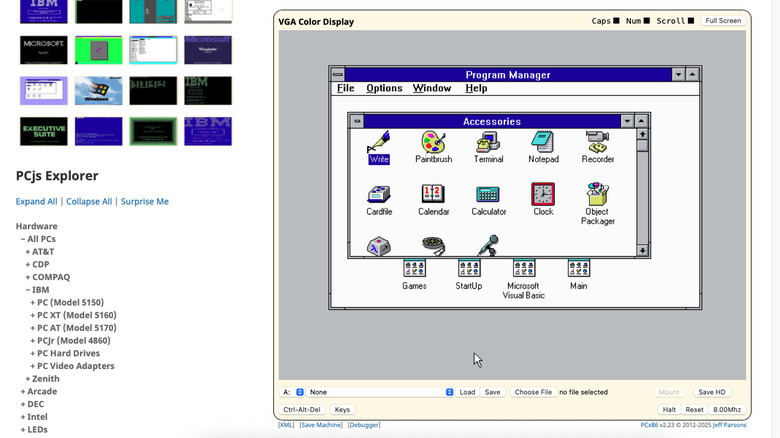
In this PCjs Windows 3.1 walkthrough, the first thing you should do is open the Main group. Here, you’ll find the File Manager (WINFILE.EXE). Learning how to use File Manager in Windows 3.1 emulator is essential because this was before the days of "Windows Explorer." You navigate through drive icons (A:, C:, and sometimes a simulated D:) to manage your files.
The Graphical User Interface also includes the Control Panel, which looks remarkably similar to the one we still use today, albeit with fewer options and much more gray plastic-look aesthetics. If you are following a Windows 3.1 Program Manager features guide, pay close attention to the "Accessories" group. This is where you will find:
- Notepad: Still the go-to for quick text edits.
- Paintbrush: The predecessor to MS Paint, featuring a limited but charming color palette.
- Write: A simple word processor that predated the ubiquity of Microsoft Word.
- Terminal: A tool used for serial communications and early dial-up networking.
Reliving the Fun: Retro Windows 3.1 Software and Games
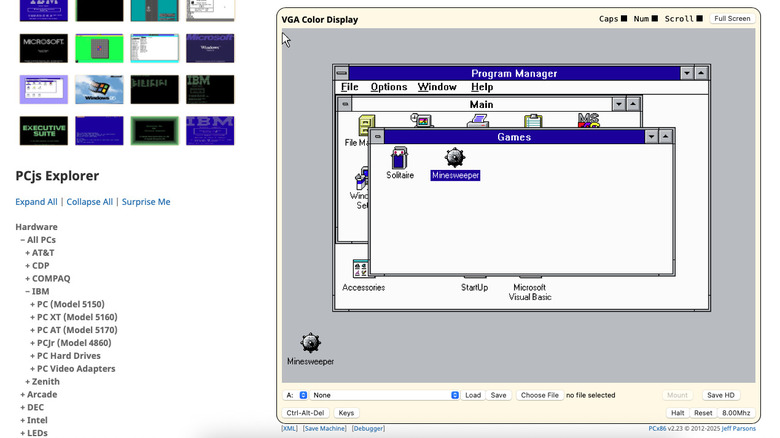
While Windows was built for work, many of us remember it for the play. The retro Windows 3.1 software and games available in these emulators provide a massive dose of nostalgia. The most famous, of course, are the pre-installed time-wasters that lived in the Games group.
You haven't truly lived through the 90s until you've accidentally clicked a mine in WINMINE.EXE. The Internet Archive hosts a collection of more than 1,000 Windows 3.1 programs and games that can be run directly in a web browser. This includes iconic titles like:
- Minesweeper: The ultimate test of logic and luck.
- Solitaire: The game that taught the world how to use a mouse (specifically the click-and-drag motion).
- The Oregon Trail: A staple of the school computer lab.
- King's Quest: A classic adventure game that showcased what the VGA display mode could do.
Running classic Windows games in browser is surprisingly smooth because modern CPUs can easily handle the 16-bit logic. However, the sound can sometimes be a bit "crunchy" depending on how the emulator handles the PC speaker or the SoundBlaster emulation. If you are looking for abandonware or shareware versions of early productivity tools, the Internet Archive's integration is the gold standard, providing a one-click "Power On" button for hundreds of historical titles.
Performance Reality Check: Best Browser Based Windows Emulators
Not all emulators are created equal. When you are looking for the best browser based Windows emulators, you generally have three main options, each with its own technical approach.
- PCjs Machines: This is my personal favorite for technical accuracy. It focuses on the cycle-accurate simulation of the original IBM PC AT hardware. It is perfect for those who want to see the system boot from a "floppy disk" and experience the actual speed of a 1992 machine.
- Virtual x86: This emulator is incredibly fast. It uses a different type of virtualization technology that allows it to run more modern versions of Linux and Windows (even Windows 95 or 98) within the browser. It’s great if you want to skip the BIOS screens and get straight to work.
- JSMESS (The Internet Archive): This is the most user-friendly. It packages the Windows 3.1 emulator with specific software titles. If you just want to play a specific game without worrying about system files, this is the way to go.
For those seeking Windows 3.1 online emulator performance tips, always remember to disable hardware acceleration in your browser if you notice visual glitches. Also, since these are legacy software environments, they don't always handle modern high-polling rate gaming mice well. If your cursor is flying across the screen, try lowering your mouse DPI.
FAQ
Is it possible to run Windows 3.1 in a web browser?
Yes, it is fully possible thanks to JavaScript-based x86 emulators like PCjs and Virtual x86. These tools simulate the underlying hardware of an early 90s PC, allowing the original 16-bit operating system to think it is running on a physical machine while actually executing inside your browser's sandbox.
What is the best emulator for Windows 3.1?
The best emulator depends on your goals. For historical accuracy and a deep dive into the boot process, PCjs Machines is the industry standard. For a massive library of pre-configured games and software, the Internet Archive's JSMESS-based collection is the most accessible choice for most users.
Can you play Windows 3.1 games on a modern PC?
You can play them using an emulator. Since modern 64-bit versions of Windows 10 and 11 have dropped support for 16-bit applications, you cannot run the original files directly. Using a browser-based emulator or a local solution like DOSBox is the most effective way to enjoy classic titles like Minesweeper, Solitaire, or Chip's Challenge.
How do I transfer files to a Windows 3.1 emulator?
Most browser-based emulators use virtual disk images (.img or .dsk files). In the PCjs emulator, you can often "mount" a local file as a virtual floppy disk. However, for most users, it is easier to use the software already pre-loaded in the Internet Archive's repository, as manual file transfer in a browser environment can be technically complex.
Is Windows 3.1 free to download now?
While Microsoft no longer sells or supports Windows 3.1, it is technically not "freeware." However, it is widely considered abandonware, which is why institutions like the Internet Archive are able to host it for historical and educational preservation. You won't find it on the Microsoft Store, but the retro community keeps it alive through these emulation platforms.